Implementing Sessions API for the event in Open Event Frontend

This article will illustrate how the sessions are displayed and updated on the events/{event_id}/sessions route to display the sessions available for a particular event using the sessions API in Open Event Frontend. The primary end point of Open Event API with which we are concerned with for fetching the sessions is GET /v1/sessions/{session_id} First, we need to create a model for the sessions, which will have the fields corresponding to the API, so we proceed with the ember CLI command: ember g model session Next, we need to define the model according to the requirements. The model needs to extend the base model class. As a session can have multiple speakers and a session always belongs to an event, so we have to use ember data relationships “hasMany” and “belongsTo”. Hence, the model will have the following format. import ModelBase from 'open-event-frontend/models/base'; import { belongsTo, hasMany } from 'ember-data/relationships'; export default ModelBase.extend({ title : attr('string'), subtitle : attr('string'), speakers : hasMany('speaker'), event : belongsTo('event') }); Complete code for the model can be seen here Now, we need to load the data from the API using the above model, so we will send a GET request to the API to fetch the sessions corresponding to a particular event. This can be easily achieved using this. return this.modelFor('events.view').query('sessions'); The above line is asking for getting the current model that is on the route events.view and query for the sessions property from that model. Now we need to filter the sessions based on their sessions whether they have been accepted or confirmed or pending or rejected and display them on different pages. For this purpose, we need to pass filter and pages to the query which will tell what type and now of sessions to be loaded at once. Also, we need to display the speakers associated with session and event details. For this case, the above query will be formatted like this. return this.modelFor('events.view').query('sessions', { include : 'event,speakers', filter : filterOptions, 'page[size]' : 10 }); In the above query, the filterOptions are designed in such a way which check for what type of sessions user is querying for. The code can be found here. The next thing we need to do is to display the above data fetched from the API into an ember table. For this, we need to have a controller class which will help in letting the table know what all columns will be required to display and the attribute values they correspond in the API. We can also define the template for each column. The code for the controller class looks like this. export default Controller.extend({ columns: [ { propertyName : 'state', title : 'State', disableSorting : true, template : 'components/ui-table/cell/events/view/sessions/cell-session-state' }, { propertyName : 'title', title : 'Title' }, { propertyName : 'speakers', template : 'components/ui-table/cell/cell-speakers', title : 'Speakers', disableSorting : true }] }); In the above code, we can see a field called ‘disableSorting’ which is true if we don’t want to sort the table based…

Continue ReadingImplementing Sessions API for the event in Open Event Frontend

Adding Service Workers In Generated Event Websites In Open Event Webapp

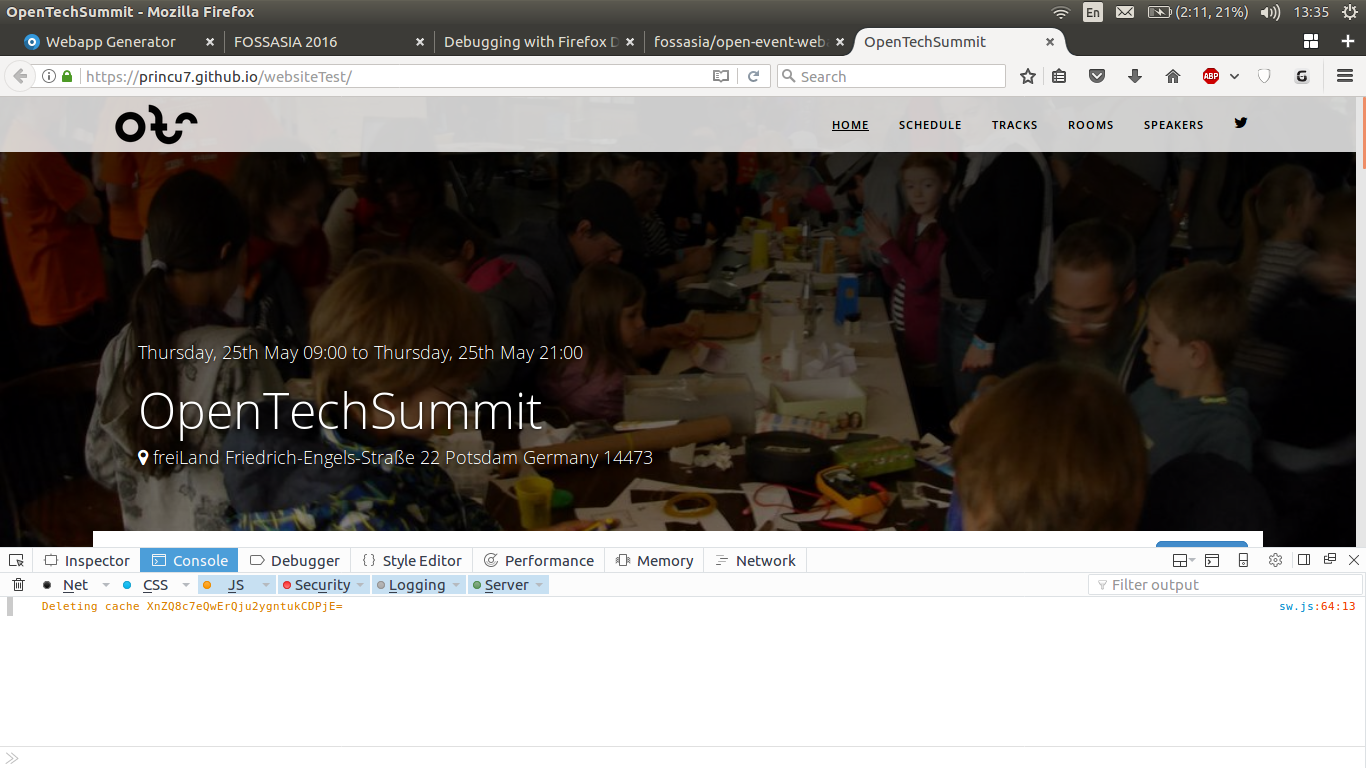
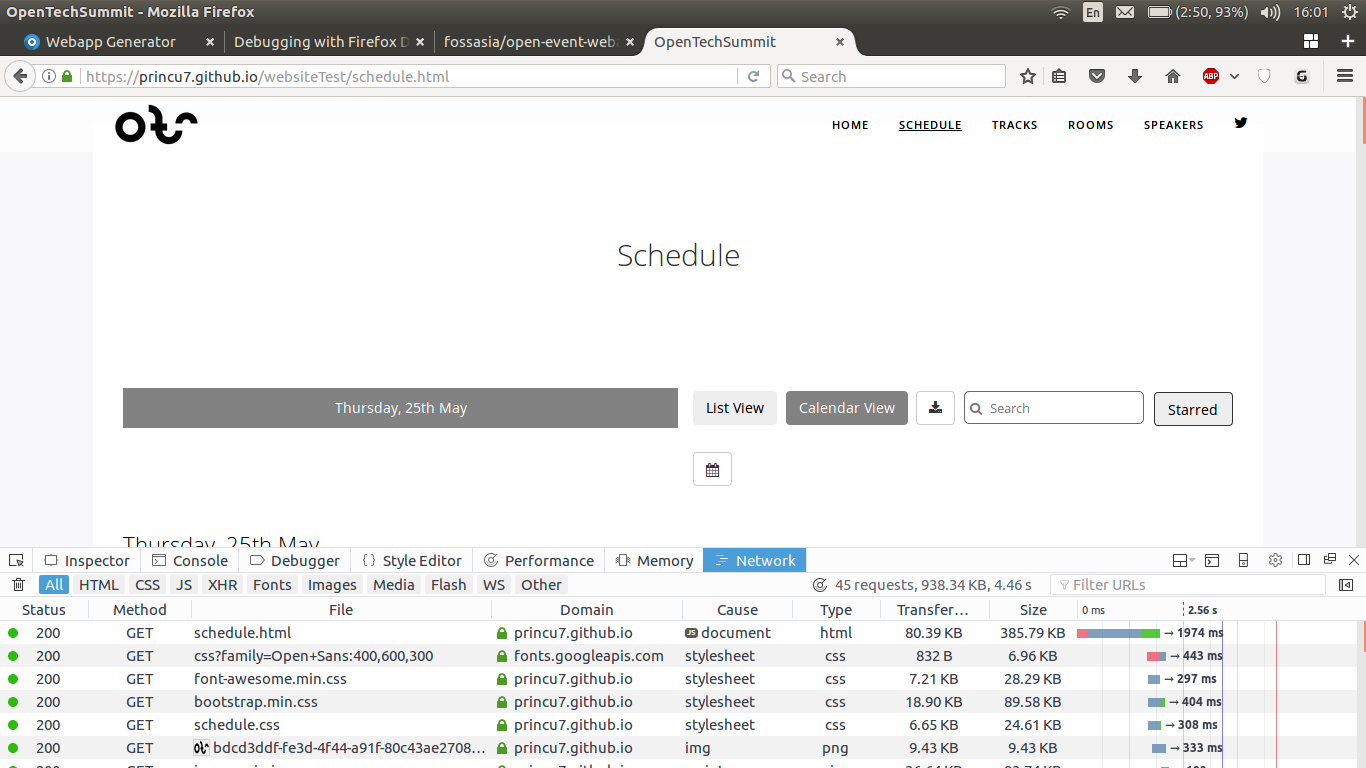
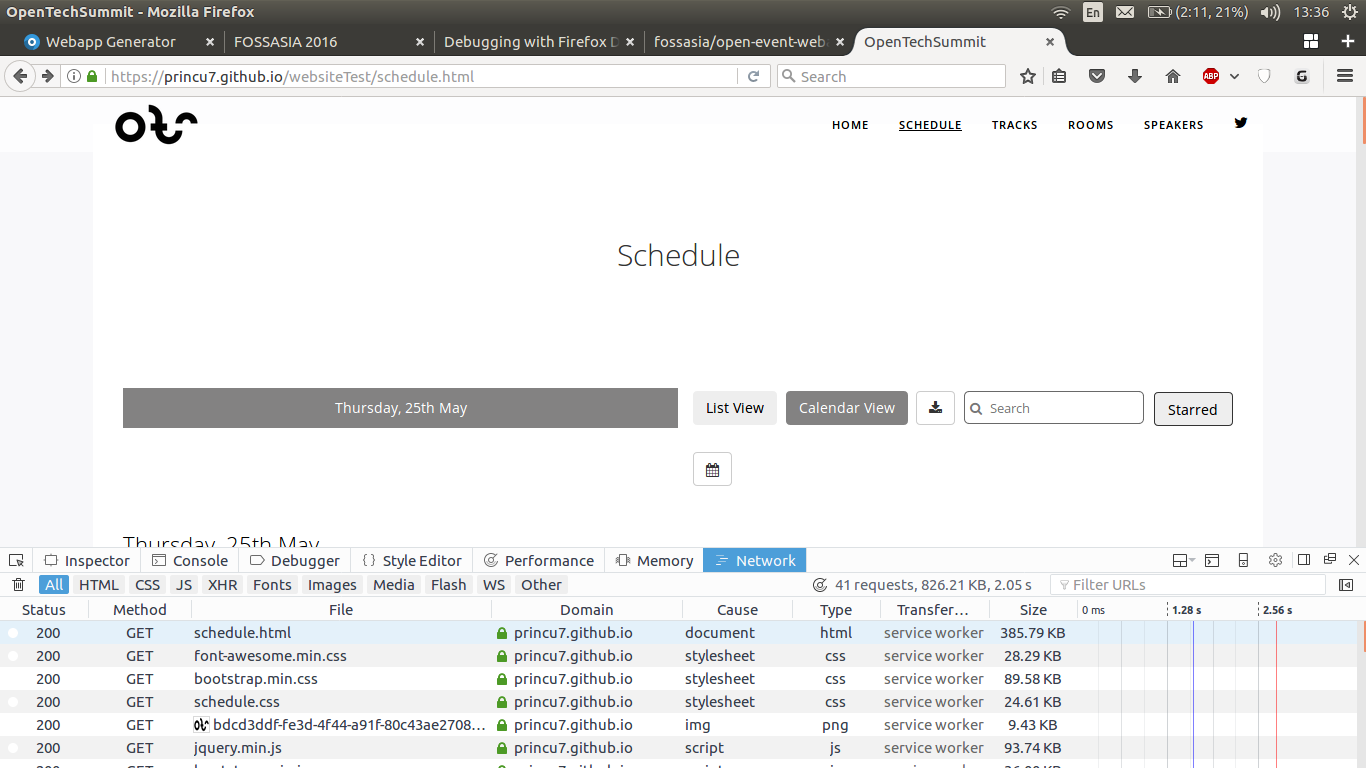
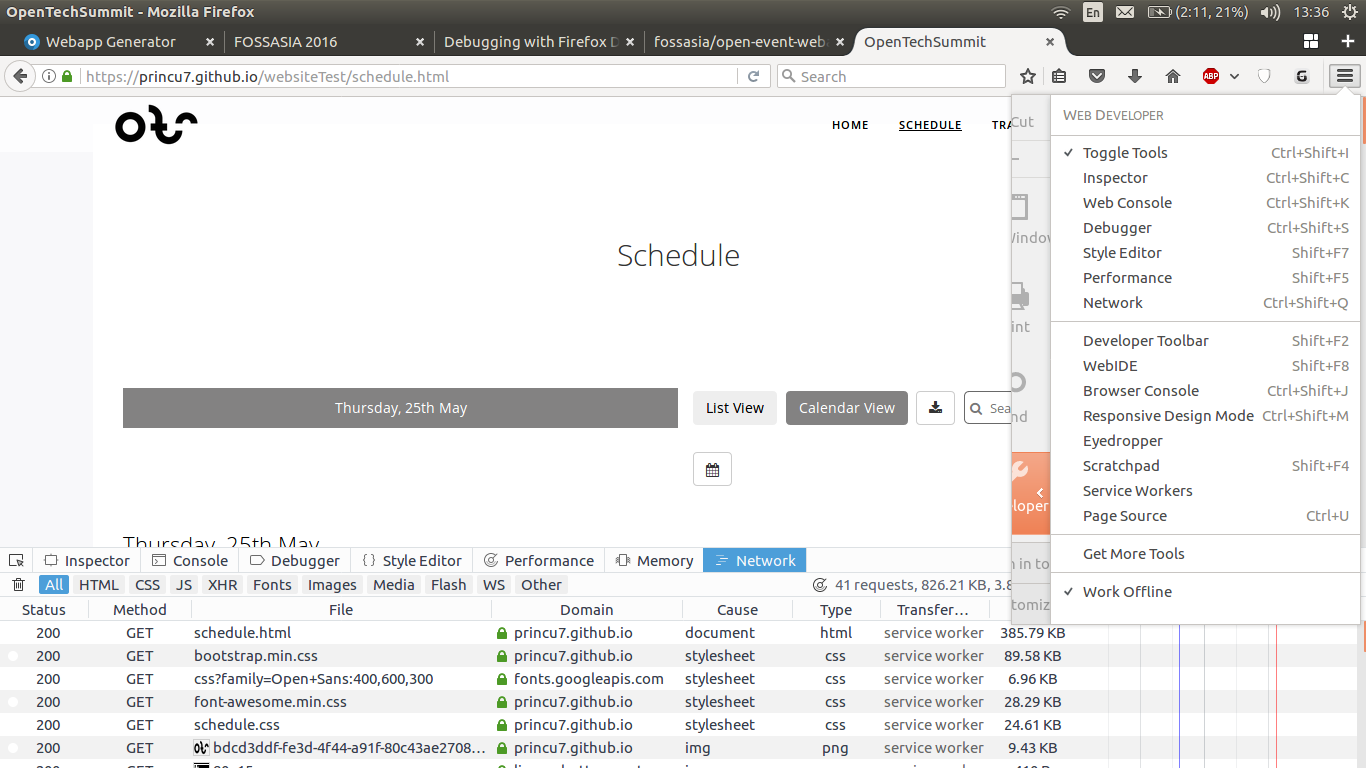
Open Event Webapp Generator takes in the event data in form of a JSON zip or an API endpoint as input and outputs an event website. Since the generated event websites are static, we can use caching of static assets to improve the page-load time significantly. All this has been made possible by the introduction of service workers in the browsers. Service workers are event-driven scripts (written in JavaScript) that have access to domain-wide events, including network fetches.With the help of service workers, we can cache all static resources, which could drastically reduce network requests and improve performance considerably, too. The service workers are like a proxy which sits between the browser and the network and intercept it. We will listen for fetch events on these workers and whenever a request for a resource is made, we intercept and process it first. Since our generated event sites are static, it makes no sense to fetch the assets again and again. When a user first loads a page, the script gets activated and try to cache all the static assets it can. On further reload of the page, whenever the browser request for an already stored asset, instead of fetching it from the network, it can directly give them back to the browser from the local store. Also, in the meantime, it is also caching all the new static assets so they won't be loaded or fetched again from the network later. Thus the performance of the app gets increased more and more with every reload. It becomes fully functional offline after a few page loads. The issue for this feature is here and the whole work can be seen here. To know more details about the basic functioning and the lifecycle of the service workers, check out this excellent Google Developers article. This blog mainly focuses on how we added service workers in the event websites. We create a new fallback HTML page offline.html to return in response to an offline user who requests a page which has not been cached yet. Similarly, for images, we have a fallback image named avatar.png which is returned when the requested image is not present in the local store and the network is down. Since these assets are integral to the functioning of the service worker, we cache them in the installation step itself. The whole service worker file can be seen here var urlsToCache = [ './css/bootstrap.min.css', './offline.html', './images/avatar.png' ]; self.addEventListener('install', function(event) { event.waitUntil( caches.open(CACHE_NAME).then(function(cache) { return cache.addAll(urlsToCache); }) ); }); All the other assets are cached lazily. Only when they are requested, we fetch them from the network and store it in the local store. This way, we avoid caching a large number of assets at the install step. Caching of several files in the install step is not recommended since if any of the listed files fails to download and cache, then the service worker won’t be installed! self.addEventListener('fetch', function(event) { event.respondWith(caches.match(event.request).then(function(response) { // Cache hit - return response if (response) { return response; } // Fetch resource from internet and put…

Continue ReadingAdding Service Workers In Generated Event Websites In Open Event Webapp

Customising URL Using Custom Adapters in Open Event Front-end

Open-Event Front-end uses Ember data for handling Open Event Orga API which abides by JSON API specs. The API has relationships which represent models in the database, however there are some API endpoints for which the URL is not direct. We make use of custom adapter to build a custom URL for the requests. In this blog we will see how to Implement relationships which do not have a model in the API server. Lets see how we implemented the admin-statistics-event API using custom adapter? Creating Order-statistics model To create a new model we use ember-cli command: ember g model admin-statistics-event The generated model: export default ModelBase.extend({ draft : attr('number'), published : attr('number'), past : attr('number') }) The API returns 3 attributes namely draft, published & past which represent the total number of drafted, live and past event in the system. The admin-statistics-event is an admin related model. Creating custom adapter To create a new adapter we use ember-cli command: ember g adapter event-statistics-event If we try to do a GET request the URL for the request will be ‘v1/admin-statistics-event’ which is an incorrect endpoint. We create a custom adapter to override the buildURL method. buildURL(modelName, id, snapshot, requestType, query) { let url = this._super(modelName, id, snapshot, requestType, query); url = url.replace('admin-statistics-event', 'admin/statistics/event'); return url; } We create a new variable url which holds the url generated by the buildURL method of the super adapter. We call the super method using ‘this._super’. We will now replace the ‘admin-statistics-event’ with ‘admin/statistics/event’ in url variable. We return the new url variable. This results in generation of correct URL for the request. Thank you for reading the blog, you can check the source code for the example here. Resources Official Ember Data documentation Ember custom adapter guide

Continue ReadingCustomising URL Using Custom Adapters in Open Event Front-end

Preparing for Automatic Publishing of Android Apps in Play Store

I spent this week searching through libraries and services which provide a way to publish built apks directly through API so that the repositories for Android apps can trigger publishing automatically after each push on master branch. The projects to be auto-deployed are: Open Event Orga App Open Event Android PSLab Android Loklak Wok Android Phimpe Android SUSI Android I had eyes on fastlane for a couple of months and it came out to be the best solution for the task. The tool not only allows publishing of APK files, but also Play Store listings, screenshots, and changelogs. And that is only a subset of its capabilities bundled in a subservice supply. There is a process before getting started to use this service, which I will go through step by step in this blog. The process is also outlined in the README of the supply project. Enabling API Access The first step in the process is to enable API access in your Play Store Developer account if you haven’t done so. For that, you have to open the Play Dev Console and go to Settings > Developer Account > API access. If this is the first time you are opening it, you’ll be presented with a confirmation dialog detailing about the ramifications of the action and if you agree to do so. Read carefully about the terms and click accept if you agree with them. Once you do, you’ll be presented with a setting panel like this: Creating Service Account As you can see there is no registered service account here and we need to create one. So, click on CREATE SERVICE ACCOUNT button and this dialog will pop up giving you the instructions on how to do so: So, open the highlighted link in the new tab and Google API Console will open up, which will look something like this: Click on Create Service Account and fill in these details: Account Name: Any name you want Role: Project > Service Account Actor And then, select Furnish a new private key and select JSON. Click CREATE. A new JSON key will be created and downloaded on your device. Keep this secret as anyone with access to it can at least change play store listings of your apps if not upload new apps in place of existing ones (as they are protected by signing keys). Granting Access Now return to the Play Console tab (we were there in Figure 2 at the start of Creating Service Account), and click done as you have created the Service Account now. And you should see the created service account listed like this: Now click on grant access, choose Release Manager from Role dropdown, and select these PERMISSIONS: Of course you don’t want the fastlane API to access financial data or manage orders. Other than that it is up to you on what to allow or disallow. Same choice with expiry date as we have left it to never expire. Click on ADD USER and…

Continue ReadingPreparing for Automatic Publishing of Android Apps in Play Store

Create Event by Importing JSON files in Open Event Server

Apart from the usual way of creating an event in  FOSSASIA’s Orga Server project by using POST requests in Events API, another way of creating events is importing a zip file which is an archive of multiple JSON files. This way you can create a large event like FOSSASIA with lots of data related to sessions, speakers, microlocations, sponsors just by uploading JSON files to the system. Sample JSON file can be found in the open-event project of FOSSASIA. The basic workflow of importing an event and how it works is as follows: First step is similar to uploading files to the server. We need to send a POST request with a multipart form data with the zipped archive containing the JSON files. The POST request starts a celery task to start importing data from JSON files and storing them in the database. The celery task URL is returned as a response to the POST request. You can use this celery task for polling purposes to get the status. If the status is FAILURE, we get the error text along with it. If status is SUCCESS we get the resulting event data In the celery task, each JSON file is read separately and the data is stored in the db with the proper relations. Sending a GET request to the above mentioned celery task, after the task has been completed returns the event id along with the event URL. Let’s see how each of these points work in the background. Uploading ZIP containing JSON Files For uploading a zip archive instead of sending a JSON data in the POST request we send a multipart form data. The multipart/form-data format of sending data allows an entire file to be sent as a data in the POST request along with the relevant file informations. One can know about various form content types here . An example cURL request looks something like this: curl -H "Authorization: JWT <access token>" -X POST -F 'file=@event1.zip' http://localhost:5000/v1/events/import/json The above cURL request uploads a file event1.zip from your current directory with the key as ‘file’ to the endpoint /v1/events/import/json. The user uploading the feels needs to have a JWT authentication key or in other words be logged in to the system as it is necessary to create an event. @import_routes.route('/events/import/<string:source_type>', methods=['POST']) @jwt_required() def import_event(source_type): if source_type == 'json': file_path = get_file_from_request(['zip']) else: file_path = None abort(404) from helpers.tasks import import_event_task task = import_event_task.delay(email=current_identity.email, file=file_path, source_type=source_type, creator_id=current_identity.id) # create import job create_import_job(task.id) # if testing if current_app.config.get('CELERY_ALWAYS_EAGER'): TASK_RESULTS[task.id] = { 'result': task.get(), 'state': task.state } return jsonify( task_url=url_for('tasks.celery_task', task_id=task.id) ) After the request is received we check if a file exists in the key ‘file’ of the form-data. If it is there, we save the file and get the path to the saved file. Then we send this path over to the celery task and run the task with the .delay() function of celery. After the celery task is started, the corresponding data about the import job is…

Continue ReadingCreate Event by Importing JSON files in Open Event Server

Image Loading in Open Event Organizer Android App using Glide

Open Event Organizer is an Android App for the Event Organizers and Entry Managers. Open Event API Server acts as a backend for this App. The core feature of the App is to scan a QR code from the ticket to validate an attendee's check in. Other features of the App are to display an overview of sales and ticket management. As per the functionality, the performance of the App is very important. The App should be functional even on a weak network. Talking about the performance, the image loading part in the app should be handled efficiently as it is not an essential part of the functionality of the App. Open Event Organizer uses Glide, a fast and efficient image loading library created by Sam Judd. I will be talking about its implementation in the App in this blog. First part is the configuration of the glide in the App. The library provides a very easy way to do that. Your app needs to implement a class named AppGlideModule using annotations provided by the library and it generates a glide API which can be used in the app for all the image loading stuff. The AppGlideModule implementation in the Orga App looks like: @GlideModule public final class GlideAPI extends AppGlideModule { @Override public void registerComponents(Context context, Glide glide, Registry registry) { registry.replace(GlideUrl.class, InputStream.class, new OkHttpUrlLoader.Factory()); } // TODO: Modify the options here according to the need @Override public void applyOptions(Context context, GlideBuilder builder) { int diskCacheSizeBytes = 1024 * 1024 * 10; // 10mb builder.setDiskCache(new InternalCacheDiskCacheFactory(context, diskCacheSizeBytes)); } @Override public boolean isManifestParsingEnabled() { return false; } }   This generates the API named GlideApp by default in the same package which can be used in the whole app. Just make sure to add the annotation @GlideModule to this implementation which is used to find this class in the app. The second part is using the generated API GlideApp in the app to load images using URLs. Orga App uses data binding for layouts. So all the image loading related code is placed at a single place in DataBinding class which is used by the layouts. The class has a method named setGlideImage which takes an image view, an image URL, a placeholder drawable and a transformation. The relevant code is: private static void setGlideImage(ImageView imageView, String url, Drawable drawable, Transformation<Bitmap> transformation) { if (TextUtils.isEmpty(url)) { if (drawable != null) imageView.setImageDrawable(drawable); return; } GlideRequest<Drawable> request = GlideApp .with(imageView.getContext()) .load(Uri.parse(url)); if (drawable != null) { request .placeholder(drawable) .error(drawable); } request .centerCrop() .transition(withCrossFade()) .transform(transformation == null ? new CenterCrop() : transformation) .into(imageView); }   The method is very clear. First, the URL is checked for nullability. If null, the drawable is set to the imageview and method returns. Usage of GlideApp is simpler. Pass the URL to the GlideApp using the method with which returns a GlideRequest which has operators to set other required options like transitions, transformations, placeholder etc. Lastly, pass the imageview using into operator. By default, Glide uses HttpURLConnection…

Continue ReadingImage Loading in Open Event Organizer Android App using Glide

Adding Static Code Analyzers in Open Event Orga Android App

This week, in Open Event Orga App project (Github Repo), we wanted to add some static code analysers that run on each build to ensure that the app code is free of potential bugs and follows a certain style. Codacy handles a few of these things, but it is quirky and sometimes produces false positives. Furthermore, it is not a required check for builds so errors can creep in gradually. We chose checkstyle, PMD and Findbugs for static analysis as they are most popular for Java. The area they work on kind of overlaps but gives security regarding code quality. Findbugs actually analyses the bytecode instead of source code to find possible JVM bugs. Adding dependencies The first step was to add the required dependencies. We chose the library android-check as it contained all 3 libraries and was focused on Android and easily configurable. First, we add classpath in project level build.gradle dependencies { classpath 'com.noveogroup.android:check:1.2.4' }   Then, we apply the plugin in app level build.gradle apply plugin: 'com.noveogroup.android.check'   This much is enough to get you started, but by default, the build will not fail if any violations are found. To change this behaviour, we add this block in app level build.gradle check { abortOnError true }   There are many configuration options available for the library. Do check out the project github repo using the link provided above Configuration The default configuration is of easy level, and will be enough for most projects, but it is of course configurable. So we took the default hard configs for 3 analysers and disabled properties which we did not need. The place you need to store the config files is the config folder in either root project directory or the app directory. The name of the config file should be checkstyle.xml, pmd.xml and findbugs.xml These are the default settings and you can obviously configure them by following the instructions on the project repo Checkstyle For checkstyle, you can find the easy and hard configuration here The basic principle is that if you need to add a check, you include a module like this: <module name="NewlineAtEndOfFile" />   If you want to modify the default value of some property, you do it like this: <module name="RegexpSingleline"> <property name="format" value="\s+$" /> <property name="minimum" value="0" /> <property name="maximum" value="0" /> <property name="message" value="Line has trailing spaces." /> <property name="severity" value="info" /> </module>   And if you want to remove a check, you can ignore it like this: <module name="EqualsHashCode"> <property name="severity" value="ignore" /> </module>   It’s pretty straightforward and easy to configure. Findbugs For findbugs, you can find the easy and hard configuration here Findbugs configuration exists in the form of filters where we list resources it should skip analyzing, like: <Match> <Class name="~.*\.BuildConfig" /> </Match>   If we want to ignore a particular pattern, we can do so like this: <!-- No need to force hashCode for simple models --> <Match> <Bug pattern="HE_EQUALS_USE_HASHCODE " /> </Match>   Sometimes, you’d want to only…

Continue ReadingAdding Static Code Analyzers in Open Event Orga Android App

Implementing Admin Statistics Mail and Session API on Open Event Frontend

This blog article will illustrate how the admin-statistics-mail and admin-statistics-session API  are implemented on the admin dashboard page in Open Event Frontend.Our discussion primarily will involve the admin/index route to illustrate the process.The primary end points of Open Event API with which we are concerned with for fetching the admin statistics  for the dashboard are GET /v1/admin/statistics/mails GET /v1/admin/statistics/sessions First we need to create the corresponding models according to the type of the response returned by the server , which in this case will be admin-statistics-event and admin-statistics-sessions, so we proceed with the ember CLI commands: ember g model admin-statistics-mail ember g model admin-statistics-session Next we define the model according to the requirements. The model needs to extend the base model class, and all the fields will be number since the all the data obtained via these models from the API will be numerical statistics import attr from 'ember-data/attr'; import ModelBase from 'open-event-frontend/models/base'; export default ModelBase.extend({  oneDay     : attr('number'),  threeDays  : attr('number'),  sevenDays  : attr('number'),  thirtyDays : attr('number') }); And the model for sessions will be the following. It too will consist all the attributes of type number since it represents statistics import attr from 'ember-data/attr'; import ModelBase from 'open-event-frontend/models/base'; export default ModelBase.extend({  confirmed : attr('number'),  accepted  : attr('number'),  submitted : attr('number'),  draft     : attr('number'),  rejected  : attr('number'),  pending   : attr('number') }); Now we need to load the data from the api using the models, so will send a get request to the api to fetch the current permissions. This can be easily achieved via a store query in the model hook of the admin/index route.However this cannot be a normal get request. Because the the urls for the end point are /v1/admin/statistics/mails & /v1/admin/statistics/sessions but there are no relationships between statistics and various sub routes, which is what ember’s default behaviour would expect. Hence we need to override the generated default request url using custom adapters and use buildUrl method to customize the request urls. import ApplicationAdapter from './application'; export default ApplicationAdapter.extend({  buildURL(modelName, id, snapshot, requestType, query) {    let url = this._super(modelName, id, snapshot, requestType, query);    url = url.replace('admin-statistics-session', 'admin/statistics/session');    return url;  } }); The buildURL method replaces the the default  URL for admin-statistics-session  with admin/statistics/session otherwise the the default request would have been GET v1/admin-statistics-session Similarly it must be done for the mail statistics too. These will ensure that the correct request is sent to the server. Now all that remains is making the requests in the model hooks and adjusting the template slightly for the new model. model() {    return RSVP.hash({          mails: this.get('store').queryRecord('admin-statistics-mail', {        filter: {          name : 'id',          op   : 'eq',          val  : 1        }      }),      sessions: this.get('store').queryRecord('admin-statistics-session', {        filter: {          name : 'id',          op   : 'eq',          val  : 1        }      })    });  } queryRecord is used instead of query because only a single record is expected to be returned by the API. Resources Ember JS-models - Official ember documentation Ember JS adapters - Official ember documentation Open Event API Docs - authored by  Fossasia project…

Continue ReadingImplementing Admin Statistics Mail and Session API on Open Event Frontend

Implementing the UI of the Scheduler in Open Event Frontend with Sub Rooms and External Events

This blog article will illustrate how exactly the UI of the scheduler is implemented in  Open Event Frontend, using the fullcalendar library. Our discussion primarily will involve the events/view/scheduler  route. FullCalendar is an open source javascript scheduler with an option to use it’s scheduler functionality. To use it with ember JS, we make use of it’s ember-wrapper (ember-fullcalendar). We begin by installing it via CLI npm install ember-fullcalendar Next to initialise it, we need to specify some properties in the config/environment.js File. Note: It is wrongly mentioned in the official documentation. (issue) Hence specified in this blog. emberFullCalendar: { includeScheduler: true } This enables the scheduler functionality of the calendar, next we need to specify the model, which will include the details of the rooms and the events which need to be displayed, the full calendar scheduler requires them in a specific way, hence the model will hook will be: model() { return RSVP.hash({ events: [{ title : 'Session 1', start : '2017-07-26T07:08:08', end : '2017-07-26T09:08:08', resourceId : 'a' }], rooms: [ { id: 'a', title: 'Auditorium A' }, { id: 'b', title: 'Auditorium B', eventColor: 'green' }, { id: 'c', title: 'Auditorium C', eventColor: 'orange' }, { id : 'd', title : 'Auditorium D', children : [ { id: 'd1', title: 'Room D1' }, { id: 'd2', title: 'Room D2' } ] }, { id: 'e', title: 'Auditorium E' }, { id: 'f', title: 'Auditorium F', eventColor: 'red' } ] }); Now we begin with the basic structure we will require for the scheduler in the template files.Since we need an option of dragging and dropping external events, we will split the page into two columns, and make a separate component for storing the list of external events.The component is aptly named external-event-list. Hence the scheduler.hbs will have the following grid column structure. <div class="ui grid"> <div class="row"> <div class="three wide column"> {{scheduler/external-event-list}} </div> <div class="thirteen wide column"> {{full-calendar events=model.events editable=true resources=model.rooms header=header views=views viewName='timelineDay' drop=(action 'drop') eventReceive=(action 'eventReceive') ondragover=(action 'eventDrop') }} </div> </div> </div> It is important to note here that the full-calendar has various callbacks which are triggered when the events are dragged and dropped. The editable property allows the user to change the events’ venue and timeline, and is enabled only for the organiser of the event. The resources refer to the rooms/locations where the session/events will be held. Since ember executes functionality via functions, each of the standard callback of the full calendar has been translated into an action. Please see the official docs for what each callback does.The only thing which remains is the list of external events. It is necessary for the actual event to be wrapped in fc-event spans, as  they are the default classes for full calendar, and the calendar is able to fetch the event or session name from these spans. <div id='external-events'> <h4 class="ui header">{{t 'Events'}}</h4> <span class='fc-event' draggable="true">My Event 1</span> <span class='fc-event' draggable="true">My Event 2</span> <span class='fc-event' draggable="true">My Event 3</span> </div> Whenever the events will be dragged and…

Continue ReadingImplementing the UI of the Scheduler in Open Event Frontend with Sub Rooms and External Events

Handling Requests for hasMany Relationships in Open Event Front-end

In Open Event Front-end we use Ember Data and JSON API specs to integrate the application with the server. Ember Data provides an easy way to handle API requests, however it does not support a direct POST for saving bulk data which was the problem we faced while implementing event creation using the API. In this blog we will take a look at how we implemented POST requests for saving hasMany relationships, using an example of sessions-speakers route to see how we saved the tracks, microlocations & session-types. Lets see how we did it. Fetching the data from the server Ember by default does not support hasMany requests for getting related model data. However we can use external add on which enable the hasMany Get requests, we use ember-data-has-many-query which is a great add on for querying hasMany relations of a model. let data = this.modelFor('events.view.edit'); data.tracks = data.event.get('tracks'); data.microlocations = data.event.get('microlocations'); data.sessionTypes = data.event.get('sessionTypes'); return RSVP.hash(data); In the above example we are querying the tracks, microlocations & sessionTypes which are hasMany relationships, related to the events model. We can simply do a to do a GET request for the related model. data.event.get('tracks'); In the above example we are retrieving the all the tracks of the event. Sending a POST request for hasMany relationship Ember currently does not saving bulk data POST requests for hasMany relations. We solved this by doing a POST request for individual data of the hasMany array. We start with creating a `promises` array which contains all the individual requests. We then iterate over all the hasMany relations & push it to the `promises` array. Now each request is an individual promise. let promises = []; promises.push(this.get('model.event.tracks').toArray().map(track => track.save())); promises.push(this.get('model.event.sessionTypes').toArray().map(type => type.save())); promises.push(this.get('model.event.microlocations').toArray().map(location => location.save())); Once we have all the promises we then use RSVP to make the POST requests. We make use of all() method which takes an array of promises as parameter and resolves all the promises. If the promises are not resolved successfully then we simply notify the user using the notify service, else we redirect to the home page. RSVP.Promise.all(promises) .then(() => { this.transitionToRoute('index'); }, function() { this.get('notify').error(this.l10n.t(‘Data did not save. Please try again')); }); The result of this we can now retrieve & create new tracks, microlocations & sessionTypes on sessions-speakers route. Thank you for reading the blog, you can check the source code for the example here. Resources Official Ember Data documentation Official JSON API specs Blog on ember data by Pooyan Khosravy  

Continue ReadingHandling Requests for hasMany Relationships in Open Event Front-end