How to Make Promotional Codes Applicable on Tickets During Ordering in Open Event Frontend

This blog illustrate how to enable application of promotional codes on tickets during ordering tickets in Open Event Frontend to avail discounts and access to special tickets. Open event allows organizers to add some promotional codes on some tickets, which can be used by users to avail additional offers on tickets while ordering. Promotional codes can be of three types: Discount Codes: Allows customers to buy a ticket at discounted rates. Access Codes: Allows customers to access some hidden tickets which are accessible only to special customers. Discount + Access Code: Allows customer to access special tickets and avail discount at the same time. Creating a discount/access code: Organizers and admin can create an access code or a discount code from the event dashboard. They can specify the validity period of the code and can also specify the tickets on which the code will be applicable. Validating promotional code after user enters the code: User is allowed to enter the promotional code on events page upon selecting the tickets. IF promotional code is valid then suitable discount is provided on applicable tickets and if promotional code is an access code then hidden tickets for which the promotional code is valid are shown. To check the validity of the promotional code we deal with the following APIs on the open event server: GET             /v1/discount-codes/{Code}              (For Discount code) GET             /v1/access-codes/{Code}                  (For Access code) Code snippet to check the validity for access code is given below: let promotionalCode = this.get('promotionalCode'); let order = this.get('order'); try { let accessCode = await this.get('store').findRecord('access-code', promotionalCode, {}); order.set('accessCode', accessCode); let tickets = await accessCode.get('tickets'); tickets.forEach(ticket => { ticket.set('isHidden', false); this.get('tickets').addObject(ticket); this.get('accessCodeTickets').addObject(ticket); this.set('invalidPromotionalCode', false); }); } catch (e) { this.set('invalidPromotionalCode', true); }   Full code can be seen here https://github.com/fossasia/open-event-frontend/blob/development/app/components/public/ticket-list.js Similarly for discount code we fetch the details of the discount code via the api and then validate the code. After the validation we apply the discount to the tickets applicable. Code snippet for the discount code part is given below: try { let discountCode = await this.get('store').findRecord('discount-code', promotionalCode, { include: 'tickets' }); let discountType = discountCode.get('type'); let discountValue = discountCode.get('value'); order.set('discountCode', discountCode); let tickets = await discountCode.get('tickets'); tickets.forEach(ticket => { let ticketPrice = ticket.get('price'); if (discountType === 'amount') { ticket.set('discount', Math.min(ticketPrice, discountValue)); this.get('discountedTickets').addObject(ticket); } else { ticket.set('discount', ticketPrice * (discountValue / 100)); this.get('discountedTickets').addObject(ticket); } this.set('invalidPromotionalCode', false); }); } catch (e) { if (this.get('invalidPromotionalCode')) { this.set('invalidPromotionalCode', true); } }   Full code can be seen https://github.com/fossasia/open-event-frontend/blob/development/app/components/public/ticket-list.js After promotional codes are verified we apply them to the selected tickets. In this way we apply the promotional codes to the tickets. Resources Link to PR: https://github.com/fossasia/open-event-frontend/pull/1631 Discount Code: open event server: https://open-event-api-dev.herokuapp.com/#discount-codes Access Code: open event server: https://open-event-api-dev.herokuapp.com/#access-codes  

Continue ReadingHow to Make Promotional Codes Applicable on Tickets During Ordering in Open Event Frontend

Open Event Web App – A PWA

Introduction Progressive Web App (PWA) are web applications that are regular web pages or websites but can appear to the user like traditional applications or native mobile applications. The application type attempts to combine features offered by most modern browsers with the benefits of mobile experience. Open Event web app is a web application generator which has now introduced this new feature in its generated applications.   Why Progressive Web Apps? The reasons why we enabled this functionality are that PWAs are - Reliable - Load instantly and never show the downasaur, even in uncertain network conditions. Fast - Respond quickly to user interactions with silky smooth animations and no janky scrolling. Engaging - Feel like a natural app on the device, with an immersive user experience. Thus where Open Event Web app generated applications are informative and only requires one time loading with functionalities like bookmarks depending on local storage of browser, we found Progressive web apps perfect to explain and demonstrate these applications as a whole. How PWAs work? The components associated with a progressive web application are : Manifest: The web app manifest is a W3C specification defining a JSON-based manifest to provide developers a centralized place to put metadata associated with a web application. Service Workers: Service Workers provide a scriptable network proxy in the web browser to manage the web/HTTP requests programmatically. The Service Workers lie between the network and device to supply the content. They are capable of using the cache mechanisms efficiently and allow error-free behavior during offline periods. How we turned Open event Web app to a PWA? Adding manifest.json { "icons": [ { "src": "./images/logo.png", "type": "image/png", "sizes": "96x96" } ], "start_url": "index.html", "scope": ".", "display": "standalone", "orientation": "portrait-primary", "background_color": "#fff", "theme_color": "#3f51b5", "description": "Open Event Web Application Generator", "dir": "ltr", "lang": "en-US" }   Adding service workers The initialization of service workers is done by calling an event listener namely ‘install’ : var urlsToCache = [ './css/bootstrap.min.css', './offline.html', './images/avatar.png' ]; self.addEventListener('install', function(event) { event.waitUntil( caches.open(CACHE_NAME).then(function(cache) { return cache.addAll(urlsToCache); }) ); }); The service workers fetch the data from the cache when event listener ‘fetch’ is triggered. When a cache hit occurs the response data  is sent to the client from there otherwise it tries to fetch the data by making a request to the network. In case when network does not send response status code ‘200’, it sends an error response otherwise caches the data received. self.addEventListener('fetch', function(event) { event.respondWith( caches.match(event.request).then(function(response) { // Cache hit - return response if (response) { return response; } var fetchRequest = event.request.clone(); return fetch(fetchRequest) .then(function(response) { if ( !response || response.status !== 200 || response.type !== 'basic' ) { return response; } var responseToCache = response.clone(); caches.open(CACHE_NAME).then(function(cache) { cache.put(event.request, responseToCache); }); return response; }) .catch(function(err) { if (event.request.headers.get('Accept').indexOf('text/html') !== -1) { return caches.match('./offline.html'); } else if (event.request.headers.get('Accept').indexOf('image') !== -1) { return caches.match('./images/avatar.png'); } else { console.log(err); } }); }) ); }); The service workers are activated through the event listener namely ‘activate’ : self.addEventListener('activate',…

Continue ReadingOpen Event Web App – A PWA

Badgeyay: Integrating EmberJS Frontend with Flask Backend

Badgeyay is a simple badge generator with a simple web UI that generates a printable badge in PDFs. The project had gone through different cycles starting from a Flask server to a CLI application then a python library and now API Interface for generation of badges. According to latest changes in the project structure, now the frontend and backend are independent components developed in Ember JS and Flask respectively. Now there is a need to connect the frontend to the backend, which means the user should see the response on the same page without refresh, if the badge generated successfully. AJAX would fit right into the spot. Asynchronous Javascript and XML also known as AJAX, will enable us to perform asynchronous operation on the page without refreshing the page. We can make an API call to the Server running in backend or deployed on heroku, but the server is not suitable for doing CORS(Cross-Origin Resource Sharing), ability to share the resources on server with the client having different domain names, but as the server and the frontend are not hosted on the same host  so there is a need to enable the server to accept CORS request calls. Now the challenges were: Enabling Flask Server to accept CORS requests. AJAX query for sending request to the Flask server. Procedure Giving the form an id and creating an AJAX request to the Flask server (may be localhost or deployed on heroku). <form id="form1" action="" method="post" enctype="multipart/form-data" onsubmit="return validate()">   When the generate button is clicked, an AJAX request is made to the server to generate badges and at the same time prevent the page from refreshing. In the AJAX request we set the CORS header to allow the domain.   <script type="text/javascript"> $(document).ready(function () { $('#form1').submit(function (event) { event.preventDefault(); $.ajaxSetup({ headers: {"Access-Control-Allow-Origin": "*"} }); $.ajax({ url: "http://badgeyay-api.herokuapp.com/api/v1.0/generate_badges", data: $(this).serialize(), type: 'POST', success: function (data) {...}, error: function (error) {...} }) }); }) </script>   Import the library and enable the API endpoint to accept CORS requests. from flask_cors import CORS cors = CORS(app, resources={r"/api/*": {"origins": "*"}})   Add Logic for appending the download link by extracting the download link from the response and replacing the static text in the template with the download link, also changing the download variable to the filename, by stripping the base url from the download link. if (data["response"][0]["type"] === "success") { $('#success').css('visibility', 'visible'); let link = data["response"][0]["download_link"]; link = link.replace("backend/app/", "http://badgeyay-api.herokuapp.com/"); $('#badge-link').attr("href", link); link = link.replace("static/badges/", ""); $('#badge-link').attr("download", link); }   Output the success on the page. <div id="success" style="visibility: hidden;"> <div class="flash-success">Your badges have been created successfully.</div> <div class="text-center"> <a id="badge-link" href="http://badgeyay-api.herokuapp.com/static/badges/{{msg}}-badges.pdf" class="btn btn-success" download="{{msg}}-badges.pdf">Download as PDF</a> </div> </div>   Frontend and Backend now are connected to each other.The Server now accepts CORS requests and response is generated after the user requests from Frontend.   The Pull Request with the above changes is on this Link Topics Involved Working on this issue (Link)  involves following topics : Enabling Flask Server for CORS Request Headers AJAX…

Continue ReadingBadgeyay: Integrating EmberJS Frontend with Flask Backend

Updating the UI of the generator form in Open Event Webapp

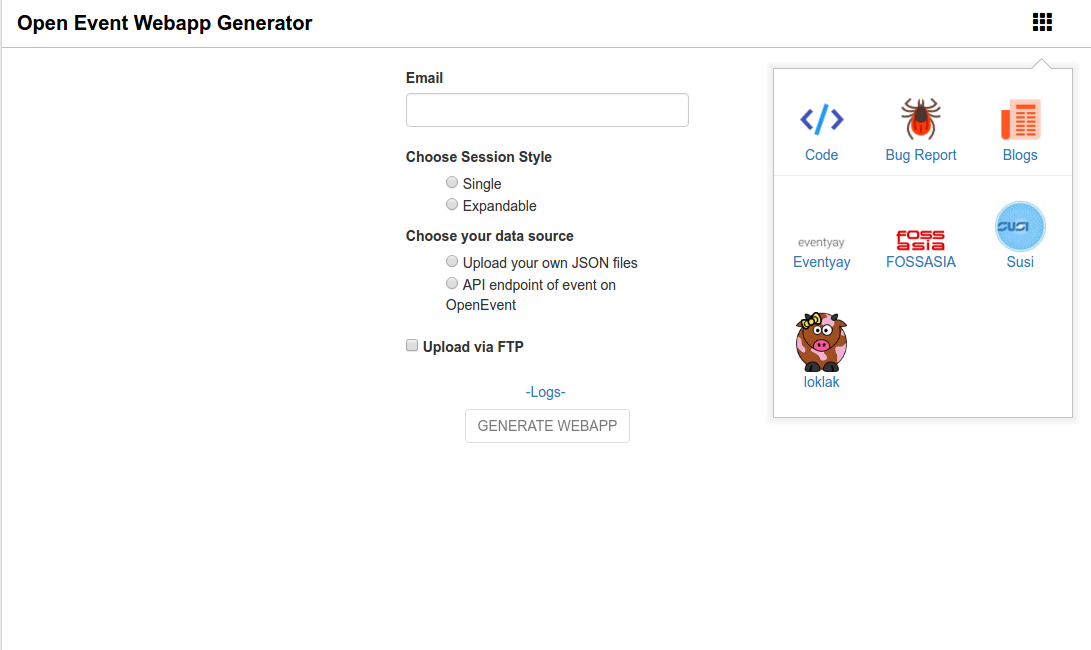
The design of the generator form in Open Event Webapp has been kept very simple and there have been minor modifications to it over time. In keeping up with the changes made to the front page of the other apps, there was a need to modify the UI of the generator and add some new elements to it. This is the related issue for it. The whole work can be seen here. There were three main parts to it: Add a top bar similar to the Open Event Frontend Add a pop-up menu bar similar to the one shown in Google/Susper Add a version deployment link at the bottom of the page like the one shown in staging.loklak.org.   Implementing the top-bar and the pop-up menu bar The first task was to introduce a top-bar and a pop-up menu bar in Generator. The top-bar would contain the text Open Event Webapp Generator and an icon button on the right side of it which would show a pop-up menu. The pop-up menu would contain a number of icons which would link to different pages like FOSSASIA blogs and it’s official website, different projects like loklak, SUSI and Eventyay and also to the Webapp Project Readme and issues page. Creating a top navbar is easy but the pop-up menu is a comparatively tougher. The first step was to gather the gather the small images of the different services. Since this feature had already been implemented in Susper project, we just copied all the icon images from there and copy it into a folder named icons in the open event webapp. Then we create a custom menu div which would hold all the different icons and present it an aesthetic manner. Write the HTML code for the menu and then CSS to decorate and position it! Also, we have to create a click event handler on the pop-up menu button for toggling the menu on and off. Here is an excerpt of the code. The whole file can be seen here <div class="custom-navbar"> <a href='.' class="custom-navtitle"> <strong>Open Event Webapp Generator</strong> <!-- Navbar Title --> </a> <div class="custom-menubutton"> <i class="glyphicon glyphicon-th"></i> <!-- Pop-up Menu button --> </div> <div class="custom-menu"> <!-- Custom pop-up menu containing different links --> <div class="custom-menu-item"> <a class="custom-icon" href="http://github.com/fossasia/open-event-webapp" target="_blank"><img src="./icons/code.png"> <p class="custom-title">Code</p></a> </div> <!-- Code for other links to different projects--> </div> </div> Here is a screenshot of how the top-bar and the pop-up menu looks! Adding version deployment info to the bottom The next task was to add a footer to the page which would contain the version deployment info. The user can click on that link and we can then be taken to the latest version of the code which is currently deployed. To show the version info, we make use of the Github API. We need to get the hash of the latest commit made on the development branch. We send an API request to the Github requesting for the latest hash and then dynamically add the info and the link received to the footer. The user can then click on that…

Continue ReadingUpdating the UI of the generator form in Open Event Webapp

Adding Service Workers In Generated Event Websites In Open Event Webapp

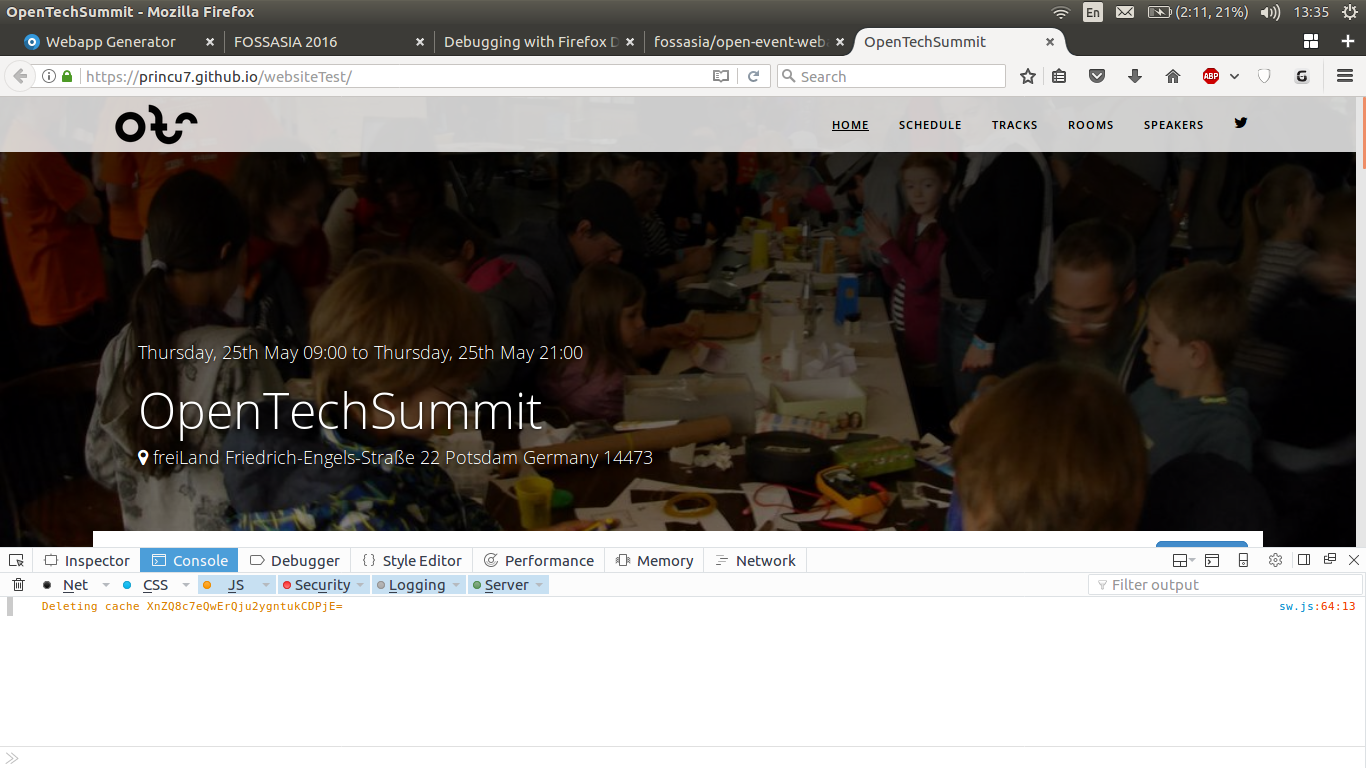
Open Event Webapp Generator takes in the event data in form of a JSON zip or an API endpoint as input and outputs an event website. Since the generated event websites are static, we can use caching of static assets to improve the page-load time significantly. All this has been made possible by the introduction of service workers in the browsers. Service workers are event-driven scripts (written in JavaScript) that have access to domain-wide events, including network fetches.With the help of service workers, we can cache all static resources, which could drastically reduce network requests and improve performance considerably, too. The service workers are like a proxy which sits between the browser and the network and intercept it. We will listen for fetch events on these workers and whenever a request for a resource is made, we intercept and process it first. Since our generated event sites are static, it makes no sense to fetch the assets again and again. When a user first loads a page, the script gets activated and try to cache all the static assets it can. On further reload of the page, whenever the browser request for an already stored asset, instead of fetching it from the network, it can directly give them back to the browser from the local store. Also, in the meantime, it is also caching all the new static assets so they won't be loaded or fetched again from the network later. Thus the performance of the app gets increased more and more with every reload. It becomes fully functional offline after a few page loads. The issue for this feature is here and the whole work can be seen here. To know more details about the basic functioning and the lifecycle of the service workers, check out this excellent Google Developers article. This blog mainly focuses on how we added service workers in the event websites. We create a new fallback HTML page offline.html to return in response to an offline user who requests a page which has not been cached yet. Similarly, for images, we have a fallback image named avatar.png which is returned when the requested image is not present in the local store and the network is down. Since these assets are integral to the functioning of the service worker, we cache them in the installation step itself. The whole service worker file can be seen here var urlsToCache = [ './css/bootstrap.min.css', './offline.html', './images/avatar.png' ]; self.addEventListener('install', function(event) { event.waitUntil( caches.open(CACHE_NAME).then(function(cache) { return cache.addAll(urlsToCache); }) ); }); All the other assets are cached lazily. Only when they are requested, we fetch them from the network and store it in the local store. This way, we avoid caching a large number of assets at the install step. Caching of several files in the install step is not recommended since if any of the listed files fails to download and cache, then the service worker won’t be installed! self.addEventListener('fetch', function(event) { event.respondWith(caches.match(event.request).then(function(response) { // Cache hit - return response if (response) { return response; } // Fetch resource from internet and put…

Continue ReadingAdding Service Workers In Generated Event Websites In Open Event Webapp

Implementing ICS/ICAL to sync calendars with the event schedule in Open Event Webapp

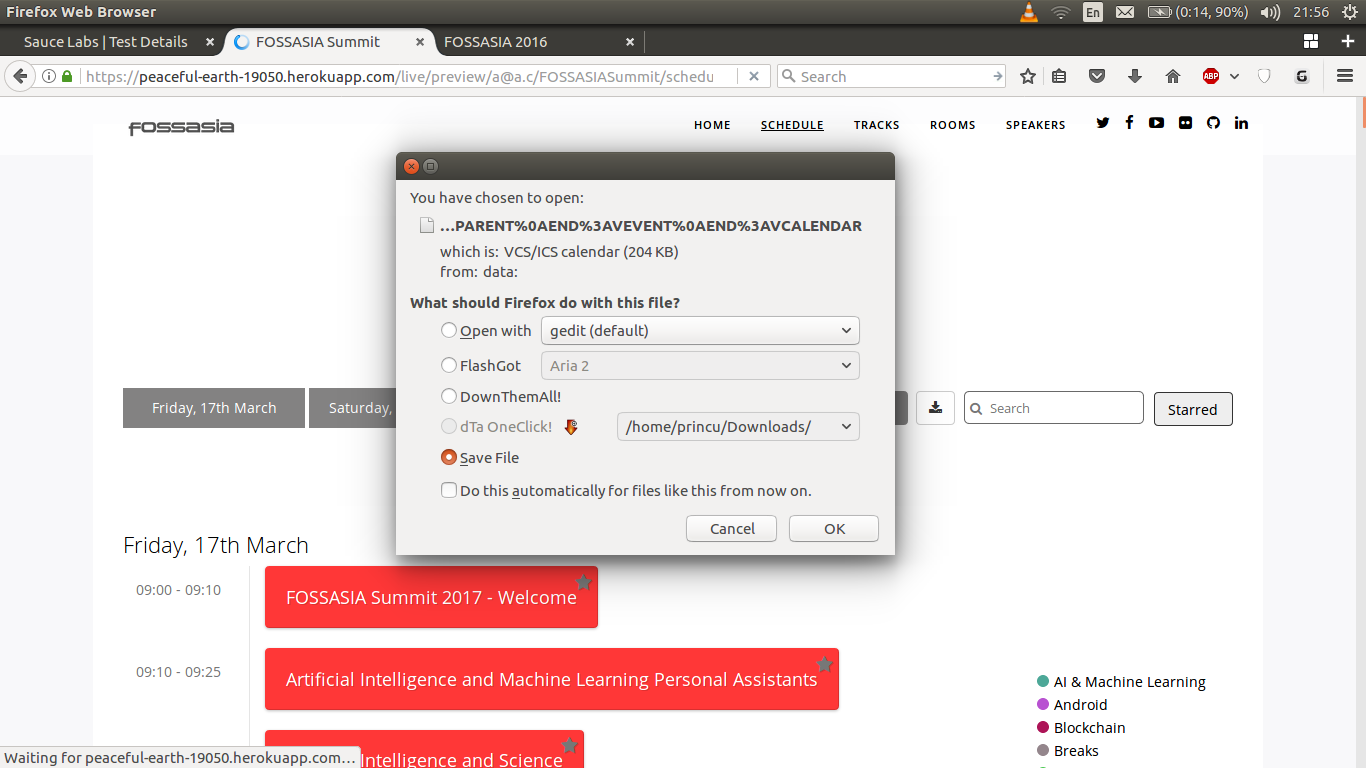
Many people use different calendar apps to mark important events which they want to follow up on later. Other closed source event management systems like sched.org provide users the functionality to export the sessions data of an event into a file which can then be easily imported into other apps like Google Calendar. We wanted to implement the same functionality in the Open Event Webapp. Here is the issue regarding the feature here. ICS/ICAL is the standard format for calendar files (which was discussed above) used by different programs like Google Calendar, Microsoft Outlook etc. They help users to quickly import and export data from their calendars and share it with the outside world. As is the case with any other global format, the contents of the ICS file must follow some specifications for it to be able to be read by the different programs. The official description is quite verbose and detailed and can be read here. As an end result, we want to provide a button to the user which will export the whole data of the event schedule to an ICS file and present it to the user for download after clicking the button. The whole work regarding the feature can be seen here. Instead of implementing the whole specification ourselves which would be much tougher and time-consuming, we looked for some good open source libraries to do a bit of heavy lifting for us. After searching exhaustively for the solution, we came across this library which seemed appropriate for the job. The heart of the library is a function which takes in an object which contains information about the session. It expects information about the start and end time, subject, description and location of the session. Here is an excerpt from the function. The whole file can be seen here var addEvent = function (session) { var calendarEvent = [ 'BEGIN:VEVENT', 'UID:' + session.uid, 'CLASS:PUBLIC', 'DESCRIPTION:' + session.description, 'DTSTART;VALUE=DATETIME:' + session.begin, 'DTEND;VALUE=DATE:' + session.stop, 'LOCATION:' + session.location, 'SUMMARY;LANGUAGE=en-us:' + session.subject, 'TRANSP:TRANSPARENT', 'END:VEVENT' ]; calendarEvents.push(calendarEvent); }; We need to call the above function for every session in the event schedule. In the schedule template file, we have the jsonData object available which contain all the information about the event. It contains a field called timeList which contains the chronological order of the different sessions taking place throughout the events. The structure of that sub-object is something like this. [{'slug': '2017-03-20', 'times': {'caption' : '09:00-09:30', 'sessions': [{'title': 'Welcome', 'description': 'Opening of the event', 'start': '09:00', 'end': '09:30'}]}] So, we define a function for iterating through every session in the above object and adding it to the calendar. We can use most of the attributes directly but have to modify the date and time fields of the session to an appropriate format before adding it. The specification expects time in the ISO 8601 Format. You can read more about the specification here. For eg - If the date is 2017-03-20 and the time is 09:30 then it should be written as 20170320T093000. Here is some part of the function here function exportICS() {…

Continue ReadingImplementing ICS/ICAL to sync calendars with the event schedule in Open Event Webapp

Implementing Logging Functionality in Open Event Webapp

Open Event Webapp allows event organizers to generate an event website by providing JSON data in the form of a zip file or an API endpoint. The generation of event website is a multi step process and takes some time to complete. In order to see the ongoing progress of the process and catch any errors, logging feature is a must. The challenging part was to send the log messages in real time about the tasks being performed in the generator instead of sending it after some time when the task is already finished. To enable real time communication between the web server and the client, we use the Socket IO library. But before using that library for sending log messages from server to client, we have to design the architecture of the logging feature. The log statements can be of several types. It could be about the inception of a task, the successful completion of it or some error which occurred while performing the task. The log message object contains a field named type to show the type of the statements. We define three categories of logs messages:- INFO: Info statements give information about the task currently being performed by the webapp SUCCESS: Success statements give the information of a task being successfully completed ERROR: Error statements give information about a task failing to complete. These statements also contain a detailed error log Along with the type of the statement, the object also contains information about the task. For all types of statements, there is a field called smallMessage containing short information about the task. For the ERROR statements where more information is required to see what went wrong, the message object has an additional field called largeMessage which holds detailed information about the event. We also create a new file called buildlogger.js and define a function for creating log statements about the tasks being performed by generator and export it. The function creates a message object from the arguments received and then return it to the client under the buildLog event via the socket IO. exports.addLog = function(type, smallMessage, socket, largeMessage) { var obj = {'type' : type, 'smallMessage' : smallMessage, 'largeMessage': largeMessage}; var emit = false; if (socket.constructor.name === 'Socket') { emit = true; } if (emit) { socket.emit('buildLog', obj); } }; Most of the steps of the generation process are defined in the generator.js file. So, we include the logging file there and call the addLog function for sending logs messages to the client. All the different steps like cleaning temporary folders, copying assets, fetching JSONs, creating the website directory, resizing images etc have multiple log statements for their inception and successful/erroneous completion. Below is an excerpt from the cleaning step. var logger = require('./buildlogger.js'); async.series([ (done) => { console.log('CLEANING TEMPORARY FOLDERS\n'); logger.addLog('Info', 'Cleaning up the previously existing temporary folders', socket); fs.remove(distHelper.distPath + '/' + appFolder, (err) => { if(err !== null) { // Sending Error Message when the remove process failed logger.addLog('Error', 'Failed to clean up the previously existing temporary folders', socket, err); } // Success message denoting the completion of the…

Continue ReadingImplementing Logging Functionality in Open Event Webapp

Implementing Tracks Filter in Open Event Webapp using the side track name list

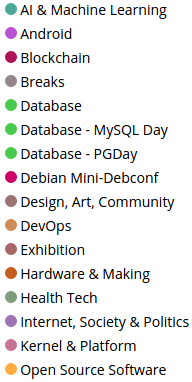
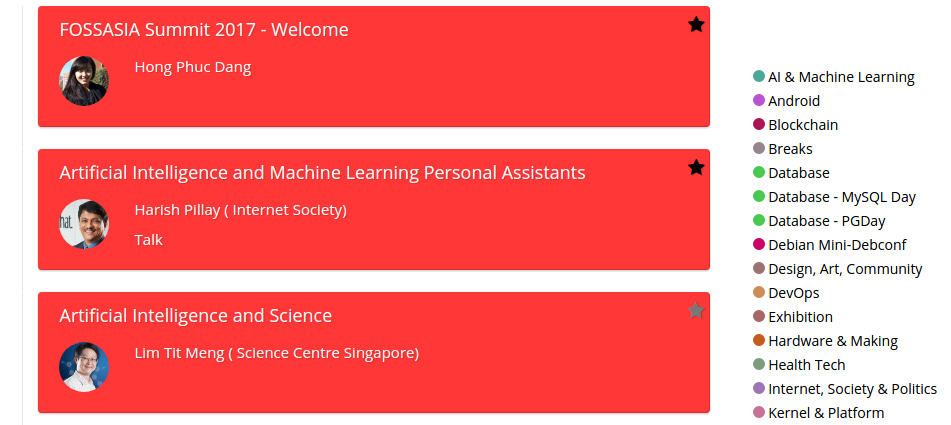
Event Websites generated by Open Event Webapp may contain a large number of sessions presented by different speakers. The Sessions are divided into the different group based on their type of track. For example, few sessions may belong to Database Track, few may belong to Machine Learning Track and so on. It is natural that the user may want to filter the visible sessions on the basis of tracks. Before we implemented the tracks filter using the track names list, we had a sub navbar on the tracks page for jumping to the different tracks of the event on a particular day. Below are the screenshots of that feature. On Clicking the Design, Art, Community Track But, it was not an elegant solution. We already had a track names list present on the side of the page which remained unused. A better idea was to use this side track names list to filter the sessions. Other event management sites like http://sched.org follow the same idea. The relevant issue for it is here and the major work can be seen in this Pull Request. Below is the screenshot of the unused side track names list. The end behavior should be something like this, the user clicks on a track and only sessions belonging to the track should be visible and the rest be hidden. There should also be a button for clearing the applied filter and reverting the page back to its default view. Let’s jump to the implementation part. First, we make the side track name list and make the individual tracks clickable. <div class="track-names col-md-3 col-sm-3"> {{#tracknames}} <div class="track-info"> <span style="background-color: {{color}};" class="titlecolor"></span> <span class="track-name" style="cursor: pointer">{{title}} </span> </div> {{/tracknames}} </div> Now we need to write a function for handling the user click event on the track name. Before writing the function, we need to see the basic structure of the tracks page. The divs with the class date-filter contain all the sessions scheduled on a given day. Inside that div, we have another div with class tracks-filter which contains the name of the track and all the sessions of that track are inside the div with class room-filter. Below is a relevant block of code from the tracks.hbs file <div class="date-filter"> // Contains all the sessions present in a single day <div class="track-filter row"> // Contains all the sessions of a single track <div class="row"> // Contains the name of the track <h5 class="text">{{caption}}</h4> </div> <div class="room-filter" id="{{session_id}}"> // Contain the information about the session </div> </div> </div> We iterate over all the date-filter divs and check all the track-filter divs inside it. We extract the name of the track and compare it to the name of the track which the user selected. If both of them are same, then we show that track div and all the sessions inside it. If the names don’t match, then we hide that track div and all the content inside it. We also keep a variable named flag and set it to 0 initially. If the user selected track is present on a given day, we set the flag to 1. Based on it, we decide whether to display that particular day or not. If the flag is set, we display the date-filter div of that…

Continue ReadingImplementing Tracks Filter in Open Event Webapp using the side track name list

Scaling the logo of the generated events properly in Open Event Webapp

In the Open Event Webapp we came across an issue to scale the logo of the different generated events properly. On the outset, it looks a simple problem but it is a bit tricky when we consider the fact that different events have different logo sizes and we have to make sure that the logo is not too wide nor is it too long. Also, the aspect ratio of the image shouldn’t be changed otherwise it would look stretched and pixelated. Here are some screenshots to demonstrate the issue. In the Facebook Developer Conference, the logo was too small In the Open Tech Summit Event, the logo was too long and increased the height of the navigation bar We decide some constraints regarding the width and the height of the logo. We don’t want the width of the logo to exceed greater than 110 pixels in order to not let it become too wide. It would look odd on small and medium screen if barely passable on bigger screens. We also don’t want the logo to become too long so we set a max-height of 45 pixels on the logo. So, we apply a class on the logo element with these properties .logo-image {  max-width: 110px;  max-height: 45px; } But simply using these properties doesn’t work properly in some cases as shown in the above screenshots. An alternative approach is to resize the logo appropriately during the generation process itself. There are many different ways in which we can resize the logo. One of them was to scale the logo to a fixed dimension during the generation process. The disadvantage of that approach was that the event logo comes in different size and shapes. So resizing them to a fixed size will change its aspect ratio and it will appear stretched and pixelated. So, that approach is not feasible. We need to think of something different.  After a lot of thinking, we came up with an algorithm for the problem. We know the height of the logo would not be greater than 45px. We calculate the appropriate width and height of the logo, resize the image, and calculate dynamic padding which we add to the anchor element (inside which the image is located) if the height of the image comes out to be less than 45px. This is all done during the generation of the app. Note that the default padding is 5px and we add the extra pixels on top of it. This way, the logo doesn’t appear out of place or pixelated or extra wide and long. The detailed steps are mentioned below Declare variable padding = 5px Get the width, height and aspect ratio of the image. Set the height to 45px and calculate the width according to the aspect ratio. If the width <= 110px, then directly resize the image and no change in padding is necessary If the width > 110px, then make width constant to 110px and calculate height according to the aspect ratio. It will surely come…

Continue ReadingScaling the logo of the generated events properly in Open Event Webapp

Adding Build Type option in the Apk Generator of the Open Event Android App

The apk-generator provided ability to the event organiser to build an apk from a single click by providing the necessary json/binary files. However it gave only one type of apk where on the other hand the Open Event Android was available with apk of different build versions. Recently the functionality of the apk generator of the Open Event Android App was enhanced where the user is asked to select an option for build type either Google Play or FDroid which generates the apk according to that selected type. The main difference in the googleplay apk and fdroid apk is the inclusion of googleplay libraries which aren’t included in the app/build.gradle file in case of fdroid build. To include support for build type the following files for the apk-generator had to be changed: app/views/__init__.py app/tasks/__init__.py app/static/js/main.js app/generator/generator.py scripts/build.sh app/templates/index.html Changes to the files app/templates/index.html This file was where the changes to the UI of the apk-generator showing build type option to the user were made. With this the user was presented with an option to choose build type among googleplay and fdroid apart from the rest of the essential information. scripts/build.sh The android app supported two different flavours one for google play and the other for fdroid. This required the build script to be modified according to the build type selected by the user during the filling of form. If user selected “Google Play” or “Fdroid”, the script would look something like this: #!/bin/bash ./gradlew assemblegoogleplayRelease --info echo "signing" jarsigner -keystore ${KEYSTORE_PATH} -storepass ${KEYSTORE_PASSWORD} app/build/outputs/apk/app-googleplay-release-unsigned.apk ${KEY_ALIAS} echo "zipaligning" ${1}/zipalign -v 4 app/build/outputs/apk/app-$2-release-unsigned.apk release.apk echo "done" Where $2 is googleplay or fdroid depending on what build type the user has selected while building the apk from the apk generator. app/views/__init__.py and app/tasks/__init__.py These files were modified by adding another parameter for supporting the two build type options in the desired functions. app/static/js/main.js This is where the option selected by the user was taken and accordingly the apk corresponding to the build type option selected was made available to the user. The code for it was shown as follows: $buildTypeRadio.change( function () { if (this.checked) { enableGenerateButton(true); buildType = $(this).val(); } } ); This was how the option to display build type option to the user was incorporated. This gave the user the ability to install different build versions of an apk, thus making it more useful from the user point of view. Related Links: This link explains on how we can pass a variable from python script to the shell script. (https://stackoverflow.com/questions/32085956/pass-a-variable-from-python-to-shell-script) This link explains on how to perform changes on radio button click. (https://stackoverflow.com/questions/19138618/triggering-a-click-event-for-checked-radio-button-during-page-load)

Continue ReadingAdding Build Type option in the Apk Generator of the Open Event Android App