Migrating to Ember Tables on Open Event Frontend – Part 3: Search module

This blog article will continue the discussions about setting up ember tables on open event frontend. The implementation and design of the search module of the ember tables will be discussed. Open event server supports searching, using filter queries offered by flask-rest-json-api  Leveraging the refreshModel property of the queryParams, we can bind the value of a potential search query of a user to a queryParam. As the user types the query, the queryParam will change, which in turn will refresh the model, and send a new request to the server, giving the impression of a basic search. An icon input field with a search icon is placed on the top right corner of the table wrapped in its own separate component, search-box. The component is rendered within the default table component, which acts as a base for all other tables in the app. Here, searchQuery is binded to the param search defined in the controller mixin for ember tables. <div class="ui small icon input"> {{input type="text" value=searchQuery placeholder="Search ..." }} <i class="search icon"></i> </div> Now in order to generate the query string which will result in a search involves complex array filter manipulations, hence the logic was abstracted into the route mixin to avoid it’s repetition across various routes. Flast-rest-json api’s filters follow the following format for a  basic like styled sql filter: GET /events?filter=[ { "name": "event", "op": "ilike", "val": searchQuery } ] HTTP/1.1 Accept: application/vnd.api+json There are several other query combinations available for comparison, dates and other data-types or for relationships themselves. They needed to be appended to the filter portion of a query and then removed. When the search param is null, the query string has the following form: let queryString = { include : 'tickets,user', filter : filterOptions, 'page[size]' : params.per_page || 10, 'page[number]' : params.page || 1 }; filterOptions are other filters already present, for instance for listing orders on the basis of a dynamic status parameter,  filterOptions can be defined as follows. filterOptions = [ { name : 'status', op : 'eq', val : params.orders_status } ]; Since filterOptions are an array, new filters are either added or appended to the array. applySearchFilters(options, params, searchField) { searchField = kebabCase(searchField); if (params.search) { options.pushObject({ name : searchField, op : 'ilike', val : `%${params.search}%` }); } else { options.removeObject({ name : searchField, op : 'ilike', val : `%${params.search}%` }); } return options; } Thus a method called applySearchFilters is defined in the ember-table-router mixin. It takes three arguments: optionsparamssearchField Options is the filter array, discussed above, params contains the value of the current search param, and the searchField is the target of the search which is defined in the route’s model hook itself. The open-event-api server, expects the name of fields in kebab case, where as the front-end uses camelCase, hence the searchField is explicitly converted into a kebab-case string before manipulating the filter array. If params are present, it appends the filter object to the queryString, else this function will remove the very filter it…

Continue ReadingMigrating to Ember Tables on Open Event Frontend – Part 3: Search module

Migrating to Ember Tables on Open Event Frontend – Part 2: Pagination

This blog article will continue the discussions about setting up ember tables on open event frontend. The implementation and design of the pagination module of the ember tables will be discussed. Open event server uses JSON:API spec. Whenever the server returns a query, the JSON contains a meta field, that field contains the total number of records on the API server, which satisfy the query. This number, of course is different from the actual number of records returned which depend on the page size, and page number. But this serves as a good starting point for implementing the pagination module. For the open event server, the property inside the meta tag which contains the total count is called count. Using this property we define a computed property called totalContentLength. import Component from '@ember/component'; import { computed, action, get } from '@ember/object'; export default class extends Component { metaItemsCountProperty = 'count'; @computed('metaData') get totalContentLength() { return get(this.metaData, this.metaItemsCountProperty); } } Ember has great support for queryParams, and if in their declaration inside the route, the property refreshModel is set to true, then the model refreshes and reloads the data whenever the query params update. Thus, the current page and page size are maintained in the form of query params.  For computing the total number of pages (pageCount),  that the content will be split in, we have all three required variables, totalContentLength (computed above), currentPage and pageSize (both available as queryParams). Once we have pagesCount, it is easy to decide if moving forward or backwards is possible and can themselves be stored as computed properties. Similarly, in order to move forwards or backwards by a page, or to last or first pages, the queryParam for currentPage can be altered. import Component from '@ember/component'; import { computed, action, get } from '@ember/object'; export default class extends Component { metaItemsCountProperty = 'count'; @computed('metaData') get totalContentLength() { return get(this.metaData, this.metaItemsCountProperty); } @computed('currentPage', 'pageSize', 'totalContentLength') get pageCount() { let totalPages = 1; if (parseInt(this.pageSize) !== 0 && this.pageSize < this.totalContentLength) { totalPages = parseInt(this.totalContentLength / this.pageSize); if (this.totalContentLength % this.pageSize) { totalPages += 1; } } return totalPages; } @computed('currentPage') get moveToPreviousPageDisabled() { return this.currentPage <= 1; } @computed('currentPage', 'pageCount') get moveToNextPageDisabled() { return this.currentPage >= this.pageCount; } @action moveToNextPage() { if (!this.moveToNextPageDisabled) { this.incrementProperty('currentPage'); } } @action moveToPreviousPage() { if (!this.moveToPreviousPageDisabled) { this.decrementProperty('currentPage'); } } @action moveToLastPage() { if (!this.moveToNextPageDisabled) { this.set('currentPage', this.pageCount); } } @action moveToFirstPage() { if (!this.moveToPreviousPageDisabled) { this.set('currentPage', 1); } } } We also need to display, what is the current range of entries being shown. For eg, Showing 20-30 of 100 entries. This can again be computed by using current page, page size and  total number of entries. Using all of these computed properties, we can render the template for a pagination menu, which the user can use in order to navigate through the data.  <div class="ui small pagination menu"> <a role="button" class="item {{if moveToPreviousPageDisabled 'disabled'}}" {{action 'moveToFirstPage'}}> <i class="angle double left icon"></i> </a> <a role="button" class="item {{if moveToPreviousPageDisabled 'disabled'}}"…

Continue ReadingMigrating to Ember Tables on Open Event Frontend – Part 2: Pagination

Migrating to Ember Tables on Open Event Frontend – Part 1: The Set-Up

This blog article will illustrate how ember tables were set up, reopened as a component, for customization and how the pagination module was implemented. Ember source 3.11 which Open event frontend uses is not compatible with the last release of ember tables, hence the master branch of ember tables which does support the latest ember source was chosen.  To install a dependency from a Github repository link instead of a yarn package, we can use yarn add addepar/ember-table#0aa5637 Ember tables offer no inbuilt theme, and use the default HTML styles. They do have support for styling, but only via CSS selectors in CSS files. In our use case, we needed the styling to be those of semantic UI tables. However, for that the classes had to be added inside the table element, and ember tables by default, don’t allow addition of classes, as the table was under other layers. Even if the classNames property of component had  been specified, it would just append the specified class names to the wrapper of the table element, not the actual table itself. Ember’s reopen feature was used to solve this problem. The reopen method allows ‘reopening’ of the component in the sense that it’s existing properties can be overwritten, or new properties can be added. It is a convention to store the reopened component files in a folder separate from external folder. The definition of the table was inside a component.js file inside the source of ember tables. Hence a new file located at app/extensions/ember-table/component.js was created.  Then the component.js was reopened to change the source of the template file which is used for ember tables. import component from 'ember-table/components/ember-table/component'; import layout from './template'; component.reopen({ layout }); This reopening modifies the ember table component, such that it now searches for the layout file in the new directory at ember-table/components/ember-table/layout.hbs The file layout.hbs now contains  <div class="resize-container"> <table class="ui unstackable table"> {{yield (hash api=api head=(component "ember-thead" api=api) body=(component "ember-tbody" api=api) foot=(component "ember-tfoot" api=api) )}} </table> </div> It is the exact same file which was present in the source of ember tables, with the only modification being the addition of class ui unstackable table to the table element. This class makes the table support semantic UI styling. Ember tables follow a structure similar to ember model tables, wherein the columns are defined inside the controller of the route which will render the table. However, it is not possible to pass the actions defined in the controller to the final cell components for columns without passing them throughout until the very last layer. I.e. actions of controller are not passed to the custom cell components, automatically. Specifying them explicitly results in loss of generalisation, and a significant portion of code will be repeated.  Also, sometimes, we might need to pass more than one valuePaths if we don’t need to pass the entire entity, if a column cell needs only some of the properties. Custom options were a requirement as well. Hence, to generalise these properties, the…

Continue ReadingMigrating to Ember Tables on Open Event Frontend – Part 1: The Set-Up

Implementing Test Email Functionality in the Admin Section of Open Event Frontend

This blog will showcase how test email module was developed for open event.  This required implementing a new API endpoint on the Open event server, and it’s subsequent integration on the front-end. The test email functionality essentially tests if a given mail configuration is successfully able to deliver mail. The user gets an option to enter any email, and then trigger a test mail to that address. The tester may manually verify then if an email has been received. In  app/api/helpers/system_mails.py a field for the test email is added. TEST_MAIL: { 'recipient': 'User', 'subject': u'Test Mail Subject', 'message': ( u"This is a <strong> Test </strong> E-mail." ) } And in the helper file at app/api/helpers/mail.py, a function for sending a test mail is added. def send_test_email(recipient): send_email(to=recipient, action=TEST_MAIL, subject=MAILS[TEST_MAIL]['subject'], html=MAILS[TEST_MAIL]['message'] ) Since this is a trivial route, with no data exchange, we will implement this as a miscellaneous route under the settings API. Also, it is important that the route is restricted for use only by an admin. Decorators are used to ensure that. @admin_misc_routes.route('/test-mail', methods=['POST']) @is_admin def test_email_setup(): recipient = request.json.get('recipient') if not recipient: return UnprocessableEntityError({'source': 'recipient'}, 'Required parameter recipient not found').respond() send_test_email(recipient) return make_response(jsonify(message='Test mail sent, please verify delivery'), 200) The endpoint only accepts POST requests, whose body should contain a field called recipient which contains the email address to which the test mail should be sent. With the API endpoint for test emails ready, a small form needs to be added on the front-end in the admin area. A new form for this field was added within the form of general system settings. sendTestMail() { this.onValid(() => { let payload = { recipient: this.recipientEmail }; let config = { skipDataTransform: true }; this.loader.post('/test-mail', JSON.stringify(payload), config) .then(response => { this.notify.success(response.message); }) .catch(e => { console.warn(e); this.notify.error(this.l10n.t('An unexpected error has occurred')); }); }); } The action sendTestMail sends the necessary POST request to the API endpoint for sending the mail. sendTestMail() { this.onValid(() => { let payload = { recipient: this.recipientEmail }; let config = { skipDataTransform: true }; this.loader.post('/test-mail', JSON.stringify(payload), config) .then(response => { this.notify.success(response.message); }) .catch(e => { console.warn(e); this.notify.error(this.l10n.t('An unexpected error has occurred')); }); }); } Additionally, email validations are added to the field which accepts the email input. This module after it’s implementation is able to handle both cases, if the mail endpoint returns an error status code, this means mail send function on the server is broken, or the configuration is misconfigured in an unexpected manner. If it returns a successful status, and yet mail has not been received on the desired email address, this might point to a deeper problem regarding, the sending mail getting blacklisted or otherwise. Resources  Ember JS-model hook documentationOpen Event API DocsJson api spec patch request docs

Continue ReadingImplementing Test Email Functionality in the Admin Section of Open Event Frontend

Designing PayTM Checkout Components

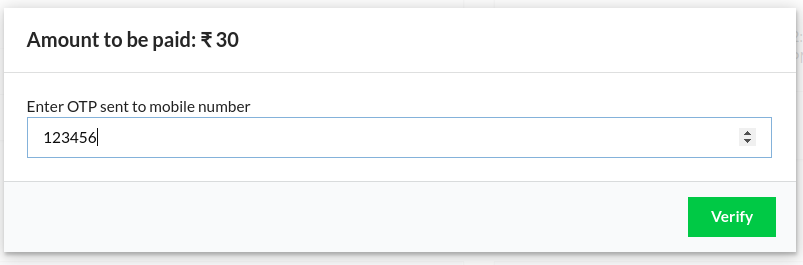
This summer, Open Event project has 3 different payment gateways integrated in its system enabling the user base a wider base of options to buy their tickets and pay the organizers and hence making the platform more user friendly. In the initial period Omise gateway was implemented and properly documented in the first phase while Alipay was subsequently implemented in the middle of the coding period. In the late phase, the focus has been shifted to Indian payment gateways and PayTM came out as prime choice considering it’s popularity and ease of integration with the existing technology stack. This requires two different modals to be added to frontend project to felicitate the open-event-server hits being made on PayTM’s API services. The first modal’s skeleton design is to check paytm wallets as the payment option and acquire the mobile number to be used. // app/templates/components/modals/paytm-payment-options.hbs<div class="header"> {{t 'Amount to be paid:'}} {{currency-symbol currency}} {{amount}}</div><div class="content"> <div class="muted small text">   {{t 'Select an option to pay'}} </div> <form class="ui form" autocomplete="off" {{action 'openOTPController' on='submit' preventDefault=true}}>   <div class="field">     {{ui-radio name='payment_mode' value='paytm' onChange=(action (mut isWalletSelected))}}     {{t 'Paytm Wallet'}}<img src="/images/payment-logos/paytm.png" alt="paytm">   </div>   {{#if isWalletSelected}}     <div class="field">       <div class="label">         {{t 'Please enter your Paytm registered Mobile Number to continue'}}       </div>       {{input type='number' id='mobile_number' value=mobileNumber required=true}}     </div>   {{/if}} </form></div><div class="actions"> <button type="button" class="ui black button" {{action 'close'}}>   {{t 'Cancel'}} </button> <button {{action openOTPController}} class="ui green button" disabled={{not isWalletSelected}}>   {{t 'Proceed'}} </button></div> This simple modal design implementation resulted in the skeleton design of the first modal which can be seen as following: OTP sending modal The second modal required a simple API hit integration which will be validating the acquired OTP. This was designed rather simply with the following snippet: // app/templates/components/modals/paytm-otp.hbs<div class="header"> {{t 'Amount to be paid:'}} {{currency-symbol currency}} {{amount}}</div><div class="content"> {{t 'Enter OTP sent to mobile number'}} <form class="ui form" autocomplete="off">   <div class="field">     {{input type='number' id='otp' value=otp required=true}}   </div> </form></div><div class="actions"> <button type="button" class="ui black button" {{action 'close'}}>   {{t 'Cancel'}} </button> <button class="ui green button">   {{t 'Verify'}} </button></div> OTP confirmation modal These modals were controlled by adding corresponding pop-up logic in the pending.js controller focusing on the clicks on Proceed and verify buttons respectively. // app/controllers/orders/pending.js   openPaytmModal() {     // Model controller for PaytmModal     this.setProperties({       'isPaytmModalOpen': true     });   },   openOTPController() {     // Modal controller for OTP step     this.setProperties({       'isPaytmModalOpen' : false,       'isOTPModalOpen'   : true     });   } This concludes the design walk through of custom PayTM checkout modals. These will be integrated with the APIs to complete the backend workflow and hence adding PayTM as another payment option! Resources Ember ModalsEmber Controller Guides Related Work and Code Repository Front-End RepositoryAPI Server RepositoryDesigning PayTM modalsCreating Modal Integration Tests

Continue ReadingDesigning PayTM Checkout Components

Migrating to Next generation of Open Event from Legacy

This blog article will illustrate how, after significant refactors, eventyay.com was switched from open-event-legacy to the new version of open-event which has a decoupled open-event-API-server and frontend. We will discuss this switch from two aspects - the database migration and the DevOps logistic, as we moved from google cloud to a  more economically feasible platform - hetzner cloud. Downloading a copy of the legacy database from Kubernetes pod on the google cloud platform The first step, was to obtain a copy of the database being used in production. The database was stored inside a pod named Postgres of the Kubernetes cluster. gcloud login gcloud container clusters get-credentials vintage-cluster --zone us-west1-a --project eventyay These commands initialized and authenticated the gcloud sdk with the project eventyay. Next, to gain bash access to the postgres pod, exec of kubectl CLI was used. kubectl exec -it postgres -- /bin/bash The database in both the new and legacy versions was postgresSql. Using the pg_dump functionality, a database can be dumped into a transferable file kubectl exec -it postgres -- /bin/bash However this file still resides on the kubernetes pod’s local storage  itself. The cp utility of kubectl CLI comes in handy to copy that file from pod to local storage.  kubectl cp default/postgres:legacy-24-03-2019.pgsql ~/Downloads/ This command transfers the file to local storage. Now we have a database we can begin to refactor, for this we first need to import it into the postgres instance on the local machine, to take a peek inside the schema. Psql -U postgres Create database legacy_24_03_2019 Create database legacy_24_03_2019_reference postgres legacy_24_03_2019 < ~/Downloads/legacy-24-03-2019.pgsql These commands dump the data inside the  legacy database into the newly created database inside the Postgres instance. The schema and architecture of the new version of server is different from the legacy database, hence DB has to go through migrations. The last migration file shared by legacy and the next gen of server is corresponding to the migration ddaa6df27340. However, it is important to note that the migrations branched from here onwards. Hence to downgrade the databse to the last legacy migration, we need to use the migrations folder of the legacy version of eventyay and not the original migrations directory Assuming that the migrations from the legacy server stiored in a folder called migrations-legacy mv migrations migrations-new mv migrations-legacy migrations Change the config in the local .env inside open-event-server to switch to this newly created database. 9d21de792967 Ticket holder thing python manage.py db downgrade ddaa6df27340 Then we upgrade to the latest instance of the db Switch back the directories (venv) Abhinavs-MacBook-Pro:open-event-server abhinav$ mv migrations migrations-legacy (venv) Abhinavs-MacBook-Pro:open-event-server abhinav$ mv migrations-new migrations Then we upgrade the database  Python manage.py db upgrade These commands migrate the database in principal, and we have a basic system with core functionality using legacy data but the database is not at all ready to be used in production yet. It is rife with bugs. The migrations file don’t cover each change, and some are outright breaking. Some have problems like comma…

Continue ReadingMigrating to Next generation of Open Event from Legacy

Enable Server Configuration with Okhttp and Retrofit in Open Event Attendee Application

The open event attendee is an android app which allows users to discover events happening around the world using the Open Event Platform. It consumes the APIs of the open event server to get a list of available events and can get detailed information about them. We are using default API for eventyay app. Server configuration is something when we replace backend API with a new one and perform the same applications with the different server. As it is a fully open-source project on F-droid, so we have enabled the server configuration field for the F-droid build variant.  Retrofit and okhttp for network callsCreate a feasible UI and set the link to preferencesCreate interceptor for changing API URLAdd interceptor in okhttp client builderConclusionResources  Let’s analyze every step in detail. Retrofit and Okhttp for Network Call Using Retrofit for your Android app's networking can make your life so much easier. However, Retrofit's design requires a single Retrofit instance for each API with a different base URL. Consequently, if your app is talking to two or more APIs (under different URLs), you'll need to deal with at least two Retrofit instances. Retrofit is a type-safe REST client for Android, Java, and Kotlin developed by Square. The library provides a powerful framework for authenticating and interacting with APIs and sending network requests with OkHttp. OkHttp communicating with the server-  Design UI and set the link to preferences with MVVM Create a simple dialog with a checkbox with default URL and a EditText: <?xml version="1.0" encoding="utf-8"?> <LinearLayout xmlns:android="http://schemas.android.com/apk/res/android" android:orientation="vertical" android:layout_width="match_parent" android:layout_height="match_parent"> <CheckBox android:id="@+id/urlCheckBox" android:layout_margin="@dimen/layout_margin_large" android:layout_width="match_parent" android:layout_height="wrap_content" /> <com.google.android.material.textfield.TextInputLayout style="@style/Widget.MaterialComponents.TextInputLayout.OutlinedBox.Dense" android:id="@+id/urlTextInputLayout" android:layout_margin="@dimen/layout_margin_large" android:hint="@string/other_url" android:layout_width="match_parent" android:layout_height="wrap_content"> <com.google.android.material.textfield.TextInputEditText android:id="@+id/urlEditText" android:layout_width="match_parent" android:layout_height="wrap_content" /> </com.google.android.material.textfield.TextInputLayout> </LinearLayout> Handle visibility if the dialog and display for only F-droid build: preferenceScreen.findPreference<PreferenceCategory>(getString(R.string.key_server_configuration))?.isVisible = BuildConfig.FLAVOR == FDROID_BUILD_FLAVOR Set current API to preference screen: preferenceScreen.findPreference<Preference>(getString(R.string.key_api_url))?.title = settingsViewModel.getApiUrl() Get API from View model:  fun getApiUrl(): String { return preference.getString(API_URL) ?: BuildConfig.DEFAULT_BASE_URL } Setup alert dialog: if (preference?.key == getString(R.string.key_api_url)) { showChangeApiDialog() } private fun showChangeApiDialog() { val layout = layoutInflater.inflate(R.layout.dialog_api_configuration, null) layout.urlCheckBox.text = BuildConfig.DEFAULT_BASE_URL val dialog = AlertDialog.Builder(requireContext()) .setView(layout) .setPositiveButton(getString(R.string.change)) { _, _ -> val url = if (layout.urlCheckBox.isChecked) BuildConfig.DEFAULT_BASE_URL else layout.urlEditText.text.toString() if (url === settingsViewModel.getApiUrl()) return@setPositiveButton settingsViewModel.changeApiUrl(url) view?.snackbar("API URL changed to $url") findNavController().popBackStack(R.id.eventsFragment, false) } .setNegativeButton(getString(R.string.cancel)) { dialog, _ -> dialog.cancel() } .setCancelable(false) .show() dialog.getButton(AlertDialog.BUTTON_POSITIVE).isEnabled = false layout.urlCheckBox.setOnCheckedChangeListener { _, isChecked -> layout.urlTextInputLayout.isVisible = !isChecked dialog.getButton(AlertDialog.BUTTON_POSITIVE).isEnabled = isChecked } Set URL to preferences in the view model and end current session: fun changeApiUrl(url: String) { preference.putString(API_URL, url) logout() } Create Interceptor to Handle New API URL Here default API URL is set to the retrofit already:  Retrofit.Builder() .client(get()) .baseUrl(baseUrl) .build() As we discussed earlier OkHttp handles every network call for the application. So here we track the URL host from the okhttp interceptor. If the URL host is equaled to the default API URL host, then we can say that it is an API call and then we can replace same with the host getting from preferences if it is not null and set the…

Continue ReadingEnable Server Configuration with Okhttp and Retrofit in Open Event Attendee Application

CRUD operations on Config Keys in Admin Panel of SUSI.AI

SUSI.AI Admin Panel now allows the Admin to create, read, update and delete config keys present in system settings. Config keys are API keys which are used to link the application to third party services like Google Maps, Google ReCaptcha, Google Analytics, Matomo, etc. The API key is a unique identifier that is used to authenticate requests associated with the project for usage and billing purposes. CRUD Operations Create Config Key To create a config key click on “Add Config Key” Button, a dialog opens up which has two field Key Name and Key Value. this.props.actions.openModal opens up the shared Dialog Modal. On clicking on “Create”, the createApiKey is called which takes in the two parameters. handleCreate = () => { this.props.actions.openModal({ modalType: 'createSystemSettings', type: 'Create', handleConfirm: this.confirmUpdate, keyName: this.state.keyName, keyValue: this.state.keyValue, handleClose: this.props.actions.closeModal, }); }; handleSave = () => { const { keyName, keyValue } = this.state; const { handleConfirm } = this.props; createApiKey({ keyName, keyValue }) .then(() => handleConfirm()) .catch(error => { console.log(error); }); }; Read Config Key API endpoint fetchApiKeys is called on componentDidMount and when Config Key is created, updated or deleted. fetchApiKeys = () => { fetchApiKeys() .then(payload => { let apiKeys = []; let i = 1; let keys = Object.keys(payload.keys); keys.forEach(j => { const apiKey = { serialNum: i, keyName: j, value: payload.keys[j], }; ++i; apiKeys.push(apiKey); }); this.setState({ apiKeys: apiKeys, loading: false, }); }) .catch(error => { console.log(error); }); }; Update Config Key To Update a config key click on edit from the actions column, Update Config Key dialog opens up which allows you to edit the key value. On clicking on update, the createApiKey API is called. handleUpdate = row => { this.props.actions.openModal({ modalType: 'updateSystemSettings', type: 'Update', keyName: row.keyName, keyValue: row.value, handleConfirm: this.confirmUpdate, handleClose: this.props.actions.closeModal, }); }; Delete Config Key To delete a config key click on delete from actions column, delete config key confirmation dialog opens up. On clicking on Delete, the deleteApiKey is called which takes in key name as parameter. handleDelete = row => { this.setState({ keyName: row.keyName }); this.props.actions.openModal({ modalType: 'deleteSystemSettings', keyName: row.keyName, handleConfirm: this.confirmDelete, handleClose: this.props.actions.closeModal, }); }; confirmDelete = () => { const { keyName } = this.state; deleteApiKey({ keyName }) .then(this.fetchApiKeys) .catch(error => { console.log(error); }); this.props.actions.closeModal(); }; In conclusion, CRUD operations of Config Keys help admins to manage third party services. With these operations the admin can manage the API keys of various services without having to look for them in the backend. Resources What is CRUD?CRUD in React SUSI.AI repository

Continue ReadingCRUD operations on Config Keys in Admin Panel of SUSI.AI

Feature to generate Config File in PSLab Android application

In this blog, I will explain the feature to generate “Config File” in PSLab Android Application  What is a Config File? The main aim of this feature is to make PSLab board a self data logger, which would read user-defined configs from a config file stored on SD card connected to PSLab board and based on instrument, parameters and time interval stored in config file PSLab board would automatically log those values.  Now as the first step of this feature, an option is added to PSLab Android application, where user can create a config file. User can select an instrument, parameters associated with that instrument and time interval. With this feature, user can easily generate a config file which can later be used by PSLab board for logging. User Interface The option to generate a config file is given in the side navigation menu on the main screen.  (Figure 1: Generate Config file menu) Once the user selects the “Generate Config File” option, the user will be directed to the following screen where user can create a config file with intended parameters (Figure 2: Generate Config File UI) As can be seen in the screenshot above the user can select instruments for which the config file needs to be created from a drop-down menu. User can specify the time interval, for which the data should be logged by the PSLab board. Based on the instrument selected by the user corresponding parameters will be shown at the bottom. User can select whichever parameters are required and click on “CREATE CONFIG FILE” button and a config file will be saved on device local storage.  A config file for Oscilloscope with 25-sec interval and CH1, CH2 and CH3 parameters would look something like below, (Figure 3: Sample config File ) Implementation When a user clicks on Create Config File button, First we check whether the user has provided a time interval, if not a toast message appears to let the user know that time interval is missing. This is done using the following lines of code, createConfigFileBtn.setOnClickListener(new View.OnClickListener() { @Override public void onClick(View v) { interval = intervalEditText.getText().toString(); if (interval.length() == 0) { Toast.makeText(CreateConfigActivity.this, getResources().getString(R.string.no_interval_message), Toast.LENGTH_SHORT).show(); } Once the user sets the time interval and selects the parameters, the following lines of code generates a string array containing params selected by the user. ArrayList<String> selectedParamsList = new ArrayList<>(); for (int i = 0; i < paramsListContainer.getChildCount(); i ++) { CheckBox checkBox = (CheckBox) paramsListContainer.getChildAt(i); if (checkBox.isChecked()) { selectedParamsList.add(instrumentParamsList.get(selectedItem)[i]); } } After we have the list of selected parameters we call the following function to create the config file private void createConfigFile(ArrayList<String> params) { String instrumentName = instrumentsList.get(selectedItem); String fileName = "pslab_config.txt"; String basepath = Environment.getExternalStorageDirectory().getAbsolutePath(); File baseDirectory = new File(basepath + File.separator + CSVLogger.CSV_DIRECTORY); if (!baseDirectory.exists()) { try { baseDirectory.mkdir(); } catch (Exception e) { e.printStackTrace(); } } File configFile = new File(basepath + File.separator + CSVLogger.CSV_DIRECTORY + File.separator + fileName); if (!configFile.exists()) { try { configFile.createNewFile(); } catch (IOException e) { e.printStackTrace();…

Continue ReadingFeature to generate Config File in PSLab Android application

Implementing Render Route & Security Checks for Attendee Tickets

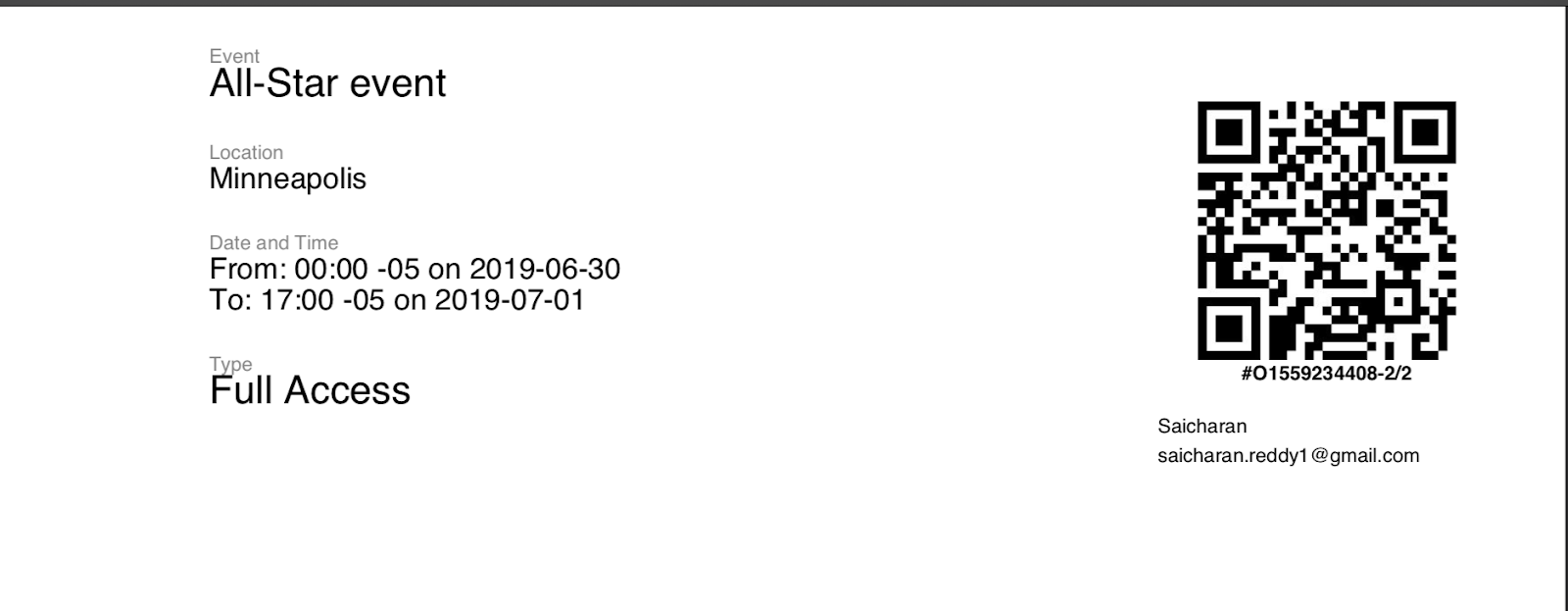
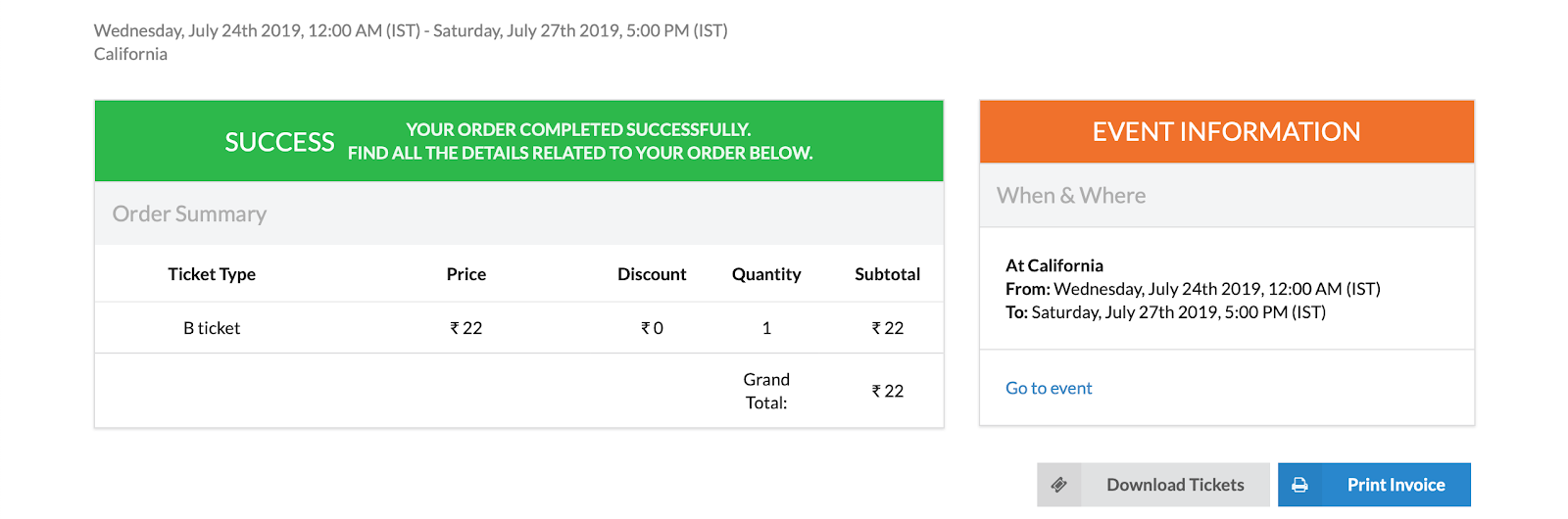
This blog post explains the requirements & implementation details of a secure route over which the tickets could be served in the Open Event Project (Eventyay). Eventyay is the Open Event management solution using standardized event formats developed at FOSSASIA. Sometimes, tickets of a user can be utilized in the process of fraudulent actions. To prevent this, security is of the utmost importance. Prior to this feature, anonymous/unauthorized users were able to access the tickets which belonged to another user with a simple link. There was no provision of any authentication check.  An additional problem with the tickets were the storage methodology where the tickets were stored in a top-level folder which was not protected. Therefore, there was a necessity to implement a flask route which could check if the user was authenticated, the ticket belonged to the authorized user/admin/organizer of the event and provide proper exceptions in other cases.  Ticket completion page with option to download tickets When the user places an order and it goes through successfully,the ticket is generated, stored in a protected folder and the user is redirected to the order completion page where they would be able to download their tickets. When the user clicks on the Download Tickets Button, the ticket_blueprint route is triggered. @ticket_blueprint.route('/tickets/<string:order_identifier>') @jwt_required def ticket_attendee_authorized(order_identifier): if current_user: try: order = Order.query.filter_by(identifier=order_identifier).first() except NoResultFound: return NotFoundError({'source': ''}, 'This ticket is not associated with any order').respond() if current_user.can_download_tickets(order): key = UPLOAD_PATHS['pdf']['tickets_all'].format(identifier=order_identifier) file_path = '../generated/tickets/{}/{}/'.format(key, generate_hash(key)) + order_identifier + '.pdf' try: return return_file('ticket', file_path, order_identifier) except FileNotFoundError: create_pdf_tickets_for_holder(order) return return_file('ticket', file_path, order_identifier) else: return ForbiddenError({'source': ''}, 'Unauthorized Access').respond() else: return ForbiddenError({'source': ''}, 'Authentication Required to access ticket').respond()                          tickets_route - the logic pertaining to security module for attendee tickets The function associated with the ticket downloads queries the Order model using the order identifier as a key. Then, it checks if the current authenticated user is either a staff member, the owner of the ticket or the organizer of the ticket. If it passes this check, the file path is generated and tickets are downloaded using the return_tickets function. In the return_tickets function, we utilize the send_file function imported from Flask and wrap it with flask’s make_response function. In addition to that, we attach headers to specify that it is an attachment and add an appropriate name to it. def return_file(file_name_prefix, file_path, identifier): response = make_response(send_file(file_path)) response.headers['Content-Disposition'] = 'attachment; filename=%s-%s.pdf' % (file_name_prefix, identifier) return response return_tickets function - sends the file as a make_response with appropriate headers When it comes to exception handling, at each stage whenever a ticket is not to be found while querying or the authentication check fails, a proper exception is thrown to the user. For example, at the step where an attempt is made to return the file using file path after authentication, if the tickets are NotFound, the tickets are generated on the fly.  def can_download_tickets(self, order): permissible_users = [holder.id for holder in order.ticket_holders] + [order.user.id] if self.is_staff or self.has_event_access(order.event.id) or self.id in permissible_users: return True return False can_download_tickets…

Continue ReadingImplementing Render Route & Security Checks for Attendee Tickets