List SUSI.AI Devices in Admin Panel

In this blog I’ll be explaining about the Devices Tab in SUSI.AI Admin Panel. Admins can now view the connected devices of the users with view, edit and delete actions. Also the admins can directly view the location of the device on the map by clicking on the device location of that user. Implementation List Devices Devices tab displays device name, macId, room, email Id, date added, last active, last login IP and location of the device. loadDevices function is called on componentDidMount which calls the fetchDevices API which fetches the list of devices from /aaa/getDeviceList.json endpoint. List of all devices is stored in devices array. Each device in the array is an object with the above properties. Clicking on the device location opens a popup displaying the device location on the map. loadDevices = () => { fetchDevices() .then(payload => { const { devices } = payload; let devicesArray = []; devices.forEach(device => { const email = device.name; const devices = device.devices; const macIdArray = Object.keys(devices); const lastLoginIP = device.lastLoginIP !== undefined ? device.lastLoginIP : '-'; const lastActive = device.lastActive !== undefined ? new Date(device.lastActive).toDateString() : '-'; macIdArray.forEach(macId => { const device = devices[macId]; let deviceName = device.name !== undefined ? device.name : '-'; deviceName = deviceName.length > 20 ? deviceName.substr(0, 20) + '...' : deviceName; let location = 'Location not given'; if (device.geolocation) { location = ( {device.geolocation.latitude},{device.geolocation.longitude} ); } const dateAdded = device.deviceAddTime !== undefined ? new Date(device.deviceAddTime).toDateString() : '-'; const deviceObj = { deviceName, macId, email, room: device.room, location, latitude: device.geolocation !== undefined ? device.geolocation.latitude : '-', longitude: device.geolocation !== undefined ? device.geolocation.longitude : '-', dateAdded, lastActive, lastLoginIP, }; devicesArray.push(deviceObj); }); }); this.setState({ loadingDevices: false, devices: devicesArray, }); }) .catch(error => { console.log(error); }); }; View Device View action redirects to users /mydevices?email<email>&macid=<macid>. This allows admin to have full control of the My devices section of the user. Admin can change device details and delete device. Also admin can see all the devices of the user from the ALL tab. To edit a device click on edit icon in the table, update the details and click on check icon. To delete a device click on the delete device which then asks for confirmation of device name and on confirmation deletes the device. Edit Device Edit actions opens up a dialog modal which allows the admin to update the device name and room. Clicking on the edit button calls the modifyUserDevices API which takes in email Id, macId, device name and room name as parameters. This calls the API endpoint /aaa/modifyUserDevices.json. handleChange = event => { this.setState({ [event.target.name]: event.target.value }); }; render() { const { macId, email, handleConfirm, handleClose } = this.props; const { room, deviceName } = this.state; return ( <React.Fragment> <DialogTitle>Edit Device Details for {macId}</DialogTitle> <DialogContent> <OutlinedTextField value={deviceName} label="Device Name" name="deviceName" variant="outlined" onChange={this.handleChange} style={{ marginRight: '20px' }} /> <OutlinedTextField value={room} label="Room" name="room" variant="outlined" onChange={this.handleChange} /> </DialogContent> <DialogActions> <Button key={1} color="primary" onClick={() => handleConfirm(email, macId, room, deviceName)}> Change </Button> <Button key={2} color="primary" onClick={handleClose}> Cancel </Button> </DialogActions>…

Continue ReadingList SUSI.AI Devices in Admin Panel

Apply Shimmer Effect for Progress in Open Event Attendee Application

The open event attendee is an android app which allows users to discover events happening around the world using the Open Event Platform. It consumes the APIs of the open event server to get a list of available events and can get detailed information about them. Shimmer effect was created by Facebook to indicate a loading status, so instead of using ProgressBar or the usual loader use Shimmer for a better design and user interface. They also open-sourced a library called Shimmer both for Android and iOS so that every developer could use it for free. Add Shimmer libraryCreate a placeholder for shimmerApply the effect with live dataConclusionResources Let’s analyze every step in detail. Add Shimmer Library  Add Shimmer Library to build.gradle : // Cards Shimmer Animation implementation 'com.facebook.shimmer:shimmer:0.5.0' Create reasouces Add shimmer background color to colors.xml: <color name="shimmer_background">#dddddd</color> Create a placeholder layout: <androidx.cardview.widget.CardView xmlns:android="http://schemas.android.com/apk/res/android" xmlns:app="http://schemas.android.com/apk/res-auto" android:layout_width="match_parent" android:layout_height="wrap_content" android:layout_margin="@dimen/layout_margin_medium" app:cardBackgroundColor="@android:color/white" app:cardCornerRadius="@dimen/card_corner_radius" app:cardElevation="@dimen/layout_margin_none" android:foreground="?android:attr/selectableItemBackground" android:background="@android:color/white"> <LinearLayout android:layout_width="match_parent" android:layout_height="wrap_content" android:layout_margin="@dimen/layout_margin_large" android:layout_gravity="center" android:orientation="vertical"> <ImageView android:layout_width="match_parent" android:layout_height="@dimen/item_image_view_160dp" android:scaleType="centerCrop" android:background="@color/shimmer_background"/> <LinearLayout android:layout_width="match_parent" android:layout_marginTop="@dimen/layout_margin_medium" android:layout_height="wrap_content" android:orientation="horizontal"> <View android:layout_width="@dimen/card_width_45dp" android:layout_height="@dimen/item_image_view" android:background="@color/shimmer_background" android:layout_marginEnd="@dimen/padding_large" android:layout_marginRight="@dimen/padding_large" android:gravity="center_horizontal" android:orientation="vertical" android:layout_marginTop="@dimen/padding_medium"> </View> <LinearLayout android:layout_width="match_parent" android:layout_height="wrap_content" android:orientation="vertical" android:paddingBottom="@dimen/padding_large" android:paddingTop="@dimen/padding_medium"> <View android:layout_width="match_parent" android:layout_height="@dimen/view_height_25dp" android:layout_marginBottom="@dimen/layout_margin_small" android:background="@color/shimmer_background"/> <View android:layout_width="match_parent" android:layout_height="@dimen/view_height_25dp" android:background="@color/shimmer_background"/> </LinearLayout> </LinearLayout> </LinearLayout> </androidx.cardview.widget.CardView> Add shimmer in your fragment/activity layout resources file: <com.facebook.shimmer.ShimmerFrameLayout android:id="@+id/shimmer_view_container" android:layout_width="wrap_content" android:layout_height="wrap_content" android:layout_gravity="center" android:layout_marginTop="15dp" android:orientation="vertical" shimmer:duration="800"> <!-- Adding 7 rows of placeholders --> <LinearLayout android:layout_width="match_parent" android:layout_height="wrap_content" android:orientation="vertical"> <include layout="@layout/data_placeholder_layout" /> <include layout="@layout/data_placeholder_layout" /> <include layout="@layout/data_placeholder_layout" /> <include layout="@layout/data_placeholder_layout" /> <include layout="@layout/data_placeholder_layout" /> <include layout="@layout/data_placeholder_layout" /> <include layout="@layout/data_placeholder_layout" /> </LinearLayout> </com.facebook.shimmer.ShimmerFrameLayout> Apply Shimmer with LiveData Declare live data variable in view model: private val mutableShowShimmer = MediatorLiveData<Boolean>() val showShimmer: MediatorLiveData<Boolean> = mutableShowShimmer Handle progress in the view model: compositeDisposable += eventPagedList .subscribeOn(Schedulers.io()) .doOnSubscribe { mutableShowShimmer.value = true }.finally { mutableShowShimmer.value = false } Handle shimmer with observing the live data in fragment/activity: eventsResultsViewModel.showShimmer .nonNull() .observe(viewLifecycleOwner, Observer { if (it) { rootView.shimmer_view_container.startShimmer() } else { rootView.shimmer_view_container.stopShimmer() } rootView.shimmer_view_container.isVisible = it }) GIF Resources Show shimmer progress in Android: https://medium.com/mindorks/android-design-shimmer-effect-fa7f74c68a93 Tags Eventyay, open-event, Shimmer, Facebook, MVVM, Fossasia, GSoC, Android, Kotlin

Continue ReadingApply Shimmer Effect for Progress in Open Event Attendee Application

Displaying Private Skills and Drafts on SUSI.AI

The ListPrivateSkillService and ListPrivateDraftSkillService endpoint was implemented on SUSI.AI Server for SUSI.AI Admins to view the bots and drafts created by users respectively. This allows admins to monitor the bots and drafts created by users, and delete the ones which violate the guidelines. Also admins can see the sites where the bot is being used. The endpoint of both ListPrivateSkillService and ListPrivateDraftSkillService is of GET type. Both of them have a compulsory access_token parameter but ListPrivateSkillService has an extra optional search parameter. access_token(necessary): It is the access_token of the logged in user. It means this endpoint cannot be accessed in anonymous mode. search: It fetches a bot with the searched name. The minimum user role is set to OPERATOR. API Development ListPrivateSkillService For creating a list, we need to access each property of botDetailsObject, in the following manner: Key → Group  → Language → Bot Name  → BotList The below code iterates over the uuid of all the users having a bot, then over different groupNames,languageNames, and finally over the botNames. If search parameter is passed then it searches for the bot_name in the language object. Each botDetails object consists of bot name, language, group and key i.e uuid of the user which is then added to the botList array. JsonTray chatbot = DAO.chatbot; JSONObject botDetailsObject = chatbot.toJSON(); JSONObject keysObject = new JSONObject(); JSONObject groupObject = new JSONObject(); JSONObject languageObject = new JSONObject(); List botList = new ArrayList(); JSONObject result = new JSONObject(); Iterator Key = botDetailsObject.keys(); List keysList = new ArrayList(); while (Key.hasNext()) { String key = (String) Key.next(); keysList.add(key); } for (String key_name : keysList) { keysObject = botDetailsObject.getJSONObject(key_name); Iterator groupNames = keysObject.keys(); List groupnameKeysList = new ArrayList(); while (groupNames.hasNext()) { String key = (String) groupNames.next(); groupnameKeysList.add(key); } for (String group_name : groupnameKeysList) { groupObject = keysObject.getJSONObject(group_name); Iterator languageNames = groupObject.keys(); List languagenamesKeysList = new ArrayList(); while (languageNames.hasNext()) { String key = (String) languageNames.next(); languagenamesKeysList.add(key); } for (String language_name : languagenamesKeysList) { languageObject = groupObject.getJSONObject(language_name); If search parameter is passed, then search for a bot with the given name and add the bot to the botList if it exists. It will return all bots which have bot name as the searched name. if (call.get("search", null) != null) { String bot_name = call.get("search", null); if(languageObject.has(bot_name)){ JSONObject botDetails = languageObject.getJSONObject(bot_name); botDetails.put("name", bot_name); botDetails.put("language", language_name); botDetails.put("group", group_name); botDetails.put("key", key_name); botList.add(botDetails); } } If search parameter is not passed, then it will return all the bots created by the users. else { Iterator botNames = languageObject.keys(); List botnamesKeysList = new ArrayList(); while (botNames.hasNext()) { String key = (String) botNames.next(); botnamesKeysList.add(key); } for (String bot_name : botnamesKeysList) { JSONObject botDetails = languageObject.getJSONObject(bot_name); botDetails.put("name", bot_name); botDetails.put("language", language_name); botDetails.put("group", group_name); botDetails.put("key", key_name); botList.add(botDetails); } } } } } List of all bots, botList is return as server response. ListPrivateDraftSkillService For creating a list we need to iterate over each user and check whether the user has a draft bot. We get all the authorized clients from DAO.getAuthorizedClients(). We then iterate over each client and get their…

Continue ReadingDisplaying Private Skills and Drafts on SUSI.AI

Registering The SUSI Smart Speaker With your SUSI.AI account

When the SUSI Smart Speaker is set up for the first time it needs to be configured. After successful configuration, the smart speaker is registered with the associated account so that the user can see their smart speaker device information from the settings of their susi.ai account. There are two ways to configure  the smart speaker: Through the android appThrough the Web Configuration Page Both these processes are shown in detail here - https://github.com/fossasia/susi_installer/blob/development/docs/configure_guide.md After the configuration setup is done, the Smart Speaker reboots and connects to your WiFi and registers the device with the given account using the login information provided during the setup.  Figure: Device Details are shown in the susi.ai account settings after successful configuration. Working The Auth Endpoint Whenever the speaker is configured via the android app or manually via the web interface it uses various endpoints (access-point-server). For storing login information /auth endpoint is used. The /auth endpoint writes the login details to config.json file in /home/pi/SUSI.AI/config.json The ss-susi-register service is then enabled i.e. the service will run in the next startup which will register the device online after the device is connected to the WiFi. @app.route('/auth', methods=['GET'])def login():    auth = request.args.get('auth')    email = request.args.get('email')    password = request.args.get('password')    subprocess.call(['sudo', '-u', 'pi', susiconfig, 'set', "susi.mode="+auth, "susi.user="+email, "susi.pass="+password])    display_message = {"authentication":"successful", "auth": auth, "email": email, "password": password}    if auth == 'authenticated' and email != "":        os.system('sudo systemctl enable ss-susi-register.service')    resp = jsonify(display_message)    resp.status_code = 200    return resp # pylint-enable The SYSTEMD Registration Service ss-susi-register.service - https://github.com/fossasia/susi_installer/blob/development/raspi/systemd/ss-susi-register.service This is the service which registers the device on bootup after the configuration phase. The service waits for the network services to run such that the registration script is run only after when it is connected to a network. This service uses register.py to register the device online. [Unit]Description=Register the smart speaker onlineWants=network-online.targetAfter=network-online.target[Service]Type=oneshotWorkingDirectory=/home/pi/SUSI.AIExecStart=/usr/bin/python3 susi_installer/raspi/access_point/register.py[Install]WantedBy=multi-user.target The Registration Script  Register.py - https://github.com/fossasia/susi_installer/blob/development/raspi/access_point/register.pyThis script is responsible for the following tasks Get configuration information from config.json config = json_config.connect('/home/pi/SUSI.AI/config.json')user = config['login_credentials']['email']password = config['login_credentials']['password']room = config['room_name'] Use the login information from config.json to get the authorization token for the respective account. def get_token(login,password):    url = 'http://api.susi.ai/aaa/login.json?type=access-token'    PARAMS = {        'login':login,        'password':password,    }    r1 = requests.get(url, params=PARAMS).json()    return r1['access_token'] Use the authorization token and other information from config.json and register the smart speaker online. def device_register(access_token,room):    g = geocoder.ip('me')    mac=':'.join(re.findall('..', '%012x' % uuid.getnode()))    url='https://api.susi.ai/aaa/addNewDevice.json?&name=SmartSpeaker'    PARAMS = {        'room':room,        'latitude':str(g.lat),        'longitude':str(g.lng),        'macid':mac,        'access_token':access_token    }    r1 = requests.get(url, params=PARAMS).json()    return r1 If the registration fails put back the smart speaker in the access point(configuration) mode and reset the account information in config.json try:        access_token=get_token(user,password)        out=device_register(access_token,room)        logger.debug(str(out))        break    except:        if i != 2:            time.sleep(5) …

Continue ReadingRegistering The SUSI Smart Speaker With your SUSI.AI account

Refactoring Order Status in Open Event

This blog post will showcase the introduction of new Initializing status for orders in Open Event Frontend. So, now we have a total of six status. Let’s take a closer look and understand what exactly these order status means: StatusDescriptionColor CodeInitializingWhen a user selects tickets and clicks on Order Now button on public event page, the user will get 15 minutes to fill up the order form. The status for order till the form is submitted is - initializingYellowPlacedIf only offline paid tickets are present in order i.e. paymentMode belongs to one of the following - bank, cheque, onsite; then the status of order is placedBluePendingIf the order contains online paid tickets, the status for such order is pending. User gets 30 minutes to complete payment for such pending orders.         If user completes the payment in this timespan of 30 minutes, the status of order is updated to completed.However if user fails to complete payment in 30 minutes, the status of the order is updated to expired.OrangeCompletedThere are two cases when the status of order is completed -1. If the ordered tickets are free tickets, the status of order is completed.2. If the online payment for pending tickets is completed in timespan of 30 minutes, the status is updated to completed. GreenExpiredThere are two cases when status of order is updated to expired.1. If the user fails to fill up the order form in the 15 minutes allotted to the user, the status changes from initializing to expired.2. If the user fails to complete the payment for online paid orders in timeframe of 30 minutes allotted, the status is updated from pending to expired. RedCancelledWhen an organizer cancels an order, the order is given status of cancelled.Grey   Placed Order Completed Order Pending Order Expired Order So, basically the status of code is set based on the value of paymentMode attribute.  If the paymentMode is free, the status is set to completed.If the paymentMode is bank or cheque or onsite, the status is set to placed.Otherwise, the status is set to pending. if (paymentMode === 'free') { order.set('status', 'completed'); } else if (paymentMode === 'bank' || paymentMode === 'cheque' || paymentMode === 'onsite') { order.set('status', 'placed'); } else { order.set('status', 'pending'); } We render the status of order at many places in the frontend, so we introduced a new helper order-color which returns the color code depending on the status of the order. import { helper } from '@ember/component/helper'; export function orderColor(params) { switch (params[0]) { case 'completed': return 'green'; case 'placed': return 'blue'; case 'initializing': return 'yellow'; case 'pending': return 'orange'; case 'expired': return 'red'; default: return 'grey'; } } export default helper(orderColor); This refactor was followed up on server also to accommodate changes: Ensuring that the default status is always initializing. For this, we place a condition in before_post hook to mark the status as initializing.Till now, the email and notification were sent out only for completed orders but as we now use placed status for offline paid orders so we…

Continue ReadingRefactoring Order Status in Open Event

Implementation of Role Invites in Open Event Organizer Android App

Open Event Organizer Android App consists of various features which can be used by event organizers to manage their events. Also, they can invite other people for various roles. After acceptance of the role invite, the particular user would have access to features like the event settings and functionalities like scanning of tickets and editing of event details, depending on the access level of the role. There can be various roles which can be assigned to a user: Organizer, Co-Organizer, Track Organizer, Moderator, Attendee, Registrar. Here we will go through the process of implementing the feature to invite a person for a particular role for an event using that person’s email address. The ‘Add Role’ screen has an email field to enter the invitee’s email address and select the desired role for the person. Upon clicking the ‘Send Invite’ button, the person would be sent a mail containing a link to accept the role invite. The Role class is used for the different types of available roles. @Data @Builder @Type("role") @AllArgsConstructor @NoArgsConstructor @JsonNaming(PropertyNamingStrategy.KebabCaseStrategy.class) public class Role { @Id(LongIdHandler.class) public Long id; public String name; public String titleName; } The RoleInvite class: @Data @Builder @Type("role-invite") @AllArgsConstructor @NoArgsConstructor @JsonNaming(PropertyNamingStrategy.KebabCaseStrategy.class) public class RoleInvite { @Id(LongIdHandler.class) public Long id; @Relationship("event") public Event event; @Relationship("role") public Role role; public String email; public String createdAt; public String status; public String roleName; } A POST request is required for sending the role invite using the email address of the recipient as well as the role name. @POST("role-invites") Observable<RoleInvite> postRoleInvite(@Body RoleInvite roleInvite); On clicking the ‘Send Invite’ button, the email address would be validated and if it is valid, the invite would be sent. binding.btnSubmit.setOnClickListener(v -> { if (!validateEmail(binding.email.getText().toString())){ showError(getString(R.string.email_validation_error)); return; } roleId = binding.selectRole.getSelectedItemPosition() + 1; roleInviteViewModel.createRoleInvite(roleId); }); createRoleInvite() method in RoleInviteViewModel: public void createRoleInvite(long roleId) { long eventId = ContextManager.getSelectedEvent().getId(); Event event = new Event(); event.setId(eventId); roleInvite.setEvent(event); role.setId(roleId); roleInvite.setRole(role); compositeDisposable.add( roleRepository .sendRoleInvite(roleInvite) .doOnSubscribe(disposable -> progress.setValue(true)) .doFinally(() -> progress.setValue(false)) .subscribe(sentRoleInvite -> { success.setValue("Role Invite Sent"); }, throwable -> error.setValue(ErrorUtils.getMessage(throwable).toString()))); } It takes roleId as an argument which is used to set the desired role before sending the POST request. We can notice the use of sendRoleInvite() method of RoleRepository. Let’s have a look at that: @Override public Observable<RoleInvite> sendRoleInvite(RoleInvite roleInvite) { if (!repository.isConnected()) { return Observable.error(new Throwable(Constants.NO_NETWORK)); } return roleApi .postRoleInvite(roleInvite) .doOnNext(inviteSent -> Timber.d(String.valueOf(inviteSent))) .subscribeOn(Schedulers.io()) .observeOn(AndroidSchedulers.mainThread()); } Resources: API Documentation: Roles, Role Invites Pull Request: feat: Implement system of role invites Open Event Organizer App: Project repo, Play Store, F-Droid

Continue ReadingImplementation of Role Invites in Open Event Organizer Android App

Implementation of Pagination in Open Event Organizer Android App

Pagination (Endless Scrolling or Infinite Scrolling) breaks down a list of content into smaller parts, loaded one at a time. It is important when the quantity of data to be loaded is huge and loading all the data at once can result in timeout. Here, we will discuss about the implementation of pagination in the list of attendees in the Open Event Organizer App (Eventyay Organizer App). It is an Android app used by event organizers to create and manage events on the Eventyay platform. Features include event creation, ticket management, attendee list with ticket details, scanning of participants etc. In the Open Event Organizer App, the loading of attendees would result in timeout when the number of attendees would be large. The solution for fixing this was the implementation of pagination in the Attendees fragment. First, the API call needs to be modified to include the page size as well as the addition of page number as a Query. @GET("events/{id}/attendees?include=order,ticket,event&fields[event]=id&fields[ticket]=id&page[size]=20") Observable<List<Attendee>> getAttendeesPageWise(@Path("id") long id, @Query("page[number]") long pageNumber); Now, we need to modify the logic of fetching the list of attendees to include the page number. Whenever one page ends, the next page should be fetched automatically and added to the list. The page number needs to be passed as an argument in the loadAttendeesPageWise() method in AttendeesViewModel. public void loadAttendeesPageWise(long pageNumber, boolean forceReload) { showScanButtonLiveData.setValue(false); compositeDisposable.add( getAttendeeSourcePageWise(pageNumber, forceReload) .doOnSubscribe(disposable -> progress.setValue(true)) .doFinally(() -> progress.setValue(false)) .toSortedList() .subscribe(attendees -> { attendeeList.addAll(attendees); attendeesLiveData.setValue(attendees); showScanButtonLiveData.setValue(!attendeeList.isEmpty()); }, throwable -> error.setValue(ErrorUtils.getMessage(throwable).toString()))); } Also in the getAttendeeSourcePageWise() method: private Observable<Attendee> getAttendeeSourcePageWise(long pageNumber, boolean forceReload) { if (!forceReload && !attendeeList.isEmpty()) return Observable.fromIterable(attendeeList); else return attendeeRepository.getAttendeesPageWise(eventId, pageNumber, forceReload); } Now, in the AttendeesFragment, a check is needed to increase the current page number and load attendees for the next page when the user reaches the end of the list.  if (!recyclerView.canScrollVertically(1)) { if (recyclerView.getAdapter().getItemCount() > currentPage * ITEMS_PER_PAGE) { currentPage++; } else { currentPage++; attendeesViewModel.loadAttendeesPageWise(currentPage, true); } } When a new page is fetched, we need to update the existing list and add the elements from the new page. @Override public void showResults(List<Attendee> attendees) { attendeeList.addAll(attendees); fastItemAdapter.setNewList(attendeeList); binding.setVariable(BR.attendees, attendeeList); binding.executePendingBindings(); } Now, list of attendees would be fetched pagewise, thus improving the performance and preventing timeouts. Resources: Further reading: Pagination Android Tutorial with RecyclerView: Getting StartedPagination with RecyclerView Open Event Organizer App: Project repo, Play Store, F-Droid

Continue ReadingImplementation of Pagination in Open Event Organizer Android App

Deleting a user’s own account in Open Event

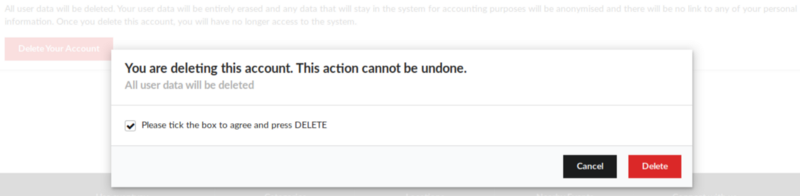
This blog post will showcase an option using which a user can delete his/her account in Open Event Frontend. In Open Event we allow a user who is not associated with any event and/or orders to delete his/her own account. User can create a new account with same email later if they want.  It is a 2-step process just to ensure that user doesn’t deletes the account accidentally. The user needs to get to the Account section where he/she is required to select Danger Zone tab. If user is not associated with any event and/or order, he/she will get an option to delete his/her account along with the following text : All user data will be deleted. Your user data will be entirely erased and any data that will stay in the system for accounting purposes will be anonymized and there will be no link to any of your personal information. Once you delete this account, you will no longer have access to the system. Option to delete account in Open Event Frontend If the user is associated with any event and/or order, the option to delete the account is disabled along with the following text : Your account currently cannot be deleted as active events and/or orders are associated with it. Before you can delete your account you must transfer the ownership of your event(s) to another organizer or cancel your event(s). If you have tickets orders stored in the system, please cancel your orders first too. Disabled option to delete account in Open Event Frontend For above toggle we need to check if a user is deletable or not. For that we must check if a user is associated with any event and/or order. The code snippet which checks this is given below : isUserDeletable: computed('data.events', 'data.orders', function() { if (this.get('data.events').length || this.get('data.orders').length) { return false; } return true; }) When a user clicks on the option to delete his/her account, a modal pops up asking the user to confirm his/her email. Once user fills in correct email ID the Proceed button becomes active. Modal to confirm email ID The code snippet which triggers the action to open the modal deleteUserModal is given below: <button {{action 'openDeleteUserModal' data.user.id data.user.email}} class='ui red button'> {{t 'Delete Your Account'}} </button> openDeleteUserModal(id, email) { this.setProperties({ 'isUserDeleteModalOpen' : true, 'confirmEmail' : '', 'userEmail' : email, 'userId' : id }); } The code snippet which deals with the email confirmation: isEmailDifferent : computed('confirmEmail', function() { return this.userEmail ? this.confirmEmail !== this.userEmail : true; }) When user confirms his/her email and hits Proceed button, a new modal appears which asks the user to confirm his/her action to delete account. Final confirmation to delete account The code snippet which triggers the action to open the modal confirmDeleteUserModal is given below:  <button {{action openConfirmDeleteUserModal}} class="ui red button {{if isEmailDifferent 'disabled'}}"> {{t 'Proceed'}} </button> openConfirmDeleteUserModal() { this.setProperties({ 'isUserDeleteModalOpen' : false, 'confirmEmail' : '', 'isConfirmUserDeleteModalOpen' : true, 'checked' : false }); } When user clicks the Delete button, it…

Continue ReadingDeleting a user’s own account in Open Event

Implementing Complex Custom Forms in Open Event

Several modules of Open Event Frontend involve the use of custom forms, which currently are not truly custom in the sense that they are really restricted, and rigid. Only text fields are available, along with hardcoded dropdowns. Further, the user is only able to select from among the hardcoded fields and toggle them on/off for his/her event. Any component which extends the form mixin can make specify the validations required using the getValidationRules hook. Current custom forms are really restricted, and rigid. Only text fields are available, along with hardcoded dropdowns. Further, the user is only able to select from among the hardcoded fields and toggle them on/off for his/her event. We already have the framework to associate simple custom fields with individual events or orders, and an API to create them. The custom forms schema needs to be now expanded to allow more complex fields. Taking Google forms and our use case as an inspiration, the user should be able to create the following fields: Simple text *Paragraph *Radio Buttons (single choice)CheckboxesDropdownFile upload *TimeDateDate & Time * Already implemented The schema needs expansion to accommodate options for fields like dropdowns, checkboxes and radio buttons. Also, to store custom labels to the fields, which the user assigns. Currently, they are hardcoded by comparing the name of the field with if-else. Thus we propose the following schema related changes to accomodate the complex custom forms. Add a separate model called customFormOptions to store various options of radio buttons, checkboxes, and dropdowns. They will have the following fields: ColumnDescriptionIDdefault unique IDvaluevalue of the custom form field options like 'XS, XL'custom_form_idforeign key - the id of the custom form field this option belongs to CustomForm model will have a hasMany relationship with customFormOptions. For text fields, and other fields which don’t require options within them can have the relationship as null. The changes to customForm Model itself: ColumnDescriptiondescriptionAn optional simple string column to store the custom messages/info the user may give to the custom form field like T-shirt Size Chart link etc.isComplexBoolean field to indicate if a particular field is complex The changes to event, speaker, session Models: ColumnDescriptioncustomFormValuesA JSON type column which stores all the complex custom form values(currently all the fields offered are hardcoded in the schema) This expansion of schemas will allow the clients to create new, custom fields as per the requirement of the system. Future work may involve creating an API for validations of these fields. Resources  Jquery UI CalendarMoment js isAfter methodEmber: using computed propertiesSemantic UI form Validation Tags : 

Continue ReadingImplementing Complex Custom Forms in Open Event

Introducing Custom Validations for Start-End DateTime scenarios on Open Event Frontend

Several modules of Open Event Frontend involve start and end date-times. While for simple type fields like text, dropdowns or radio buttons, default semantic UI validations are available, which are used inside the app via the form mixin.  Any component which extends the form mixin can make specify the validations required using the getValidationRules hook. For instance, this set of rules will enforce validations on the field called ticket_price which will prohibit it from being left empty, or something other than a real number. getValidationRules() { ticketPrice: { identifier : 'ticket_price', rules : [ { type : 'empty', prompt : this.l10n.t('Please give your ticket a price') }, { type : 'number', prompt : this.l10n.t('Please give a proper price for you ticket') }, { type : 'decimal[0..]', prompt : this.l10n.t('Ticket price should be greater than 0') } ] }, } The validations provided by semantic UI only extend to single fields, and are independent of each other. However, in our use case we have four fields: Start dateStart timeEnd dateEnd time The general requirement is that the DateTime object formed by joining the start date and the start time should be before the DateTime object obtained by joining the end date and time. Also, these four distributed fields exist only on the frontend, on the server they are actually just two fields startsAt and endsAt each carrying UTC time values of DateTime objects. To split them into date and time a new computed function is created which is invoked in the model definitions of various resources. Consider the two following complex fields defined in the model according to the schema on the server. startsAt : attr('moment'), endsAt : attr('moment') In order to split them into two that helper is used as follows: startsAtDate : computedDateTimeSplit.bind(this)('startsAt', 'date', 'endsAt'), startsAtTime : computedDateTimeSplit.bind(this)('startsAt', 'time', 'endsAt'), endsAtDate : computedDateTimeSplit.bind(this)('endsAt', 'date') endsAtTime : computedDateTimeSplit.bind(this)('endsAt', 'time'), These values can then be used inside individual fields. To enhance the user experience jquery Calendar module is used to allow the user to enter the date and time values using a calendar and time picker as shown below. The computedDateTimeSplit helper, takes in the property whose part it is splitting, along with the specification of the part it will split. It also takes an optional endProperty argument, which is passed if it is being called for a start property. This function returns a pair of getters and setters,the get function returns the part of datetime object requested like, date or time where as the setter sets these values each time this function is called. export const computedDateTimeSplit = function(property, segmentFormat, endProperty) { return computed(property, { get() { return moment(this.get(property)).format(getFormat(segmentFormat)); }, set(key, value) { const newDate = moment(value, getFormat(segmentFormat)); let oldDate = newDate; if (segmentFormat === 'time') { oldDate.hour(newDate.hour()); oldDate.minute(newDate.minute()); } else if (segmentFormat === 'date') { oldDate.date(newDate.date()); oldDate.month(newDate.month()); oldDate.year(newDate.year()); } else { oldDate = newDate; } this.set(property, oldDate); } return value; } }); }; With this complex set up it is not possible to use semantic UI validations, hence we…

Continue ReadingIntroducing Custom Validations for Start-End DateTime scenarios on Open Event Frontend