Adding Events’ Payment Preferences to Eventyay Organizer Android App

The Open Event Organizer Android App allows creating events from the app itself. But organizers had to enter the payment information every time. To solve this problem, the PR#1058 was opened which saves the Organizers' payment preferences in Event Settings. The Open Event project offers 5 types of payment options: Online: 1. Paypal 2. Stripe Offline: 3. Cash payment 4. Bank Transfer 5. Cheques Each of the above need the payment specific details to be saved. And stuffing all of them into a single Event Settings screen isn’t a good option. Therefore the following navigation was desired: Event Settings -> Payment Preferences -> All options with their preferences Android Developer guide references a simple method to achieve the above, which is by using nested preference screens. But unfortunately, there’s a bug in the support library and it cannot be implemented with  PreferenceFragmentCompat So we had to apply a hack to the UI. We set an OnPreferenceClickListener as follows: public class EventSettingsFragment extends PreferenceFragmentCompat {    …    @Override    public void onCreatePreferencesFix(@Nullable Bundle bundle, String rootKey) {        …        findPreference("payment_preferences").setOnPreferenceClickListener(preference -> {            FragmentTransaction transaction = getFragmentManager().beginTransaction();            transaction                .replace(R.id.fragment_container, PaymentPrefsFragment.newInstance())                .addToBackStack(null)                .commit();            return true;        });    }    … } Once the preference item “Payment Preferences” is clicked, we initiate a fragment transaction opening the Payment Preferences screen, and add it to the fragment back stack. For each payment option, we have two things to consider: Is that payment option supported by the organizer? If yes, we need to store the necessary details in order to direct the payment to the organizer. We are also keeping track of whether the organizer wants to keep using the same payment preferences for future events as well. This way we save the organizer’s effort of entering payment details for each new event. <?xml version="1.0" encoding="utf-8"?> <PreferenceScreen xmlns:android="http://schemas.android.com/apk/res/android">    <CheckBoxPreference        android:key="use_payment_prefs"        android:title="@string/use_payment_prefs"        android:summaryOn="@string/using_payment_preferences"        android:summaryOff="@string/not_using_payment_preferences"        android:defaultValue="false" />    <PreferenceCategory        android:title="Bank Transfer">        <CheckBoxPreference            android:key="accept_bank_transfers"            android:title="@string/accept_payment_by_bank_transfer"            android:defaultValue="false"/>        <EditTextPreference            android:key="bank_details"            android:title="@string/bank_details" />    </PreferenceCategory>    … </PreferenceScreen> Now the only thing remaining is to set payment preferences once the Event Creation form is opened. Hence the following method is called in  CreateEventPresenter  sets the payment details for each option that the organizer has already saved the information for. It does this by using constants named like PREF… all declared in the  Constants.java  file. using a custom Preference class which abstracts away some boilerplate code for us.    public void setPaymentPreferences(Preferences preferences) {        if (preferences.getBoolean(PREF_USE_PAYMENT_PREFS, false)) {            …            event.setCanPayByBank(                preferences.getBoolean(PREF_ACCEPT_BANK_TRANSFER, false)            );            event.setBankDetails(                preferences.getString(PREF_BANK_DETAILS, null)            );            …            getView().setPaymentBinding(event);        }    } This is how the result looks like: Resources Save key-value data | Android Developers https://developer.android.com/training/data-storage/shared-preferences Android developer fundamentals course practicals https://google-developer-training.gitbooks.io/android-developer-fundamentals-course-practicals/content/en/Unit%204/91_p_shared_preferences.html Working with Android Shared Preferences https://android.i-visionblog.com/working-with-android-shared-preferences-4668efa298a8

Continue ReadingAdding Events’ Payment Preferences to Eventyay Organizer Android App

Displaying Avatar of Users using Gravatar on SUSI.AI Android App

This blog post shows how the avatar image of the user is displayed in the feedback section using the Gravatar service on SUSI.AI Android app. A Gravatar is a Globally Recognized Avatar. Your Gravatar is an image that follows you from site to site appearing beside your name when you do things like comment or post on a blog. So, it was decided to integrate the service to SUSI.AI, so that it helps to  identify the user via the avatar image too. Implementation The aim is to use the user’s email address to get his/her avatar. For this purpose, Gravatar exposes a publicly available avatar of the user, which can be accessed via following steps : Creating the Hash of the email Sending the image request to Gravatar For the purpose of creating the MD5 hash of the email, use the MessageDigest class. The function takes an algorithm such as SHA-1, MD5, etc. as input and returns a MessageDigest object that implements the specified digest algorithm. Perform a final update on the digest using the specified array of bytes, which then completes the digest computation. That is, this method first calls update(input), passing the input array to the update method, then calls digest(). fun toMd5Hash(email: String?): String? { try { val md5 = MessageDigest.getInstance("MD5") val md5HashBytes: Array<Byte> = md5.digest(email?.toByteArray()).toTypedArray() return byteArrayToString(md5HashBytes) } catch (e: Exception) { return null } }   Convert the byte array to String, which is the requires MD5 hash of the email string. fun byteArrayToString(array: Array<Byte>): String { val result = StringBuilder(array.size * 2) for (byte: Byte in array) { val toAppend: String = String.format("%x", byte).replace(" ", "0") result.append(toAppend) } return result.toString() }   Now, a URL is generated using the hash. This is the URL that will be used to fetch the avatar. The URL format is https://www.gravatar.com/avatar/HASH, where HASH is the hash of the email of the user. In case, the hash is invalid, Gravatar returns a placeholder avatar. Also, append ‘.jpg’ to the URL to maintain image format consistency in the app. Finally, load this URL using Picasso and set it in the appropriate view holder. fun setAvatar(context: Context, email: String?, imageView: ImageView) { val imageUrl: String = GRAVATAR_URL + toMd5Hash(email) + ".jpg" Picasso.with(context) .load(imageUrl) .fit().centerCrop() .error(R.drawable.ic_susi) .transform(CircleTransform()) .into(imageView) }   You can now see the avatar image of the users in the feedback section. 😀 Resources MessageDigest | Android Developers https://developer.android.com/reference/java/security/MessageDigest  

Continue ReadingDisplaying Avatar of Users using Gravatar on SUSI.AI Android App

Make an API to check if an email address has been registered for SUSI.AI

This blog post talks about the implementation of the checkRegistration.json API on the SUSI.AI server, which is a part of the AAA system. The API endpoint to check if an email address has been registered for SUSI is https://api.susi.ai/aaa/checkRegistration.json It accepts one compulsory url parameter - check_email - It is the parameter that contains the string type email address which the user enters in the email address field of the login screen. The minimalUserRole is set to ANONYMOUS for this API, as initially the registration status of the email address is unknown. API Development The parameter is first extracted via the post object that is passed to the serviceImpl function. The  parameter is then stored in a variable. If the parameter is absent, then it is set to the default value null. There is a check if the email is null. If null, an exception is thrown. This code snippet discusses the above two points - @Override public ServiceResponse serviceImpl(Query post, HttpServletResponse response, Authorization auth, final JsonObjectWithDefault permissions) throws APIException { String checkEmail = post.get("check_email", null); JSONObject result = new JSONObject(); if (checkEmail == null) { throw new APIException(422, "Email not provided."); } . . .   Set the credential variable of type ClientCredential by passing the parameters passwd_login and checkEmail to the ClientCredential constructor. Finally pass this credential variable to the getAuthentication method defined in the DAO to return the authentication object. The authentication object then invokes the authentication.getIdentity() method. If the result is null, it means the email address has not been registered yet and vice-versa. Internally, the entire checking procedure is done from the authentication.json file that is stored in data/settings/ directory of the server. The response object is then sent with three key values mainly, apart from the session object. They are - accepted -  true - It tells that the API call has been successful. exists - It tells that the email address has already been registered. check_email -  It is the same email address that was sent as a query parameter. Here are the important code snippets - Continuation of the first code snippet - . . . // check if id exists already ClientCredential credential = new ClientCredential(ClientCredential.Type.passwd_login, checkEmail); Authentication authentication =DAO.getAuthentication(credential); if (authentication.getIdentity() != null) { result.put("exists", true); } else { result.put("exists", false); } result.put("accepted", true); result.put("check_email", checkEmail); return new ServiceResponse(result); }   Sample response of checkRegistration.json API endpoint - { "check_email": "abc@email.com", "session": {"identity": { "type": "host", "name": "127.0.0.1_356778ca", "anonymous": true }}, "exists": true, "accepted": true }   The API development was done in the above explained way. This API will be used in improving the authentication flow in the Android client, where, if an email address has already been registered, then the user would be taken to the ‘Enter Password Screen’ otherwise he/she would be directed to the Signup screen. Resources Learn about Application Programming Interface (API) https://en.wikipedia.org/wiki/Application_programming_interface A blog on API development - An Introductory Guide https://dzone.com/articles/api-development-an-introductory-guide Check out some good login/signup UI flows https://medium.muz.li/login-sign-up-inspiration-for-mobile-apps-aeff34090bbd

Continue ReadingMake an API to check if an email address has been registered for SUSI.AI

Fetch Five Star Skill Rating from getSkillList API in SUSI.AI Android

SUSI.AI had a thumbs up/down rating system till now, which has now been replaced by a five star skill rating system. Now, the user is allowed to rate the skill based on a five star rating system. The UI components include a rating bar and below the rating bar is a section that displays the skill rating statistics - total number of ratings, average rating and a graph showing the percentage of users who rated the skill with five stars, four stars and so on. SUSI.AI Skills are rules that are defined in SUSI Skill Data repo which are basically the processed responses that SUSI returns to the user queries. When a user queries something from the SUSI Android app, a query to SUSI Server is made which in turn fetches data from SUSI Skill Data and returns a JSON response to the app. Similarly, to get skill ratings, a call to the ‘/cms/getSkillList.json’ API is made. In this API, the server checks the SUSI Skill Data repo for the skills and returns a JSON response consisting of all the required information like skill name, author name, description, ratings, etc. to the app. Then, this JSON response is parsed to extract individual fields to display the appropriate information in the skill details screen of the app. API Information The endpoint to fetch skills is ‘/cms/getSkillList.json’ The endpoints takes three parameters as input - model - It tells the model to which the skill belongs. The default value is set to general. group - It tells the group(category) to which the skill belongs. The default value is set to All. language - It tells the language to which the skill belongs. The default value is set to en. Since all skills have to be fetched, this API is called for every group individually. For instance, call “https://api.susi.ai/cms/getSkillList.json?group=Knowledge” to get all skills in group “Knowledge”. Similarly, call for other groups. Here is a sample response of a skill named ‘Capital’ from the group Knowledge : "capital": { "model": "general", "group": "Knowledge", "language": "en", "developer_privacy_policy": null, "descriptions": "A skill to tell user about capital of any country.", "image": "images/capital.png", "author": "chashmeet singh", "author_url": "https://github.com/chashmeetsingh", "skill_name": "Capital", "terms_of_use": null, "dynamic_content": true, "examples": ["What is the capital of India?"], "skill_rating": { "negative": "0", "positive": "4", "feedback_count" : 0, "stars": { "one_star": 0, "four_star": 1, "five_star": 0, "total_star": 1, "three_star": 0, "avg_star": 4, "two_star": 0 } }, "creationTime": "2018-03-17T17:11:59Z", "lastAccessTime": "2018-06-06T00:46:22Z", "lastModifiedTime": "2018-03-17T17:11:59Z" }, It consists of all details about the skill called ‘Capital’: Model (model) Group (group) Language (language) Developer Privacy Policy (developer_privacy_policy) Description (descriptions) Image (image) Author (author) Author URL (author_url) Skill name (skill_name) Terms of Use (terms_of_use) Content Type (dynamic_content) Examples (examples) Skill Rating (skill_rating) Creation Time (creationTime) Last Access Time (lastAccessTime) Last Modified Time (lastModifiedTime) From among all this information, the information of interest for this blog is Skill Rating. This blog mainly deals with showing how to parse the JSON response to get the skill rating star values, so as to…

Continue ReadingFetch Five Star Skill Rating from getSkillList API in SUSI.AI Android

Handling Android Runtime permissions in UI Tests in SUSI.AI Android

With the introduction of Marshmallow (API Level 23), in SUSI.AI it was needed to ensure that: It was verified if we had the permission that was needed, when required The user was requested to grant permission, when it deemed appropriate The request (empty states or data feedback) was correctly handled within the UI to represent the outcome of being granted or denied the required permission You might have written UI tests. What about instances where the app needs the user’s permissions, like allow the app to access contacts on the device, for the tests to run? Would the tests pass when the test is run on Android 6.0+ devices? And, can Espresso be used to achieve this? Unfortunately, Espresso doesn’t have the ability to access components from outside of the application package. So, how to handle this? There are two approaches to handle this : 1) Using the UI Automator 2) Using the GrantPermissionRule Let us have a look at both of these approaches in detail : Using UI Automator to Handle Runtime Permissions on Android for UI Tests : UI Automator is a UI testing framework suitable for cross-app functional UI testing across system and installed apps. This framework requires Android 4.3 (API level 18) or higher. The UI Automator testing framework provides a set of APIs to build UI tests that perform interactions on user apps and system apps. The UI Automator APIs allows you to perform operations such as opening the Settings menu or the app launcher in a test device. This testing framework is well-suited for writing black box-style automated tests, where the test code does not rely on internal implementation details of the target app. The key features of this testing framework include the following : A viewer to inspect layout hierarchy. For more information, see UI Automator Viewer. An API to retrieve state information and perform operations on the target device. For more information, see Accessing device state. APIs that support cross-app UI testing. For more information, see UI Automator APIs. Unlike Espresso, UIAutomator can interact with system applications which means that you’ll be able to interact with the permissions dialog, if needed. So, how to do this? Well, if you want to grant a permission in a UI test then you need to find the corresponding UiObject that you wish to click on. In our case, the permissions dialog box is the UiObject. This object is a representation of a view - it is not bound to the view but contains information to locate the matching view at runtime, based on the properties of the UiSelector instance within it’s constructor. A UiSelector instance is an object that declares elements to be targeted by the UI test within the layout. You can set various properties such as a text value, class name or content-description, for this UiSelector instance. So, once you have your UiObject (the permissions dialog), you can determine which option you want to select and then use click( ) method to grant/deny permission access.…

Continue ReadingHandling Android Runtime permissions in UI Tests in SUSI.AI Android

Upload Avatar for a User in SUSI.AI Server

In this blog post, we are going to discuss on how the feature to upload the avatar for a user was implemented on the SUSI.AI Server. The API endpoint by which a user can upload his/her avatar image is https://api.susi.ai/aaa/uploadAvatar.json. The endpoint is of POST type. It accepts two request parameters - image - It contains the entire image file sent from the client access_token - It is the access_token for the user The minimalUserRole is set to USER for this API, as only logged-in users can use this API. Going through the API development The image and access_token parameters are first extracted via the req object, that is passed to the main function. The  parameters are then stored in variables. There is a check if the access_token and image exists. It it doesn’t, an error is thrown. This code snippet discusses the above two points - protected void doPost(HttpServletRequest req, HttpServletResponse resp) throws ServletException, IOException { Part imagePart = req.getPart("image"); if (req.getParameter("access_token") != null) { if (imagePart == null) { result.put("accepted", false); result.put("message", "Image file not received"); } else { …. } else{ result.put("message","Access token are not given"); result.put("accepted",false); resp.setContentType("application/json"); resp.setCharacterEncoding("UTF-8"); resp.getWriter().write(result.toString()); } }   Then the input stream is extracted from the imagePart and stored. And post that the identity is checked if it is valid. The input stream is converted into the Image type using the ImageIO.read method. The image is eventually converted into a BufferedImage using a function, described below. public static BufferedImage toBufferedImage(Image img) { if (img instanceof BufferedImage) return (BufferedImage) img; // Create a buffered image with transparency BufferedImage bimage = new BufferedImage(img.getWidth(null), img.getHeight(null), BufferedImage.TYPE_INT_ARGB); // Draw the image on to the buffered image Graphics2D bGr = bimage.createGraphics(); bGr.drawImage(img, 0, 0, null); bGr.dispose(); // Return the buffered image return bimage; }   After that, the file path and name is set. The avatar for each user is stored in the /data/avatar_uploads/<uuid of the user>.jpg. The avatar is written to the path using the ImageIO.write function. Once, the file is stored on the server, the success response is sent and the client side receives it. Resources Source of the API - https://github.com/fossasia/susi_server/blob/development/src/ai/susi/server/api/aaa/UploadAvatarService.java

Continue ReadingUpload Avatar for a User in SUSI.AI Server

Modifying Allowed Usage for a User

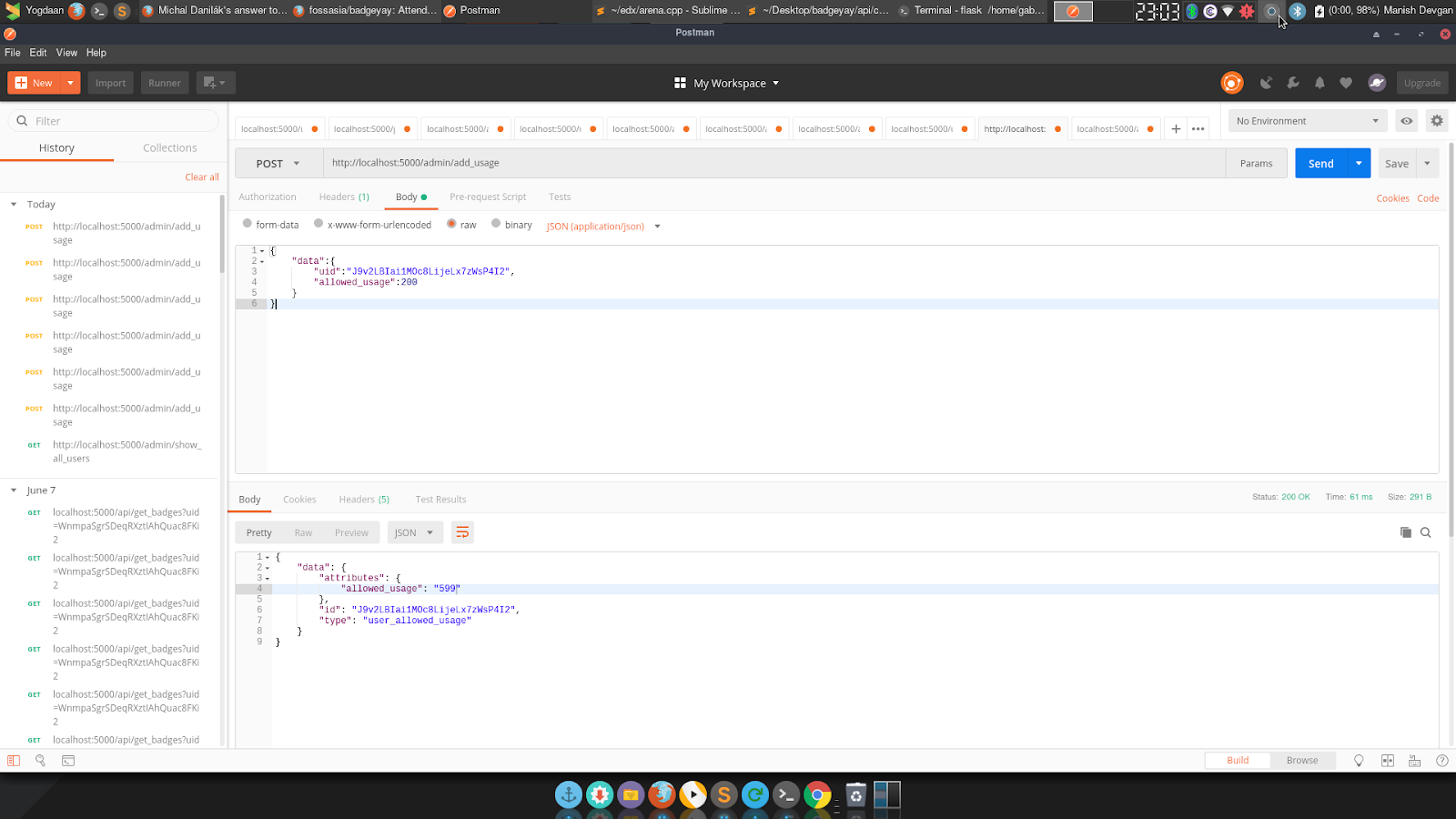
Badgeyay has been progressing in a very good pace. There are a lot of features being developed and modified in this project. One such feature that has been added is the increasing allowed usage of a user by an admin. What is Allowed Usage? Allowed usage is an integer associated with a particular user that determines the number of badges that a person can generate using a single email id. This will allow us to keep track of the number of badges being produced by a particular ID and all. Modifying the Allowed Usage This feature is basically an Admin feature, that will allow an admin to increase or decrease the allowed usage of a particular user. This will ensure that if incase a particular user has his/her usage finished, then by contacting the admin, he/she can get the usage refilled. Adding the functionality The functionality required us to to add two things A schema for modifying allowed user A route in backend to carry out the functionality So, Let us start by creating the schema class UserAllowedUsage(Schema): class Meta: type_ = 'user_allowed_usage' kwargs = {'id': '<id>'} id = fields.Str(required=True, dump_only=True) allowed_usage = fields.Str(required=True, dump_only=True) Once we have our schema created, then we can create a route to modify the allowed usage for a particular user. This route will be made accessible to the admin of Badgeyay. @router.route('/add_usage', methods=['POST']) def admin_add_usage(): try: data = request.get_json()['data'] print(data) except Exception: return ErrorResponse(JsonNotFound().message, 422, {'Content-Type': 'application/json'}).respond() uid = data['uid'] allowed_usage = data['allowed_usage'] user = User.getUser(user_id=uid) user.allowed_usage = user.allowed_usage + allowed_usage db.session.commit() return jsonify(UserAllowedUsage().dump(user).data) The add_usage route is given above. We can use this route to increase the usage of a particular user. Given below is an image that shows the API working. Resources The Pull Request for this issue : https://github.com/fossasia/badgeyay/pull/982 The Issue related to this blog : https://github.com/fossasia/badgeyay/issues/981 Read about adding routes Blueprint : http://flask.pocoo.org/docs/1.0/blueprints/ Read about Schemas : https://github.com/marshmallow-code/marshmallow-jsonapi

Continue ReadingModifying Allowed Usage for a User

Displaying Avatar Image of Users using Gravatar on SUSI.AI

This blog discusses how the avatar of the user has been shown at different places in the UI like the app bar, feedback comments, etc using the Gravatar service on SUSI.AI. A Gravatar is a Globally Recognized Avatar. Your Gravatar is an image that follows you from site to site appearing beside your name when you do things like comment or post on a blog. So, the Gravatar service has been integrated in SUSI.AI, so that it helps identify the user via the avatar too. Going through the implementation The aim is to get an avatar of the user from the email id. For that purpose, Gravatar exposes a publicly available avatar of the user, which can be accessed via the following steps : Creating the Hash of the email Sending the image request For creating the MD5 hash of the email, use the npm library md5. The function takes a string as input and returns the hash of the string. Now, a URL is generated using this hash. The URL format is https://www.gravatar.com/avatar/HASH, where ‘HASH’ is the hash of the email of the user. In case, the hash is invalid, Gravatar returns a default avatar image. Also, append ‘.jpg’ to the URL to maintain image format consistency on the website. When, the generated URL is used in an <img> tag, it behaves like an image and an avatar is returned when the URL is requested by the browser. It has been displayed on various instances in the UI like app bar , feedback comments section, etc. The implementation in the feedback section has been discussed below. The CircleImage component has been used for displaying the avatar, which takes name as a required property and src as the link of the image, if present. Following function returns props to the CircleImage component. import md5 from 'md5'; import { urls } from './'; // urls.GRAVATAR_URL = ‘https://www.gravatar.com/avatar’; let getAvatarProps = emailId => { const emailHash = md5(emailId); const GRAVATAR_IMAGE_URL = `${urls.GRAVATAR_URL}/${emailHash}.jpg`; const avatarProps = { name: emailId.toUpperCase(), src: GRAVATAR_IMAGE_URL, }; return avatarProps; }; export default getAvatarProps;   Then pass the returned props on the CircleImage component and set it as the leftAvatar property of the feedback comments ListItem. Following is the snippet - …. <ListItem key={index} leftAvatar={<CircleImage {...avatarProps} size="40" />} primaryText={ <div> <div>{`${data.email.slice( 0, data.email.indexOf('@') + 1, )}...`}</div> <div className="feedback-timestamp"> {this.formatDate(parseDate(data.timestamp))} </div> </div> } secondaryText={<p>{data.feedback}</p>} /> …. . .   This displays the avatar of the user on the UI. The UI changes have been shown below : References The API reference on Gravatar website https://en.gravatar.com/site/implement/

Continue ReadingDisplaying Avatar Image of Users using Gravatar on SUSI.AI

Overriding the Basic File Attributes while Skill Creation/Editing on Server

In this blog post, we are going to understand the method for overriding basic file attributes while Skill creation/editing on SUSI Server. The need for this arose, when the creationTime for the Skill file that is stored on the server gets changed when the skill was edited. Need for the implementation As briefly explained above, the creationTime for the Skill file that is stored on the server gets changed when the skill is edited. Also, the need to override the lastModifiedTime was done, so that the Skills based on metrics gives correct results. Currently, we have two metrics for the SUSI Skills - Recently updated skills and Newest Skills. The former is determined by the lastModifiedTime and the later is determined by the creationTime. Due, to inconsistencies of these attributes, the skills that were shown were out of order. The lastModifiedTime was overridden to save the epoch date during Skill creation, so that the newly created skills don’t show up on the Recently Updated Skills section, whereas the creationTime was overridden to maintain the correct the time. Going through the implementation Let us first have a look on how the creationTime was overridden in the ModifySkillService.java file. …. BasicFileAttributes attr = null; Path p = Paths.get(skill.getPath()); try { attr = Files.readAttributes(p, BasicFileAttributes.class); } catch (IOException e) { e.printStackTrace(); } FileTime skillCreationTime = null; if( attr != null ) { skillCreationTime = attr.creationTime(); } if (model_name.equals(modified_model_name) && group_name.equals(modified_group_name) && language_name.equals(modified_language_name) && skill_name.equals(modified_skill_name)) { // Writing to File try (FileWriter file = new FileWriter(skill)) { file.write(content); json.put("message", "Skill updated"); json.put("accepted", true); } catch (IOException e) { e.printStackTrace(); json.put("message", "error: " + e.getMessage()); } // Keep the creation time same as previous if(attr!=null) { try { Files.setAttribute(p, "creationTime", skillCreationTime); } catch (IOException e) { System.err.println("Cannot persist the creation time. " + e); } } …. } . . .   Firstly, we get the BasicFileAttributes of the Skill file and store it in the attr variable. Next, we initialise the variable skillCreationTime of type FileTime to null and set the value to the existing creationTime. The new Skill file is saved on the path using the FileWriter instance, which changes the creationTime, lastModifiedTime to the time of editing of the skill. The above behaviour is not desired and hence, we want to override the creationTIme with the FileTime saved in skillCreationTIme. This ensures that the creation time of the skill is persisted, even after editing the skill. Now we are going to see how the lastModifiedTime was overridden in the CreateSkillService.java file. …. Path newPath = Paths.get(path); // Override modified date to an older date so that the recently updated metrics works fine // Set is to the epoch time try { Files.setAttribute(newPath, "lastModifiedTime", FileTime.fromMillis(0)); } catch (IOException e) { System.err.println("Cannot override the modified time. " + e); } . . .   For this, we get the newPath of the Skill file and then the lastModifiedTime for the Skill File is explicitly set to a particular time. We set it to FileTime.fromMillis(0)…

Continue ReadingOverriding the Basic File Attributes while Skill Creation/Editing on Server

Change Role of User in SUSI.AI Admin section

In this blog post, we are going to implement the functionality to change role of an user from the Admin section of Skills CMS Web-app. The SUSI Server has multiple user role levels with different access levels and functions. We will see how to facilitate the change in roles. The UI interacts with the back-end server via the following API – Endpoint URL –  https://api.susi.ai/cms/getSkillFeedback.json The minimal user role for hitting the API is ADMIN It takes 4 parameters – user - The email of the user. role - The new role of the user. It can take only selected values that are accepted by the server and whose roles have been defined by the server. They are - USER, REVIEWER, OPERATOR, ADMIN, SUPERADMIN. access_token -  The access token of the user who is making the request Implementation on the CMS Admin Firstly, a dialog box containing a drop-down was added in the Admin section which contains a list of possible User roles. The dialog box is shown when Edit is clicked, present in each row of the User table. The UI of the dialog box is as follows - The implementation of the UI is done as follows - …. <Dialog title="Change User Role" actions={actions} // Contains 2 buttons for Change and Cancel modal={true} open={this.state.showEditDialog} > <div> Select new User Role for <span style={{ fontWeight: 'bold', marginLeft: '5px' }}> {this.state.userEmail} </span> </div> <div> <DropDownMenu selectedMenuItemStyle={blueThemeColor} onChange={this.handleUserRoleChange} value={this.state.userRole} autoWidth={false} > <MenuItem primaryText="USER" value="user" className="setting-item" /> /* Similarly for REVIEWER, OPERATOR, ADMIN, SUPERADMIN Add Menu Items */ </DropDownMenu> </div> </Dialog> …. . . .   In the above UI immplementation the Material-UI compoenents namely Dialog, DropDownMenu, MenuItems, FlatButton is used. When the Drop down value is changed the handleUserRoleChange function is executed. The function changes the value of the state variables and the definition is as follows - handleUserRoleChange = (event, index, value) => { this.setState({ userRole: value, }); };   Once, the correct user role to be changed has been selected, the on click handlers for the action button comes into picture. The handler for clicking the Cancel button simply closes the dialog box, whereas the handler for the Change button, makes an API call that changes the user role on the Server. The click handlers for both the buttons is as follows - // Handler for ‘Change’ button onChange = () => { let url = `${urls.API_URL}/aaa/changeRoles.json?user=${this.state.userEmail}& role=${this.state.userRole}&access_token=${cookies.get('loggedIn')}`; let self = this; $.ajax({ url: url, dataType: 'jsonp', crossDomain: true, timeout: 3000, async: false, success: function(response) { self.setState({ changeRoleDialog: true }); }, error: function(errorThrown) { console.log(errorThrown); }, }); this.handleClose(); }; // Handler for ‘Cancel’ button handleClose = () => { this.setState({ showEditDialog: false, }); }; In the first function above, the URL endpoint is hit, and on success the Success Dialog is shown and the previous dialog is hidden. In the second function above, only the Dialog box is hidden. The cross domain in the AJAX call is kept as true to enable API usage from multiple domain names and…

Continue ReadingChange Role of User in SUSI.AI Admin section