

Docker Introduction
Docker is based on the concept of building images which contain the necessary software and configuration for applications. We can also build distributable images that contain pre-configured software like an Apache server, Caching server, MySQL server, etc. We can share our final image on the Docker HUB to make it accessible to everyone.
First we need to install docker on our local machine. Steps to install docker for ubuntu
Prerequisites
- Docker requires a 64-bit installation regardless of your Ubuntu version.
- Your kernel must be 3.10 at minimum. The latest 3.10 minor version or a newer maintained version are also acceptable.
To check your current kernel version, open a terminal and use uname -r to display your kernel version:
$ uname -r
3.11.0-15-generic
Update your apt sources
Docker’s APT repository contains Docker 1.7.1 and higher. To set APT to use packages from the new repository:
- Log into your machine as a user with
sudoorrootprivileges. - Open a terminal window.
- Update package information, ensure that APT works with the
httpsmethod, and that CA certificates are installed.$ sudo apt-get update $ sudo apt-get install apt-transport-https ca-certificates - Add the new
GPGkey.$ sudo apt-key adv --keyserver hkp://p80.pool.sks-keyservers.net:80 --recv-keys 58118E89F3A912897C070ADBF76221572C52609D - Open the
/etc/apt/sources.list.d/docker.listfile in your favorite editor.If the file doesn’t exist, create it. - Remove any existing entries.
- Add an entry for your Ubuntu operating system
- On Ubuntu Trusty 14.04 (LTS)
deb https://apt.dockerproject.org/repo ubuntu-trusty main
- Save and close the
/etc/apt/sources.list.d/docker.listfile. - Update the
APTpackage index.$ sudo apt-get update
For Ubuntu Trusty, Wily, and Xenial, it’s recommended to install the linux-image-extra kernel package. The linux-image-extra package allows you use the aufs storage driver.
Install both the required and optional packages.
$ sudo apt-get install linux-image-generic-lts-trusty
INSTALL
Log into your Ubuntu installation as a user with sudo privileges.
- Update your
APTpackage index.$ sudo apt-get update - Install Docker.
$ sudo apt-get install docker-engine - Start the
dockerdaemon.$ sudo service docker start - Verify
dockeris installed correctly.$ sudo docker run hello-worldThis command downloads a test image and runs it in a container. When the container runs, it prints an informational message. If it runs successfully then docker is installed.
Docker Images
Docker images are the basis of containers. An image can be considered a class definition. We define its properties and behavior. To browse the available images, we can visit the Docker HUB and run docker pull <image> to download them to the host machine.
Listing images on the host
$ docker images

REPOSITORY          TAG                 IMAGE ID            CREATED             SIZE
ubuntu              14.04               1d073211c498        3 days ago          187.9 MB
busybox             latest              2c5ac3f849df        5 days ago          1.113 MB
training/webapp     latest              54bb4e8718e8        5 months ago        348.7 MB
Working with Dockerfile
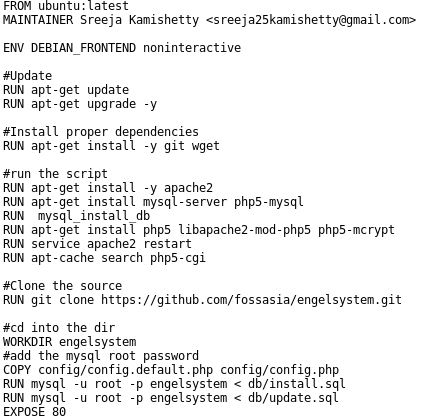
Create a Dockerfile in your PHP project. This is the docker file for engelsystem.
Our Dockerfile is now complete and ready to be built:
Building the Image
The docker build . command will build the Dockerfile inside the current directory:
Our image is now labeled and tagged. The final step is to push it to the Docker HUB. This step is optional, but it’s still useful if we’re planning on sharing the image and and helping others with their development environment.
Issues/Bugs: https://github.com/fossasia/engelsystem/issues
You must be logged in to post a comment.