We integrated Selenium Testing in the Open Event Webapp and are in full swing in writing tests to check the major features of the webapp. Tests help us to fix the issues/bugs which have been solved earlier but keep on resurging when some new changes are incorporated in the repo. I describe the major features that we are testing in this.
Bookmark Feature
The first major feature that we want to test is the bookmark feature. It allows the users to mark a session they are interested in and view them all at once with a single click on the starred button. We want to ensure that the feature is working on all the pages.
Let us discuss the design of the test. First, we start with tracks page. We select few sessions (2 here) for test and note down their session_ids. Finding an element by its id is simple in Selenium can be done easily. After we find the session element, we then find the mark button inside it (with the help of its class name) and click on it to mark the session. After that, we click on the starred button to display only the marked sessions and proceed to count the number of visible elements on the page. If the number of visible session elements comes out to be 2 (the ones that we marked), it means that the feature is working. If the number deviates, it indicates that something is wrong and the test fails.
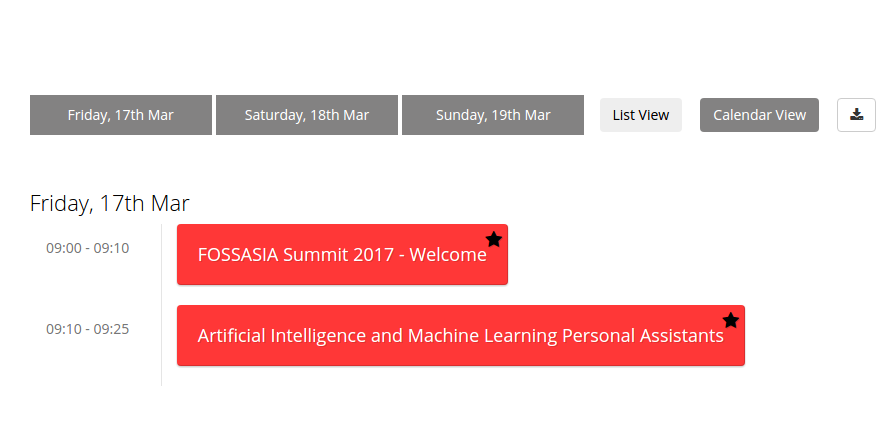
Here is a part of the code implementing the above logic. The whole code can be seen here
// Returns the number of visible session elements on the tracks page
TrackPage.getNoOfVisibleSessionElems = function() {
 return this.findAll(By.className('room-filter')).then(this.getElemsDisplayStatus).then(function(displayArr) {
   return displayArr.reduce(function(counter, value) { return value == 1 ? counter + 1 : counter; }, 0);
 });
};
// Bookmark the sessions, scrolls down the page and then count the number of visible session elements
TrackPage.checkIsolatedBookmark = function() {
 // Sample sessions having ids of 3014 and 3015 being checked for the bookmark feature
 var sessionIdsArr = ['3014', '3015'];
 var self = this;
 return  self.toggleSessionBookmark(sessionIdsArr).then(self.toggleStarredButton.bind(self)).then(function() {
   return self.driver.executeScript('window.scrollTo(0, 400)').then(self.getNoOfVisibleSessionElems.bind(self));
 });
};
Here is the excerpt of code which matches the actual number of visible session elements to the expected number. You can view the whole test script here
//Test for checking the bookmark feature on the tracks page
it('Checking the bookmark toggle', function(done) {
 trackPage.checkIsolatedBookmark().then(function(num) {
   assert.equal(num, 2);
   done();
 }).catch(function(err) {
   done(err);
 });
});
Now, we want to test this feature on the other pages: schedule and rooms page. We can simply follow the same approach as done on the tracks page but it is time expensive. Checking the visibility of all the sessions elements present on the page takes quite some time due to a large number of sessions. We need to think of a different approach.We had already marked two elements on the tracks page. We then go to the schedule page and click on the starred mode. We calculate the current height of the page. We then unmark a session and then recalculate the height of the page again. If the bookmark feature is working, then the height should decrease. This determines the correctness of the test. We follow the same approach on the rooms pages too. While this is not absolutely correct, it is a good way to check the feature. We have already employed the perfect method on the tracks page so there was no need of applying it on the schedule and the rooms page since it would have increased the time of the testing by a quite large margin.
Here is an excerpt of the code. The whole work can be viewed here
RoomPage.checkIsolatedBookmark = function() {
 // We go into starred mode and unmark sessions having id 3015 which was marked previously on tracks pages. If the bookmark feature works, then length of the web page would decrease. Return true if that happens. False otherwise
 var getPageHeight = 'return document.body.scrollHeight';
 var sessionIdsArr = ['3015'];
 var self = this;
 var oldHeight, newHeight;
 return self.toggleStarredButton().then(function() {
   return self.driver.executeScript(getPageHeight).then(function(height) {
     oldHeight = height;
     return self.toggleSessionBookmark(sessionIdsArr).then(function() {
       return self.driver.executeScript(getPageHeight).then(function(height) {
         newHeight = height;
         return oldHeight > newHeight;
       });
     });
   });
 });
};
Search Feature
Now, let us go to the testing of the search feature in the webapp. The main object of focus is the Search bar. It is present on all the pages: tracks, rooms, schedule, and speakers page and allows the user to search for a particular session or a speaker and instantly fetches the result as he/she types.
We want to ensure that this feature works across all the pages. Tracks, Rooms and Schedule pages are similar in a way that they display all the session of the event albeit in a different manner. Any query made on any one of these pages should fetch the same number of session elements on the other pages too. The speaker page contains mostly information about the speakers only. So, we make a single common test for the former three pages and a little different test for the latter page.
Designing a test for this feature is interesting. We want it to be fast and accurate. A simple way to approach this is to think of the components involved. One is the query text which would be entered in the search input bar. Other is the list of the sessions which would match the text entered and will be visible on the page after the text has been entered. We decide upon a text string and a list containing session ids. This list contains the id of the sessions should be visible on the above query and also contain few id of the sessions which do not match the text entered. During the actual test, we enter the decided text string and check the visibility of the sessions which are present in the decided list. If the result matches the expected order, then it means that the feature is working well and the test passes. Otherwise, it means that there is some problem with the default implementation and the test fails.
For eg: We decide upon the search text ‘Mario’ and then note the ids of the sessions which should be visible in that search.
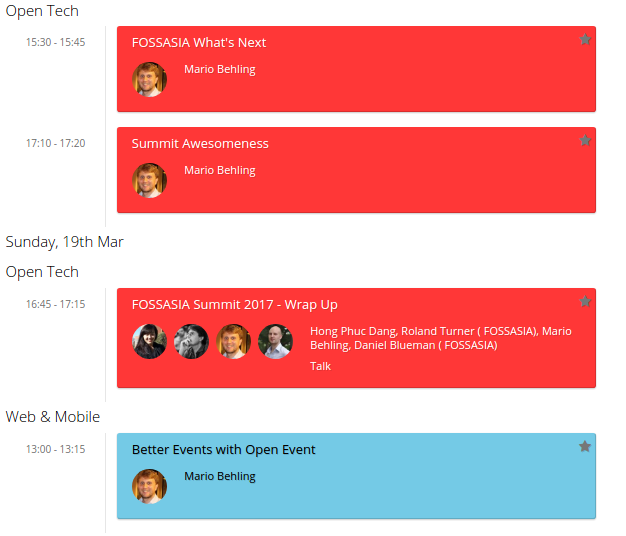
Suppose the list of the ids come out to be
['3017', '3029', '3013', '3031']
We then add few more session ids which should not be visible on that search text. Like we add two extra false ids 3014, 3015. Modified list would be something like this
['3017', '3029', '3013', '3031', '3014', '3015']
Now we run the test and determine the visibility of the sessions present in the above list, compare it to the expected output and accordingly determine the fate of the test.
Expected: [true, true, true, true, false, false]
Actual Output: [true, true, true, true, true, true]
Then the test would fail since the last two sessions were not expected to be visible.
Here is some code related to it. The whole work can be seen here
function commonSearchTest(text, idList) {
 var self = this;
 var searchText = text || 'Mario';
 // First 4 session ids should show up on default search text and the last two not. If no idList provided for testing, use the idList for the default search text
 var arrId = idList || ['3017', '3029', '3013', '3031', '3014', '3015'];
 var promise = new Promise(function(resolve) {
   self.search(searchText).then(function() {
     var promiseArr = arrId.map(function(curElem) {
       return self.find(By.id(curElem)).isDisplayed();
     });

     self.resetSearchBar().then(function() {
       resolve(Promise.all(promiseArr));
     });
   });
 });
 return promise;
}
Here is the code for comparing the expected and the actual output. You can view the whole file here
it('Checking search functionality', function(done) {
 schedulePage.commonSearchTest().then(function(boolArr) {
   assert.deepEqual(boolArr, [true, true, true, true, false, false]);
   done();
 }).catch(function(err) {
   done(err);
 });
});
The search functionality test for the speaker’s page is done in the same style. Just instead of having the session ids, we work with speaker ids there. Rest everything is done in a similar manner.
Resources:


