Feature to generate Config File in PSLab Android application

In this blog, I will explain the feature to generate “Config File” in PSLab Android Application  What is a Config File? The main aim of this feature is to make PSLab board a self data logger, which would read user-defined configs from a config file stored on SD card connected to PSLab board and based on instrument, parameters and time interval stored in config file PSLab board would automatically log those values.  Now as the first step of this feature, an option is added to PSLab Android application, where user can create a config file. User can select an instrument, parameters associated with that instrument and time interval. With this feature, user can easily generate a config file which can later be used by PSLab board for logging. User Interface The option to generate a config file is given in the side navigation menu on the main screen.  (Figure 1: Generate Config file menu) Once the user selects the “Generate Config File” option, the user will be directed to the following screen where user can create a config file with intended parameters (Figure 2: Generate Config File UI) As can be seen in the screenshot above the user can select instruments for which the config file needs to be created from a drop-down menu. User can specify the time interval, for which the data should be logged by the PSLab board. Based on the instrument selected by the user corresponding parameters will be shown at the bottom. User can select whichever parameters are required and click on “CREATE CONFIG FILE” button and a config file will be saved on device local storage.  A config file for Oscilloscope with 25-sec interval and CH1, CH2 and CH3 parameters would look something like below, (Figure 3: Sample config File ) Implementation When a user clicks on Create Config File button, First we check whether the user has provided a time interval, if not a toast message appears to let the user know that time interval is missing. This is done using the following lines of code, createConfigFileBtn.setOnClickListener(new View.OnClickListener() { @Override public void onClick(View v) { interval = intervalEditText.getText().toString(); if (interval.length() == 0) { Toast.makeText(CreateConfigActivity.this, getResources().getString(R.string.no_interval_message), Toast.LENGTH_SHORT).show(); } Once the user sets the time interval and selects the parameters, the following lines of code generates a string array containing params selected by the user. ArrayList<String> selectedParamsList = new ArrayList<>(); for (int i = 0; i < paramsListContainer.getChildCount(); i ++) { CheckBox checkBox = (CheckBox) paramsListContainer.getChildAt(i); if (checkBox.isChecked()) { selectedParamsList.add(instrumentParamsList.get(selectedItem)[i]); } } After we have the list of selected parameters we call the following function to create the config file private void createConfigFile(ArrayList<String> params) { String instrumentName = instrumentsList.get(selectedItem); String fileName = "pslab_config.txt"; String basepath = Environment.getExternalStorageDirectory().getAbsolutePath(); File baseDirectory = new File(basepath + File.separator + CSVLogger.CSV_DIRECTORY); if (!baseDirectory.exists()) { try { baseDirectory.mkdir(); } catch (Exception e) { e.printStackTrace(); } } File configFile = new File(basepath + File.separator + CSVLogger.CSV_DIRECTORY + File.separator + fileName); if (!configFile.exists()) { try { configFile.createNewFile(); } catch (IOException e) { e.printStackTrace();…

Continue ReadingFeature to generate Config File in PSLab Android application

Gas sensor (MQ-135) support In PSLab Android application

Along with lots of sensors provided in the PSLab Android application, recently support for a new sensor - MQ-135 gas sensor has been added to the app. In this blog, I will discuss what is this gas sensor and how to use it with PSLab Android application MQ-135 Gas sensor The MQ-135 gas sensors are used in air quality control equipment and are suitable for detecting or measuring of NH3, NOx, Alcohol, Benzene, Smoke, CO2.  The Pin layout of MQ-135 sensor (Figure 1: MQ-135 pin layout) How to Connect MQ-135 to PSLab Board The following diagram shows how a user can connect MQ-135 sensor to a PSLab Board.  (Figure 2: MQ-135 and PSLab connections) As can be seen in the diagram above connect Voltage pin of MQ-135 sensor to one of the VDD pins on the PSLab board. Connect the Ground pin of MQ-135 sensor to one of GND pins on the PSLab board. And connect Analog Output pin to CH1 pin on the PSLab board. Once these connections are made user can connect PSLab board to their mobile phone and start reading data using Gas Sensor instrument in PSLab Android application Gas Sensor Instrument in PSLab Android Application To provide users an interface to read values collected by MQ-135 sensor connected to PSLAb board, a new instrument screen has been added to the PSLab Android application. The UI of the screen is shown below, (Figure 3: Gas Sensor instrument UI) As can be seen, the user is provided with a circular meter, a text box and a graph, all of which indicates the amount of different gases sensed by MQ-135 in PPM (parts per million) unit. The data is collected by very simple lines of codes. Since we are connecting Analog Output of MQ-135 to CH1 on PSLab board, we need to read the voltage at CH1 pin. Which would be in the range of 0 - input voltage (which is 3.3V in our case). To convert the voltage values to PPM, we map these output voltages to a range of 0 - 1024. This is done by following lines of code. double volt = scienceLab.getVoltage("CH1", 1); double ppmValue = (volt / 3.3) * 1024.0; As provided in all the other instruments in PSLab Android application, Gas Sensor also has data logging and importing feature. User can record the data and store it as a CSV file and import previously recorded data into the PSLab application easily. So in conclusion, now users can utilize and experiment with MQ-135 sensor effortlessly using PSLab Android application. A working demo of this feature can be seen in the following video https://drive.google.com/file/d/1-KxOaqE_Y5EYquMkebYpBOEc0d7GAdLS/view?usp=sharing References: MQ-135 datasheetUse MQ-135 with Arduino tutorialBlog on using mobile sensors in PSLab Android application by harsh-2711Details on MQ-135 sensor Tags: PSLab, Android, GSoC 19, Sensors, Gas Sensor, MQ-135

Continue ReadingGas sensor (MQ-135) support In PSLab Android application

Two flavors of PSLab Android App to support Google Maps (in Play Store flavor) and Open Street maps (in Fdroid flavor)

What are the flavors of an App? And why are they needed in PSLab Android App? While working on the PSLab Android Project, I ran into the need to create different variants of the app with different dependencies. In this blog, I have tried to explain the process of creating various flavors of the app in the easiest way possible.  Android Allows Developers to create different variants of the same app with the same code base but having some functionalities different across the variants. These functionalities may include some special/pro features, some different dependencies, etc. Such variants are called flavors of the App. Most common flavors are Paid and Free version of the app. In the PSLab Android Application, we needed to generate flavors, when we required to use Google Maps in the App. The app is also published on the Fdroid, which doesn’t allow dependencies of Google Maps. Hence 2 flavors of the app have been created,  Play Store Flavor (With Google Maps)F-Droid Flavor (With Open Street Maps) Declaring Flavors in the build.gradle File In order to create flavors of the app, first, we need to declare flavors in the Gradle file. In PSLab Android app we are creating 2 flavors, which are declared in the build.gradle file as under flavorDimensions 'default' productFlavors { fdroid { dimension = 'default' } playstore { dimension = 'default' } } flavorDimensions is used to package flavors if there are many flavors for an App. Since we have only two flavors fdroid and playstore, hence we are using single dimension default for both the flavors. Once this has been added to the build.gradle file we need to sync the gradle.  After the Sync is complete, if we open the Build Variants tab from the left corner of the Android Studio, it would look something like this:  (Figure 1: Build Variant Window of Android Studio) As can be seen in the screenshot above, once the gradle is successfully synced, Android Studio automatically creates debug and release build variants for each flavor and we can easily toggle between variants and build/ run / make apk for each variant. Congratulations! We have successfully finished the first step towards creating flavors of an app. Directory Structure after creating Flavors Apart from creating the build variants of different flavors, Android studio also creates src/<flavor name> folders for us. Now if we want to add new activities and classes to these flavors we can create java, res, values folders inside this folder. We can define separate Manifest file as well for each flavor individually. The directory structure of the PSLab Android project after creating required packages inside the automatically generated src/fdroid and src/playstore folders looks like below,   (Figure 2: Directory structure after creating flavors) Defining Flavor specific dependencies We can have some dependencies for one app flavor and some for others. For example, in PSLab Android app, we need Google Maps dependencies only in playstore flavor and Open Street Maps dependencies only in fdroid flavor. We can easily define…

Continue ReadingTwo flavors of PSLab Android App to support Google Maps (in Play Store flavor) and Open Street maps (in Fdroid flavor)

The Robotic Arm Controller Feature in PSLab Android Application.

Recently while working on PSLab Android Project, a new feature was implemented to add a controller for a Robotic Arm in the Android Application. In this blog, I will explain what this new feature is, how it has been implemented and what are some of the functionalities of it. What is Robotic Arm? Robotic Arm, as the name suggests is a small arm-like structure, which moves with the help of 4 servo motors connected to it. The image of the robotic arm is as under,  (Figure 1 : Robotic Arm) What is the Robotic Arm Controller Feature in Android App? As mentioned earlier, the robotic arm uses 4 servos for the movements. The aim of the controller feature in the Android app is to allow users to adjust the rotation of each servo with a very intuitive UI, so they can move the robotic arm as they wish. Further, in this blog, I will discuss UI, implementation and some cool features of the robotic Arm Controller. User Interface (figure 2: UI of the robotic arm controller) In the screenshot above, there are 4 circular controllers for each respective servo. The user can use the knob or enter the values using the keyboard by tapping on the value at the center of the knobs. Each value indicates the value in degrees the user wishes to move that servo. Timeline Below the 4 servo controllers is a black timeline. There are 60 boxes in each of the 4 timelines. These 60 boxes indicates the seconds. So basically if the user wants the robotic arm to perform some set of actions sequentially, using these timelines, users can set the rotation for each servo at each second, then user can use the play button on the red control panel to play this timeline and the app will send the degree value at each second to the respective servo. A filled timeline would look something like below,  (Figure 3: Timeline) As can be seen, there are different values for each servo at each second, so when the user starts the timeline, values at each second will be sent to the respective servos. servo4() function of the ScienceLab class is called to set values for all for servos at each second. How to add the values to the timeline? There is a small handle on the top right corner of each servo controller, user can long-press the handle and drag and drop the values to desired seconds for respective servos.  This functionality can be found in this video between 0:33 to 0:43 This feature uses Android’s drag and drops listener. The code for this drag and drop function is as under, private View.OnDragListener servo1DragListener = new View.OnDragListener() { @Override public boolean onDrag(View v, DragEvent event) { if (event.getAction() == DragEvent.ACTION_DRAG_ENTERED) { View view = (View) event.getLocalState(); TextView text = view.findViewById(R.id.degreeText); if (view.getId() == R.id.servo_1) { ((TextView) v.findViewById(R.id.timeline_box_degree_text)).setText(text.getText()); } } return true; } }; Such drag listeners are created for each servo controller. Save Timeline Feature Suppose…

Continue ReadingThe Robotic Arm Controller Feature in PSLab Android Application.

Importing files from local storage in PSLab Android application

This blog demonstrates how a user can import log files from local storage to the PSLab Android application for various instruments and play them. This functionality is really useful as users can share their log files and import them in their app. This blog mostly consists of my work in the PSLab Android repository. How to access local storage files? We here use the concept of implicit intent to access the local storage of the device and then generate the file from the received data URI. Implicit intents differ from explicit intents in a way that, they don’t give exact class or activity to be initialized through the intent, instead they provide the action to be performed and the class or activities are selected implicitly from the required action The code block is shown below.  private void selectFile() { Intent intent = new Intent(Intent.ACTION_GET_CONTENT); intent.setType("*/*"); startActivityForResult(intent, 100); } Here the Intent.ACTION_GET_CONTENT defines implicit intent. This intent opens the activity related to the action of GETTING CONTENT. The type of content is specified in the Intent.setType(<TYPE>). Since here the type is set to “*/*”, it will open all types of files. If we want only images we can set Type to “images”. startActivityForResult(intent, <REQUEST_CODE>) starts the file selection activity.  How to generate a file from received URI? Once the user selects a file from the file selection activity we can generate the selected file from the data passed in the callback function of startActivityForResult(). The data intent passed as a parameter to onActivityResult() callback contains data for the selected file. We can retrieve path, name, etc details of the selected file from this data intent. The code block for the same is given below. @Override protected void onActivityResult(int requestCode, int resultCode, @Nullable Intent data) { if (requestCode == 100) { if (resultCode == RESULT_OK) { Uri uri = data.getData(); String path = uri.getPath(); path = path.replace("/root_path/", "/"); File file = new File(path); getFileData(file); } else Toast.makeText(this, this.getResources().getString(R.string.no_file_selected), Toast.LENGTH_SHORT).show(); } } Here we check for the requestCode, which we passed when calling the startActivityForResult() function. We further check if the result is valid and then generate the file from the file path we received in the data Intent. Once we get the path we can get the selected file using the following lines of code: String path = uri.getPath(); path = path.replace("/root_path/", "/"); File file = new File(path); How to get Data from the file? Once the file is generated, it is passed to a function getFileData(File file) to get data in the file to add to the logs of the selected device.  The main part of the getFileData function is given below. FileInputStream is = new FileInputStream(file); BufferedReader reader = new BufferedReader(new InputStreamReader(is)); String line = reader.readLine(); int i = 0; long block = 0, time = 0; while (line != null) { if (i != 0) { String[] data = line.split(","); try { time += 1000; BaroData baroData = new BaroData(time, block, Float.valueOf(data[2]), Double.valueOf(data[3]), Double.valueOf(data[4])); realm.beginTransaction(); realm.copyToRealm(baroData); realm.commitTransaction(); } catch…

Continue ReadingImporting files from local storage in PSLab Android application

Examples of how AsyncTask is used in PSLab Android App

In this blog, we will look at a very useful and important feature provided by Android - AsyncTask and more importantly how AsyncTasks have been put to use for various functionalities throughout the PSLab Android Project What are Threads? Threads are basically paths of sequential execution within a process. In a way, threads are lightweight processes. A process may contain more than one threads and all these threads are executed in parallel. Such a method is called “Multithreading”. Multithreading is very useful when some long tasks need to be executed in the background while other tasks continue to execute in the foreground. Android has the main UI thread which works continuously and interacts with a user to display text, images, listen for click and touch, receive keyboard inputs and many more. This thread needs to run without any interruption to have a seamless user experience. When AsyncTask comes into the picture? AsyncTask enables proper and easy use of the UI thread. This class allows you to perform background operations and publish results on the UI thread without having to manipulate threads and/or handlers.   In PSLab Android application, we communicate with PSLab hardware through I/O(USB) interface. We connect the PSLab board with the mobile and request and wait for data such as voltage values and signal samples and once the data is received we display it as per requirements. Now clearly we can’t run this whole process on the main thread because it might take a long time to finish and because of that other UI tasks would be delayed which eventually degrade the user experience. So, to overcome this situation, we use AsyncTasks to handle communication with PSLab hardware. Methods of AsyncTask   AsyncTask is an Abstract class and must be subclassed to use. Following are the methods of the AsyncTask: onPreExecute()Used to set up the class before the actual executiondoInBackground(Params...)This method must be overridden to use AsyncTask. This method contains the main part of the task to be executed. Like the network call etc.The result from this method  is passed as a parameter to onPostExecute() methodonProgressUpdate(Progress...)This method is used to display the progress of the AsyncTaskonPostExecute(Result)Called when the task is finished and receives the results from the doInBackground() method There are 3 generic types passed to the definition of the AsyncTask while inheriting. The three types in order are  Params: Used to pass some parameters to doInBackground(Params...) method of the Task Progress: Defines the units in which the progress needs to be displayed/Result : Defines the data type to be returned from onInBackground() and receive as a parameter in the onPostExecute(Result) method Example of the usage of the AsyncClass is as under :  private class SampleTask extends AsyncTask<Params, Progress, Result> { @Override protected Result doInBackground(Params... params) { // The main code goes here return result; } @Override protected void onProgressUpdate(Progress... progress) { // display the progress } @Override protected void onPostExecute(Result result) { // display the result } } We can create an instance of this class as under and execute…

Continue ReadingExamples of how AsyncTask is used in PSLab Android App

How to use and implement Save Wave Configs feature in Pocket Science Lab Wave Generator

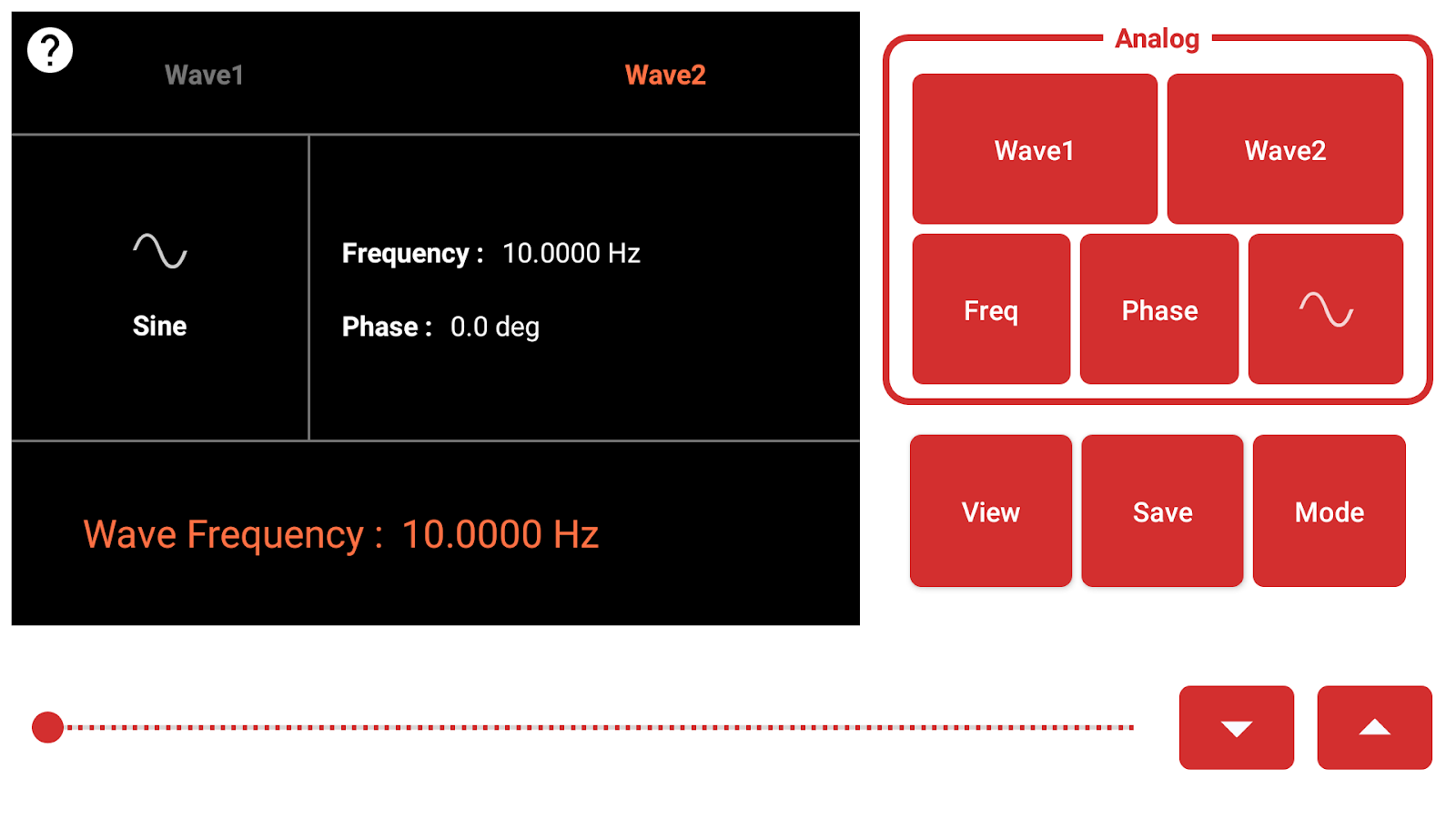
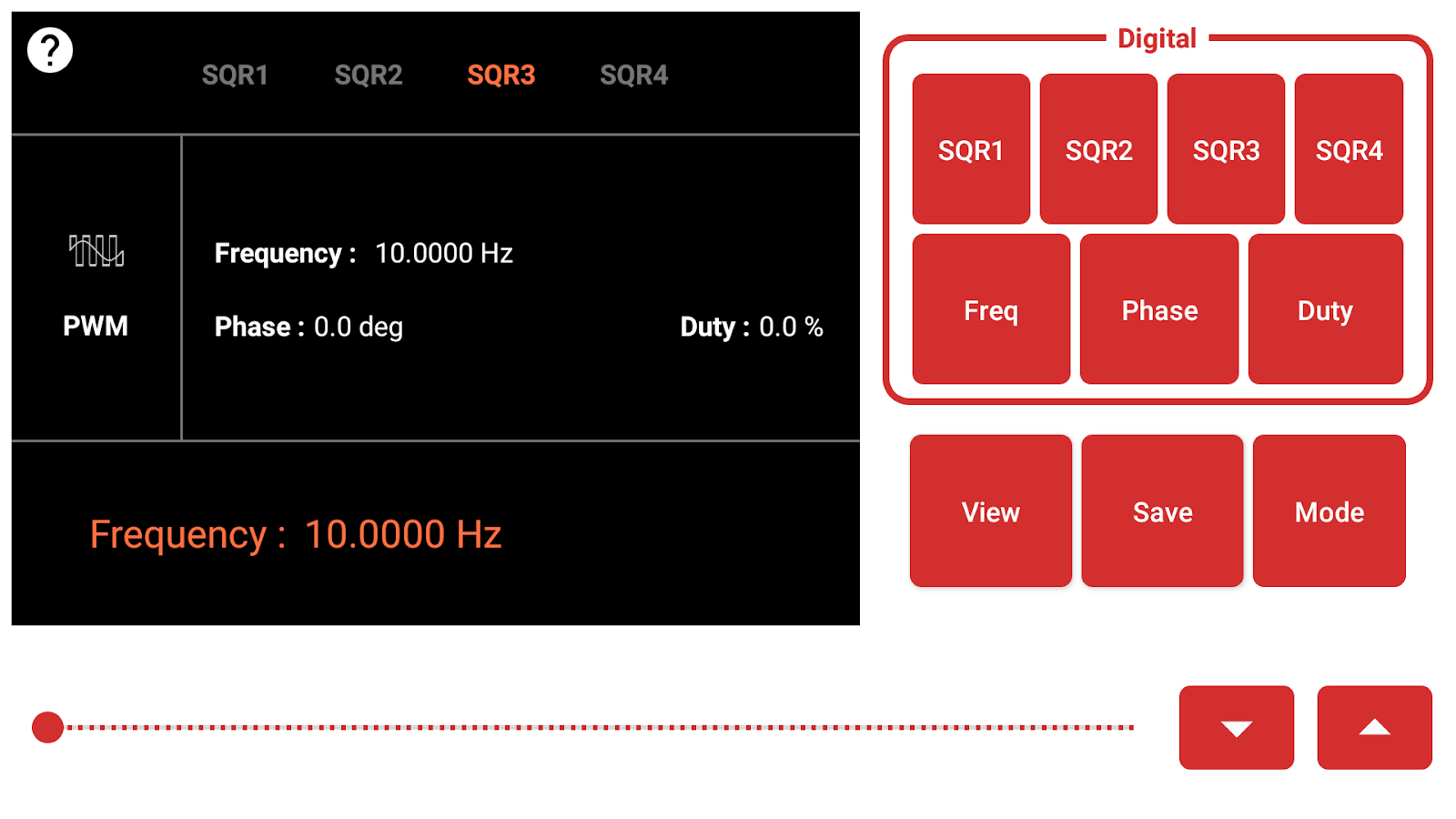
What is a Wave Generator? A Wave Generator is one of the most important features of PSLab. It is used to generate different kinds of waves like, sine, triangular, square, PWM. Wave generator UI is as under:   (Figure 1 : Wave Generator Analog Mode UI)   (Figure 2 : Wave Generator Digital Mode UI) As can be seen the Screenshot above user is provided with options to set Frequency, Phase, Duty of different waves and once configurations are set user can either output the waves in Oscilloscope or can compare different waves in Logic Analyzer. What is Save Wave Configs Feature?         (Figure 3 : Wave Generator Control Buttons (View,Save,Mode)) In this feature, the user is given a ”Save” button to use this feature.  The reason to add this feature is that, sometimes we need to perform the same experiment multiple times, is such scenarios if we have to set wave configurations everytime, it will become boring and there will be chances of errors. Hence using the save configs feature, user can currently set configurations in the Local Storage and can use it anytime later.  Further since the Wave Configurations are saved on Local Storage as .CSV file, a user can save configs and can share the file with others so others can as well set their device to same configurations. The saved Wave Configurations can be seen in the DataLogger Activity and opening a saved log would take the user to Wave Generator Activity where all the configs will be set as per the saved log. A sample CSV of the log data can be seen below. (Figure 4: Wave Configs CSV file) How is Save Configs Feature Implemented The implementation of this feature is quite simple. There is a class named WaveData.  With the parameters of Mode(Square or PWM), Wave name, Shape, Freq, Phase and Duty. Whenever the user clicks the save configs button, the saveWaveConfigs()  function is called. This function fetches set values of different fields and creates realm objects and also write them to csv file as shown above. Once the realm objects are created, this log can be seen in the Data Logger Activity. The code to generate the realm object for the wave configs (that is the implementation of the function saveWaveConfig()) is given below. public void saveWaveConfig(View view) { long block = System.currentTimeMillis(); csvLogger.prepareLogFile(); csvLogger.writeMetaData(getResources().getString(R.string.wave_generator)); long timestamp; double lat, lon; String data = "Timestamp,DateTime,Mode,Wave,Shape,Freq,Phase,Duty,lat,lon\n"; recordSensorDataBlockID(new SensorDataBlock(block, getResources().getString(R.string.wave_generator))); So till now in the function, we create a header string for the data to be stored in the csv file. We create a block from the current system time. This block will be used to save all the realm object for this function, so all the objects created at this instance will be grouped as a single log entry in DataLoggerActivity. double freq1 = (double) (WaveGeneratorCommon.wave.get(WaveConst.WAVE1).get(WaveConst.FREQUENCY)); double freq2 = (double) WaveGeneratorCommon.wave.get(WaveConst.WAVE2).get(WaveConst.FREQUENCY); double phase = (double) WaveGeneratorCommon.wave.get(WaveConst.WAVE2).get(WaveConst.PHASE); String waveType1 = WaveGeneratorCommon.wave.get(WaveConst.WAVE1).get(WaveConst.WAVETYPE) == SIN ? "sine" : "tria"; String waveType2 = WaveGeneratorCommon.wave.get(WaveConst.WAVE2).get(WaveConst.WAVETYPE) == SIN…

Continue ReadingHow to use and implement Save Wave Configs feature in Pocket Science Lab Wave Generator

Creating Activity for Visualizing Recorded Sensor Data from List Items

In previous blog Using RealmRecyclerView Adapter to Show Recorded Sensor Experiments[2], I  have created a DataLoggerActivity in PSLab Android app containing RecyclerView showing a list having all the recorded experiments where every list item shows the date, time and the sensor instrument used for recording the data, but there arises below questions:- What if the user wants to see the actual recorded data in form of a graph? How the user can see the location recorded along with the data on the map? How can the user export that data? There is no way I could show all of that information just on a list item so I created another activity called “SensorGraphViewActivity” the layout of that activity is shown in the figure below: The layout contains three views:- At the top there is graph view which I created using Android MP chart which will show the recorded data plotted on it forming the exact same curve that was created while recording it, this way it is useful to visualize the data and also there is also a play button on the top which simulates the data as it was being plotted on the graph in real time. In the middle, there is a Card view containing two rows which will simply show the date and time of recording. At the bottom, there is a Map view which shows the location of the user which would be fetched when the user recorded the data. This is the gist of the layout file created for the activity. But now the question arises:- How to show the data in the activity for the item that the user wanted? For that, I implemented click listener on every list item by simply adding it inside the onBindViewHolder() method @Override public void onBindViewHolder(@NonNull final ViewHolder holder, int position) { SensorLogged temp = getItem(position); holder.sensor.setText(temp.getSensor()); Date date = new Date(temp.getDateTimeStart()); holder.dateTime.setText(String.valueOf(sdf.format(date))); holder.cardView.setOnClickListener(new View.OnClickListener() { @Override public void onClick(View view) { ... }); } and inside the click listener I performed following three steps:- First I stored the position of the item clicked inside a variable. int positionVar = holder.getAdapterPosition(); Then I used that position from the variable to fetch related data from the Realm database by simply using getItem() method which returns the SensorLogged[1] RealmObject at that position as I used a special type of RecyclerView Adapter called as RealmRecyclerViewAdapter[2]. int positionVar = holder.getAdapterPosition(); Then I created an Intent to open the SensorGraphViewActivity and passed the related data (i.e., sensortype, foreignkey, latitude, longitude, timezone, date, time) from SensorLogged[1] object to activity in form of extras. Intent intent = new Intent(context, SensorGraphViewActivity.class); intent.putExtra(SensorGraphViewActivity.TYPE_SENSOR, item.getSensor()); intent.putExtra(SensorGraphViewActivity.DATA_FOREIGN_KEY, item.getUniqueRef()); intent.putExtra(SensorGraphViewActivity.DATE_TIME_START,item.getDateTimeStart()); intent.putExtra(SensorGraphViewActivity.DATE_TIME_END,item.getDateTimeEnd()); intent.putExtra(SensorGraphViewActivity.TIME_ZONE,item.getTimeZone()); intent.putExtra(SensorGraphViewActivity.LATITUDE,item.getLatitude()); intent.putExtra(SensorGraphViewActivity.LONGITUDE,item.getLongitude()); context.startActivity(intent); And, in the SensorGraphViewActivity, I used getIntent() method to fetch all those extra data in the form of Bundle. For showing the data in the graph I used the foreign key fetched from the intent and queried all the LuxData[1] RealmObject containing that foreignkey in the form of RealmResult<LuxData>[2] ArrayList and used that list to populate the…

Continue ReadingCreating Activity for Visualizing Recorded Sensor Data from List Items

How to pass data between fragments of an Activity in Android app

This blog demonstrates how to pass values of a variable between two fragments of a single activity. The blog will mainly include the demonstration of passing values between fragments while using BottomSheet Navigation as done in PSLab Android application. This blog contains the work done by me in the Lux Meter instrument of the PSLab Android app of passing data from LuxMeterConfiguration fragment to LuxMeterData fragment as shown in the featured image to set the high limit for the pointer and to set the update period of the Lux Sensor. The blog will solve the difficult task of communication between two fragments of a single activity. For passing data between multiple fragments of different activities, refer to [1]. How to pass data between fragments? In this blog, I will pass data from Fragment 2 to Fragment 1 only. But vice versa or passing data from both the fragments can also be made using the same given approach. First, make a static method in Fragment 1 which can set the parameters i.e. the value of the variables as soon as the fragment is inflated as follow public static void setParameters(int one, int two, int three) { Fragment1.firstValue = one; Fragment1.secondValue = two; Fragment1.thirdValue = three; } Now, there is one point to mark that Fragment 1 will be inflated only when Fragment 2 gets destroyed. Else, other than default inflation of Fragment 1, there is no way Fragment 1 can be inflated after navigating to Fragment 2. So, override the OnDestroy() method of Fragment 2 and use the setParameters() method to set the value of variables from Fragment 2 to be used in Fragment 1. @Override public void onDestroyView() { super.onDestroyView(); highValue = getValueFromText(highLimit, 0, highLimitMax); updatePeriodValue = getValueFromText(updatePeriod, updatePeriodMin, updatePeriodMax + 100); Fragment1.setParameters(selectedSensor, highValue, updatePeriodValue); } Here, the highValue, updatePeriodValue and selectedSensor are the variables being used in the Lux Meter fragment in PSLab Android app. But they can be replaced by the necessary variables as per the app. So, in this way, we can pass data between the fragments of the same Activity in an Android application. Above demonstration can be extended in passing values between multiple fragments of the same Activity by creating different methods in different fragments. Resources Blog on how to pass data between fragments of different/same activities: https://www.journaldev.com/14207/android-passing-data-between-fragments

Continue ReadingHow to pass data between fragments of an Activity in Android app

Prevent Android Activity from Operating while using Bottom Sheet in PSLab App

This blog demonstrates how to prevent the Android Activity in the background from operating while the Bottom Sheet is up in the foreground. The demonstration will be purely from the work I have done under PR #1355 in PSLab Android repository. Why prevent the Activity from operating? When using Bottom Sheet in Android, it is preferable to dim the screen behind the Bottom Sheet to provide a good user experience. But the dimming of the screen is itself an indication that the screen won’t work. Also, if the Bottom Sheet is open and while sliding it, if, by mistake, any button in the background of the bottom sheet gets pressed, then if the function related to that button starts executing then it can create a bad user experience. For example, in PSLab Android app, in Accelerometer instrument, there are record/pause and delete buttons in the toolbar as shown in figure 1. Now, if the bottom sheet is opened and while closing it if the delete button is by mistake pressed by the user, then whole recorded data gets deleted. Thus, it’s a good practice to prevent the background Activity from operating while Bottom Sheet is opened. Figure 1. Accelerometer Instrument in PSLab Android app How to prevent the Activity from operating? In this demonstration, I will use the method followed by PSLab Android app in creating a Bottom Sheet and making the background dim using a View widget. A step by step guide on how to make a Bottom Sheet as in PSLab Android app can be found in [1] and [2]. Strategy The strategy used in solving this problem is setting an OnClickListener to the View that is used to dim the background and close the Bottom Sheet (if open) and hide the View as soon as the method is called. The View is again made visible when an upward slide gesture is made to open the Bottom Sheet. Follow the below steps to get the desired results: First, in OnCreate() method, set the OnTouchListener to the view. view.setOnClickListener(new View.OnClickListener() { @Override public void onClick(View v) { if(bottomSheetBehavior.getState()==BottomSheetBehavior.STATE_EXPANDED) bottomSheetBehavior.setState(BottomSheetBehavior.STATE_HIDDEN); tvShadow.setVisibility(View.GONE); } }); Now, override the OnSlide() method of the GestureDetector class and add the following code to it. @Override public void onSlide(@NonNull View bottomSheet, float slideOffset) { Float value = (float) MathUtils.map((double) slideOffset, 0.0, 1.0, 0.0, 0.8); view.setVisibility(View.VISIBLE); view.setAlpha(value); } So, now test the Bottom Sheet and you will find that the Bottom Sheet will get closed as soon as the click is made outside it if it is opened. The demonstration of the working of the above code is shown in figure 2. Figure 2. Demonstration of preventing the background Activity from operating while Bottom Sheet is up Resources http://thetechnocafe.com/make-bottom-sheet-android/: Blog on how to make a Bottom Sheet in Android

Continue ReadingPrevent Android Activity from Operating while using Bottom Sheet in PSLab App