Making Shapes with PSLab Oscilloscope

Looking back to history, the first ever video game was ‘Pong’ which was played on an analog oscilloscope with a very small screen. Oscilloscopes are not made to play video games, but by just tinkering around its basic functionality which is display waveforms, we can do plenty of cool things. PSLab device also has an oscilloscope; in fact it’s a four channel oscilloscope. This blog post will show you how the oscilloscope in PSLab is not just a cheap oscilloscope but it has lots of functionalities an industry grade oscilloscope has (except for the bandwidth limitation to a maximum of 2 MHz) To produce shapes like above figures, we are using another instrument available in PSLab. That is ‘Waveform Generator’. PSLab Waveform Generator can generate three different waveforms namely Sine waves, Triangular waves and Square waves ranging from 5 Hz to 5 kHz. To get started, first connect two jumper wires between SI1-CH1 and SI2-CH2 pins. We needn’t worry about ground pins as they are already internally connected. Now it's time to open up the PSLab oscilloscope. Here we are going to utilize two channels for this activity and they will be CH1 and CH2. Check the tick boxes in front of ‘Chan 1’ and ‘Chan 2’ and set ‘Range’ to “+/-4V” to have the maximum visibility filling the whole screen with the waveform. The shapes are drawn using a special mode called ‘X-Y Mode’ in PSLab oscilloscope. In this mode, two channels will be plotted against their amplitudes at every point in time. As it is already mentioned that PSLab can generate many waveform types and also they can have different phase angles relative to each other. They can have different independent frequencies. With all these combinations, we can tweak the settings in Waveform Generator to produce different cool shapes in PSLab oscilloscope. These shapes can vary from basic geometric shapes such as circle, square, rectangle to complicated shapes such as rhombus, ellipse and polynomial curves. Circle A circular shape can be made by generating two sine waves having the same frequency but with a phase difference of 90 degrees or 270 degrees between the two wave forms.         Square Square shape can be made by generating two triangular waveforms again having the same frequency but with a phase difference of either 90 degrees or 270 degrees between the two.         Rectangle Similar to creating a Square, by having the same frequency for both triangular waveforms but a different phase angle greater than or less than 90 degree will do the trick.         Rhombus Keeping the waveform settings same for the rectangle, by changing the amplitude of the SI1 waveform using the knob we can generate a rhombic shape on the XY graph plot.         Ellipse Generating ellipse is also similar to creating a rhombus. But here we are using sine waves instead of triangular waves. By changing the amplitude of SI1 using the knob we can…

Continue ReadingMaking Shapes with PSLab Oscilloscope

Performing Custom Experiments with PSLab

PSLab has the capability to perform a variety of experiments. The PSLab Android App and the PSLab Desktop App have built-in support for about 70 experiments. The experiments range from variety of trivial ones which are for school level to complicated ones which are meant for college students. However, it is nearly impossible to support a vast variety of experiments that can be performed using simple electronic circuits. So, the blog intends to show how PSLab can be efficiently used for performing experiments which are otherwise not a part of the built-in experiments of PSLab. PSLab might have some limitations on its hardware, however in almost all types of experiments, it proves to be good enough. Identifying the requirements for experiments The user needs to identify the tools which are necessary for analysing the circuit in a given experiment. Oscilloscope would be essential for most experiments. The voltage & current sources might be useful if the circuit requires DC sources and similarly, the waveform generator would be essential if AC sources are needed. If the circuit involves the use and analysis of data of sensor, the sensor analysis tools might prove to be essential. The circuit diagram of any given experiment gives a good idea of the requirements. In case, if the requirements are not satisfied due to the limitations of PSLab, then the user can try out alternate external features. Using the features of PSLab Using the oscilloscope Oscilloscope can be used to visualise the voltage. The PSLab board has 3 channels marked CH1, CH2 and CH3. When connected to any point in the circuit, the voltages are displayed in the oscilloscope with respect to the corresponding channels. The MIC channel can be if the input is taken from a microphone. It is necessary to connect the GND of the channels to the common ground of the circuit otherwise some unnecessary voltage might be added to the channels. Using the voltage/current source The voltage and current sources on board can be used for requirements within the range of +5V. The sources are named PV1, PV2, PV3 and PCS with V1, V2 and V3 standing for voltage sources and CS for current source. Each of the sources have their own dedicated ranges. While using the sources, keep in mind that the power drawn from the PSLab board should be quite less than the power drawn by the board from the USB bus. USB 3.0 - 4.5W roughly USB 2.0 - 2.5W roughly Micro USB (in phones) - 2W roughly PSLab board draws a current of 140 mA when no other components are connected. So, it is advisable to limit the current drawn to less than 200 mA to ensure the safety of the device. It is better to do a rough calculation of the power requirements in mind before utilising the sources otherwise attempting to draw excess power will damage the device. Using the Waveform Generator The waveform generator in PSLab is limited to 5 - 5000 Hz. This range…

Continue ReadingPerforming Custom Experiments with PSLab

Performing Diode Clipping and Clamping Experiment in PSLab Android

We can perform experiments like diode clipping and clamping using PSLab Android. A circuit which removes the peak of a waveform is known as a clipper. Diode clipper cuts off the top half or lower half or both top and lower half of the input signal.  Different types of clipping circuits listed below Different Clipping Experiments A clamper circuit adds the positive dc component to the input signal to push it to the positive side. Similarly, a clamper circuit adds the negative dc component to the input signal to push it to the negative side. It basically shifts the input signal without changing the shape of the signal. Different Clamping Experiments Apparatus Diode, Resistance, Capacitor (only for diode clamping), Breadboard, Wires and PSLab Adding Diode Clipping Experiment support in PSLab Android App To support Diode Clipping Experiment we require generating a sine wave and a dc component. This can be done using W1 and PV1 pins in PSLab device. Both input and output signals can be read using CH1 and CH2. So, when the Diode Clipping Experiment needs to be performed the following code needs to be implemented scienceLab.setSine1(5000); scienceLab.setPV1(//progress of the seekbar); The signals are recorded using Oscilloscope Activity. Adding Diode Clamping Experiment support in PSLab Android App Diode Clamping Experiment was implemented similarly to Diode Clipping Experiment. The following are the screenshots of the experiment.      The following is a glimpse of Diode Clamping Experiment performed using PSLab device using PSLab Android App. Resources Read more about Clipper Circuits - http://www.circuitstoday.com/diode-clippers http://www.physics-and-radio-electronics.com/electronic-devices-and-circuits/rectifier/clippercircuit-seriesclippersandshuntclippers.html Read more information about Clamping Circuits - http://www.physics-and-radio-electronics.com/electronic-devices-and-circuits/rectifier/clampercircuits.html http://www.circuitstoday.com/diode-clamping-circuits

Continue ReadingPerforming Diode Clipping and Clamping Experiment in PSLab Android

Providing Support for Performing Rectifier Experiments in PSLab Android

PSLab can be used to perform Half and Full Wave Rectifier Experiments. A rectifier is an electrical device that converts alternating current (AC), which periodically reverses direction, to direct current (DC), which flows in only one direction. Half wave rectifiers clip out the negative part of the input waveform. The rectified signal can be further filtered with a capacitor in order to obtain a low ripple DC voltage. Only a diode is needed to clip out the negative part of the input signal. Full wave rectifiers combine the positive halves of 180 degrees out of phase input waveforms such as those output from AC transformers with a center tap. The rectified signal can be further filtered with a capacitor in order to obtain a low ripple DC voltage. Two diodes are used to clip out the negative parts of both inputs and combine them into a single output which is always in the positive region. In order to support Half Wave Rectifier Experiments in PSLab, we used Oscilloscope Activity. For Half Rectifier Experiment we require to generate a sine wave from W1 channel and read signals from CH1 and CH2. To implement this we first need to inform the Oscilloscope Activity whether Half Wave Rectifier Experiment needs to be performed or not. For this, we used putExtra and getExtra methods. Bundle extras = getIntent().getExtras(); if ("Half Rectifier".equals(extras.getString("who"))) { isHalfWaveRectifierExperiment = true; } Then we programmatically change the layout. The side panel is made disappear and the graph and lower panel of the Oscilloscope expands horizontally. if (isHalfWaveRectifierExperiment) { linearLayout.setVisibility(View.INVISIBLE); RelativeLayout.LayoutParams lineChartParams = (RelativeLayout.LayoutParams) mChartLayout.getLayoutParams(); lineChartParams.height = height * 5 / 6; lineChartParams.width = width; RelativeLayout.LayoutParams frameLayoutParams = (RelativeLayout.LayoutParams) frameLayout.getLayoutParams(); frameLayoutParams.height = height / 6; frameLayoutParams.width = width; } The fragment for lower panel is replaced by the fragment designed for Half Wave Rectifier halfwaveRectifierFragment = new HalfwaveRectifierFragment(); if (isHalfWaveRectifierExperiment) { addFragment(R.id.layout_dock_os2, halfwaveRectifierFragment, "HalfWaveFragment"); } We get the following layout, ready to perform halfwave rectifier experiment. For making the graph functional, capturing signals from CH1 and CH2 is required. For this, we reused CaptureTwo AsyncTask in such a way that it captures signals from CH1 and CH2 channels where CH1 is the input signal and CH2 is the output signal. if (scienceLab.isConnected() && isHalfWaveRectifierExperiment) { captureTask2 = new CaptureTaskTwo(); captureTask2.execute("CH1"); synchronized (lock) { try { lock.wait(); } catch (InterruptedException e) { e.printStackTrace(); } } }   By following the above steps we reused Oscilloscope Activity to perform Rectifier Experiments. Resources Wikipedia article on Rectifier

Continue ReadingProviding Support for Performing Rectifier Experiments in PSLab Android

Using the Audio Jack to make an Oscilloscope in the PSLab Android App

The PSLab Android App allows users to access functionality provided by the PSLab hardware device, but in the interest of appealing to a larger audience that may not have immediate access to the device, we’re working on implementing some additional functionalities to perform experiments using only the hardware and sensors that are available in most android phones. The mentors suggested that the audio jack (Microphone input) of phones can be hacked to make it function as an Oscilloscope. Similarly, the audio output can also be used as a 2-channel arbitrary waveform generator. So I did a little research and found some articles which described how it can be done. In this post, I will dive a bit into the following aspects - AudioJack specifications for android devices Android APIs that provide access to audio hardware of device Integrating both to achieve scope functionality Audio Jack specification for android devices In a general audio jack interface, the configuration CTIA(LRGM - Left, Right, Ground, Mic) is present as shown in the image below. Some interfaces also have OMTP(LRMG - Left, Right, Mic, Ground) configuration in which the common and mic inputs are interchanged. In the image, Common refers to ground. If we simply cut open the wire of a cheap pair of earphones (stolen from an airplane? ;) ) , we  will gain access to all terminals (Left, Right, Common, Mic Input) illustrated in the image below Android APIs that provide access to audio hardware of device AudioRecord and AudioTrack are two classes in android that manage recording and playback respectively. We require only AudioRecord to implement scope functionality. We shall first create an object of the AudioRecord class, and use that object to read the audio buffer as and when required. Creating an AudioRecord object: we need the following parameters to initialise an AudioRecord object. SAMPLING_RATE: Almost all mobile devices support sampling rate of 44100 Hz. In this context, the definition is number of audio samples taken per second. RECORDER_AUDIO_ENCODING: Audio encoding describes bit representation of audio data. Here we used PCM_16BIT encoding this means stream of bits generated from PCM are segregated in a set of 16 bits. getMinimumBufferSize() returns minimum buffer size in byte units required to create an AudioRecord object successfully. private static final int SAMPLING_RATE = 44100; private static final int RECORDING_CHANNEL = AudioFormat.CHANNEL_IN_MONO; private static final int RECORDER_AUDIO_ENCODING = AudioFormat.ENCODING_PCM_16BIT; private AudioRecord audioRecord = null; private int minRecorderBufferSize; minRecorderBufferSize = AudioRecord.getMinBufferSize(SAMPLING_RATE, RECORDING_CHANNEL, RECORDER_AUDIO_ENCODING); audioRecord = new AudioRecord(       MediaRecorder.AudioSource.MIC,       SAMPLING_RATE,       RECORDING_CHANNEL,       RECORDER_AUDIO_ENCODING,       minRecorderBufferSize); audioRecord object can be used to read audio buffer from audio hardware using read() method. minRecorderBuffer size is in byte units and 2 bytes constitute a short in JAVA. Thus size of short buffer needed is half the total number of bytes. short[] audioBuffer = new short[minRecorderBufferSize / 2]; audioRecord.read(audioBuffer, 0, audioBuffer.length); Now audioBuffer has the audio data as a signed 16 bit values. We need to process the buffer data and plot the processed data points on chart to completely implement scope functionality.…

Continue ReadingUsing the Audio Jack to make an Oscilloscope in the PSLab Android App

Custom SeekBar in PSLab Android

By default Seekbar in Android only return integer values greater than zero. But there can be some situation where we need the SeekBar to return a float and negative values. To implement trigger functionality in the Oscilloscope activity of PSLab Android app, we require a SeekBar that sets a voltage level that should trigger the capture sequence. Since this voltage value ranges between -16.5 V to 16.5 V, default Seekbar don't serve the purpose. The solution is to create a custom SeekBar that returns float values. Let’s understand how to implement it. Create a FloatSeekBar class which extends AppCompatSeekBar. Create a constructor for the class with Context, AttributeSet and defStyle as parameters. AttributeSet is the set of properties specified in an XML resource file whereas defStyle is default style to apply to this view. public class FloatSeekBar extends android.support.v7.widget.AppCompatSeekBar { private double max = 0.0; private double min = 0.0; public FloatSeekBar(Context context, AttributeSet attrs, int defStyle) { super(context, attrs, defStyle); applyAttrs(attrs); }   Then define setters method which set the max and min values of the SeekBar. This method basically sets the range of the SeekBar. public void setters(double a, double b) { min = a; max = b; }   getValue is a method that manipulates current progress of the SeekBar and returns the value. Here the equation used to determine the value is (max - min) * (getProgress() / getMax()) + min. public double getValue() { DecimalFormat df = new DecimalFormat("#.##"); Double value = (max - min) * ((float) getProgress() / (float) getMax()) + min; value = Double.valueOf(df.format(value)); return value; }   setValue method takes the double value, and accordingly set the progress of the SeekBar. public void setValue(double value) { setProgress((int) ((value - min) / (max - min) * getMax())); } This creates a custom SeekBar, it can be used just like a normal SeekBar. Now, set the range of custom SeekBar between -16.5 and 16.5. seekBarTrigger = (FloatSeekBar) v.findViewById(R.id.seekBar_trigger); seekBarTrigger.setters(-16.5, 16.5);   In order to get value of the custom SeekBar call getValue method. seekBarTrigger.getValue(); In order to follow the entire code for custom SeekBar implementation in PSLab refer FloatSeekBar.java, Attr.xml and TimebaseTrigger.java. A glimpse of custom SeekBar in PSLab Android. Resources Android.com reference for AttributeSet Android.com reference for Custom Attributes Niusounds: Custom SeekBar for Android  

Continue ReadingCustom SeekBar in PSLab Android

Comparing Different Graph View Libraries and Integrating Them in PSLab Android Application

There is a significant role of graphs in PSLab, they're used for the following purpose: To plot voltage signals from analog inputs in Oscilloscope Activity. To plot digital signals in Logical Analyzer Activity. To plot data points from various sensors. For this, we need to implement real time graphs that stimulate real time data from the PSLab device efficiently. It is necessary to analyze each and every Graph View Library, compare them and integrate the best one in PSLab Android app. Available Graph Libraries The available Graph View libraries of Android are: MPAndroidChart Graph-View SciChart Which one is the best with respect to the PSLab project? MPAndroidChart Line Graph plotted using MPAndroidChart (image source) It is an open source graph view library by Philipp Jahoda. The following are the features of MPAndroidChart There are 8 different chart types Scaling on both axes. Scaling can be done using pinch zoom gesture. Dual Axes, we can have 2 Y-axis. Real time support Customizable axis ie we can define different labels to the axis Save chart to SD-Card Predefined color templates Legends which are used to define which line depicts what. Animations Fully customizable, from background color to color of the lines and grids. On trying MPAndroidChart, I found it to be a slightly difficult to implement. Graph-View Line Graph plotted using GraphView Library (image source) It is also an open source graph view library by Jonas Gehring. The following are features of the Graph-View Supports Line Chart, Bar Chart and Points. Scrolling vertical and horizontal Scaling on both axes. Realtime Graph support Draw multiple series of data. Let the diagram show more that one series in a graph. You can set a color and a description for every series. Legends (as discussed in MPAndroidChart) Custom labels Manual Y axis limits can be set. SciChart It is rich APIs for Axis Ranging, Label Formatting, Chart Modifiers (interaction) and Renderable Series. It is packed with features but unfortunately, it is not open sourced. The Verdict Both MPAndroidChart and Graph-View are good libraries, packed with a lot of features. GraphView is easier to implement as compared to MPAndroidChat (not that difficult either). Both of them have the features like pinch zoom. MPAndroidChart had the feature of scale adjustment even when the graph is being plotted. The rate of plotting was comparable in both but it was slightly faster in MPAndroidChart. So, finally GraphView is easier to implement but MPAndroidChart has slightly better performance. So, we integrated MPAndroidChart in PSLab Android application. Integrating MPAndroidChart in PSLab Android App In order to integrate MPAndroidChart in the Android project add the following code in the build.gradle of your project.   compile 'com.github.PhilJay:MPAndroidChart:v3.0.1' Creating Oscilloscope like graph If we observe an Oscilloscope, it has a black/blue screen with grid lines. An oscilloscope is a voltage vs time graph hence the x axis represents the time elapsed and y axis the voltage of the signal at the instant of time. There are left and right y axis for different channels.…

Continue ReadingComparing Different Graph View Libraries and Integrating Them in PSLab Android Application

Creating a Four Quadrant Graph for PSLab Android App

While working on Oscilloscope in PSLab Android, we had to implement XY mode. XY plotting is part of regular Oscilloscope and in XY plotting the 2 signals are plotted against each other. For XY plotting we require a graph with all 4 quadrants but none of the Graph-View libraries in Android support a 4 quadrants graph. We need to find a solution for this. So, we used canvas class to draw a 4 quadrants graph.  The Canvas class defines methods for drawing text, lines, bitmaps, and many other graphics primitives. Let’s discuss how a 4 quadrants graph is implemented using Canvas. Initially, a class Plot2D extending View is created along with a constructor in which context, values for X-Axis, Y-Axis. public class Plot2D extends View { public Plot2D(Context context, float[] xValues, float[] yValues, int axis) { super(context); this.xValues = xValues; this.yValues = yValues; this.axis = axis; vectorLength = xValues.length; paint = new Paint(); getAxis(xValues, yValues); }   So, now we need to convert a particular float value in a pixel. This is the most important part and for this, we create a function where we send the value of the pixels, the minimum and the maximum value of the axis and array of float values. We get an array of converted pixel values in return. p[i] = .1 * pixels + ((value[i] - min) / (max - min)) * .8 * pixels; is the way to transform an int value to a respective pixel value. private int[] toPixel(float pixels, float min, float max, float[] value) { double[] p = new double[value.length]; int[] pInt = new int[value.length]; for (int i = 0; i < value.length; i++) { p[i] = .1 * pixels + ((value[i] - min) / (max - min)) * .8 * pixels; pInt[i] = (int) p[i]; } return (pInt); }   For constructing a graph we require to create the axis, add markings/labels and plot data in the graph. To achieve this we will override onDraw method. The parameter to onDraw() is a Canvas object that the view can use to draw itself. First, we need to get various parameters like data to plot, canvas height and width, the location of the x axis and y axis etc. @Override protected void onDraw(Canvas canvas) { float canvasHeight = getHeight(); float canvasWidth = getWidth(); int[] xValuesInPixels = toPixel(canvasWidth, minX, maxX, xValues); int[] yValuesInPixels = toPixel(canvasHeight, minY, maxY, yValues); int locxAxisInPixels = toPixelInt(canvasHeight, minY, maxY, locxAxis); int locyAxisInPixels = toPixelInt(canvasWidth, minX, maxX, locyAxis);   Drawing the axis First, we will draw the axis and for this, we will use the white color. To draw the white color axis line we will the following code. paint.setColor(Color.WHITE); paint.setStrokeWidth(5f); canvas.drawLine(0, canvasHeight - locxAxisInPixels, canvasWidth, canvasHeight - locxAxisInPixels, paint); canvas.drawLine(locyAxisInPixels, 0, locyAxisInPixels, canvasHeight, paint);   Adding the labels After drawing the axis lines, now we need to mark labels for both x and y axis. For this, we use the following code in onDraw method. By this, the axis labels are automatically marked after a fixed…

Continue ReadingCreating a Four Quadrant Graph for PSLab Android App

Temporally accurate data acquisition via digital communication pathways in PSLab

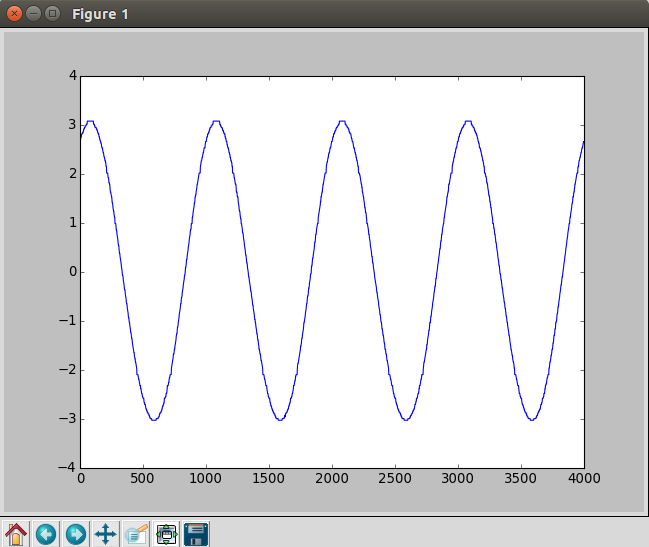
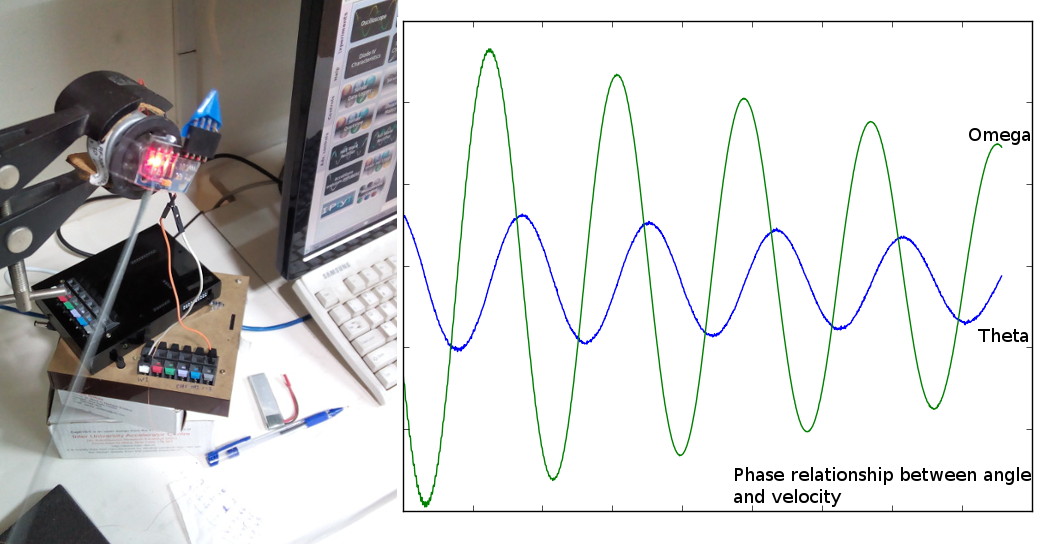
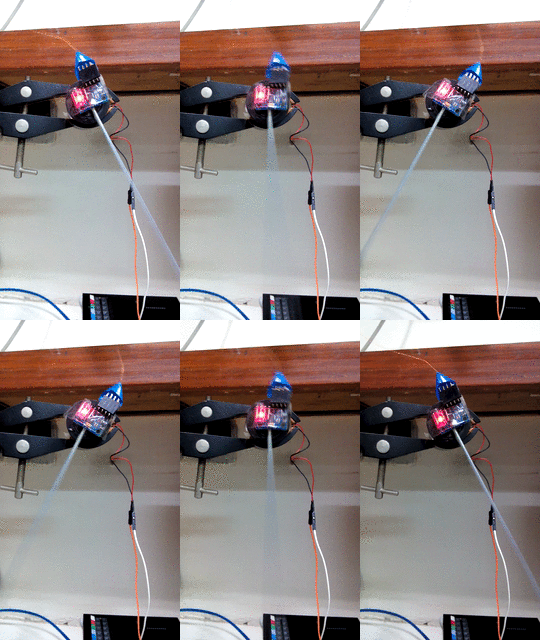
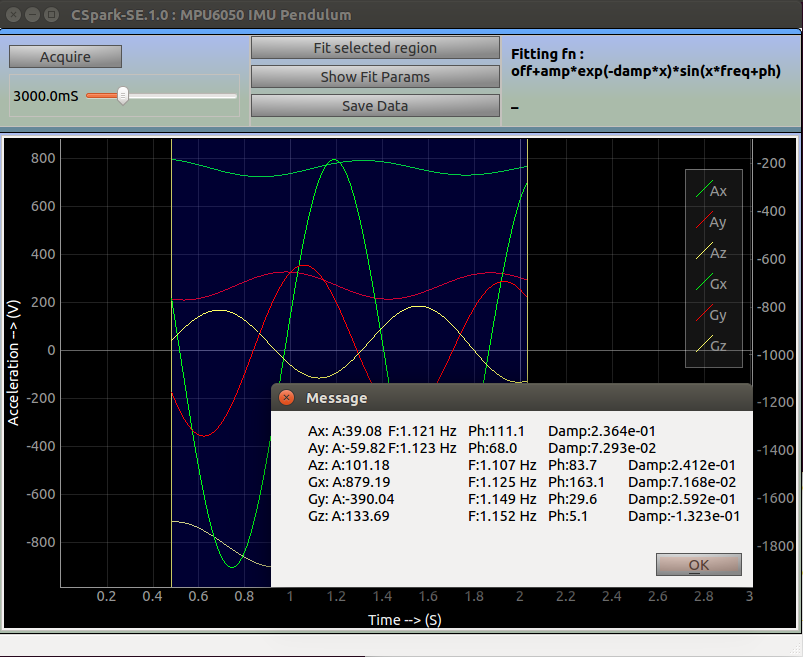
This blog post deals with the importance of using a real-time processor for acquiring time dependent data sets. The PSLab already features an oscilloscope, an instrument capable of high speed voltage measurements with accurate timestamps, and it can be used for monitoring various physical parameters such as acceleration and angular velocity as long as there exists a device that can generate a voltage output corresponding to the parameter being measured.  Such devices are called sensors, and a whole variety of these are available commercially. However, not all sensors provide an analog output that can be input to a regular oscilloscope. Many of the modern sensors use digitally encoded data which has the advantage of data integrity being preserved over long transmission pathways. A commonly used pathway is the I2C data bus, and this blog post will elaborate the challenges faced during continuous data acquisition from a PC, and will explore how a workaround can be managed by moving the complete digital acquisition process to the PSLab hardware in order create a digital equivalent of the analog oscilloscope. Precise timestamps are essential for extracting waveform parameters such as frequency and phase shifts, which can then be used for calculating physics constants such as the value of acceleration due to gravity, precession, and other resonant phenomena. As mentioned before, oscilloscopes are capable of reliably measuring such data as long as the input signal is an analog voltage, and if a digital signal needs to be recorded, a separate implementation similar to the oscilloscope must be designed for digital communication pathways. A question for the reader : Consider a voltmeter capable of making measurements at a maximum rate of one per microsecond. We would like to set it up to take a thousand readings (n=1000) with a fixed time delay(e.g. 2uS) between each successive sample in order to make it digitize an unknown input waveform. In other words, make ourselves a crude oscilloscope. Which equipment would you choose to connect this voltmeter to in order to acquire a dataset? A 3GHz i3 processor powering your favourite operating system, and executing a simple C program that takes n readings in a for loop with a delay_us(2) function call placed inside the loop. A 10MHz microcontroller , also running a minimal C program that acquires readings in fixed intervals. To the uninitiated, faster is better, ergo, the GHz range processor trumps the measly microcontroller. But, we’ve missed a crucial detail here. A regular desktop operating system multitasks between several hundred tasks at a time. Therefore, your little C program might be paused midway in order to respond to a mouse click, or a window resize on any odd chores that the cpu scheduler might feel is more important. The time after which it returns to your program and resumes acquisition is unpredictable, and is most likely of the order of a few milliseconds. The microcontroller on the other hand, is doing one thing, and one thing only. A delay_us(2) means a 2uS delay with an…

Continue ReadingTemporally accurate data acquisition via digital communication pathways in PSLab