Store data using Realm Database in SUSI.AI Android App

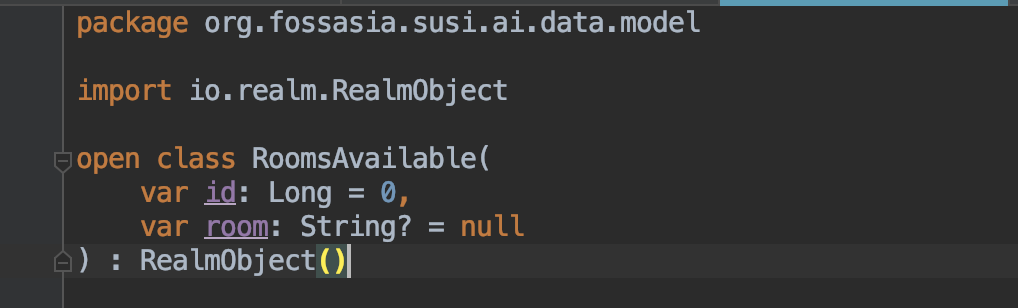
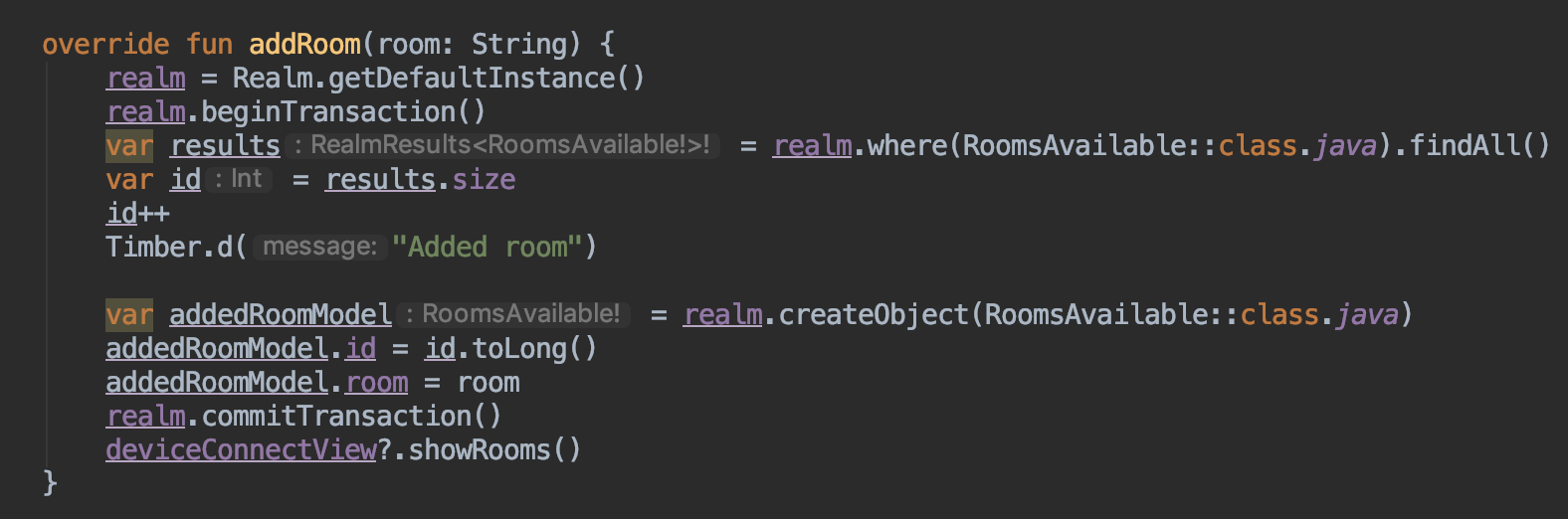
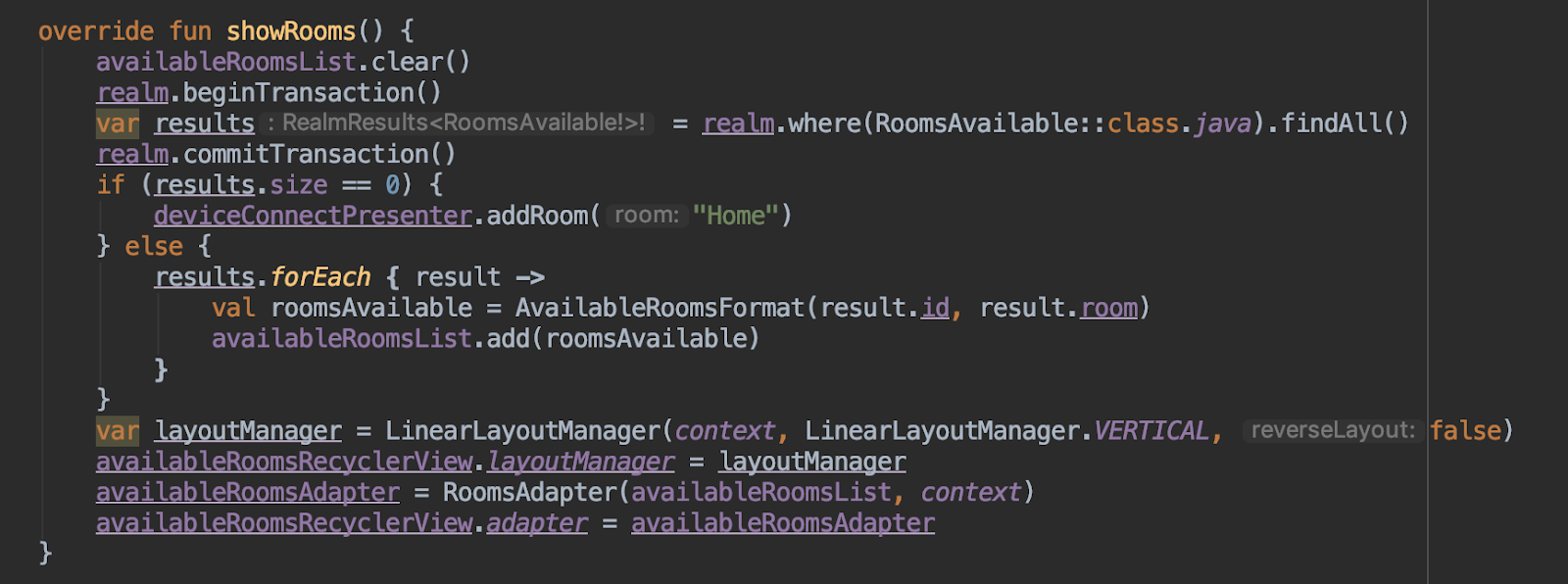
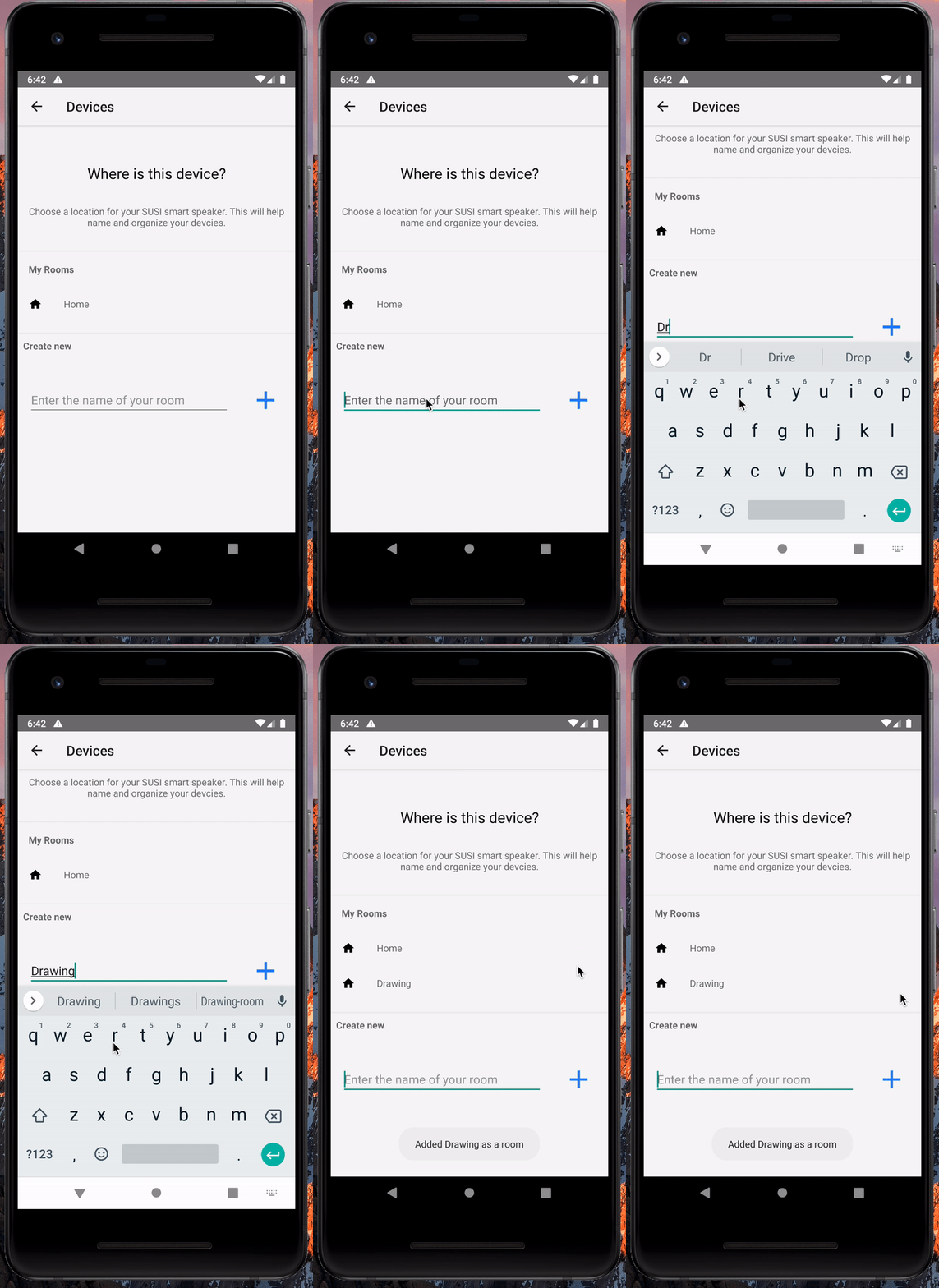
A large application always consists of some kinds of a database to keep a store of large chunks of data that it receives from the server. One such database is the Realm Database. While working on SUSI.AI app (a smart assistant open-source app) I found the necessity to store room name in the database. These room names were used while configuring SUSI Smart Speaker using the app. Let me share how I implemented this in the app. Before we proceed with the implementation, let’s go through the  prerequisites for using Realm with Android: Android Studio version 1.5.1 or higherJDK version 7.0 or higherA recent version of the Android SDKAndroid API Level 9 or higher (Android 2.3 and above) First of all, you need to add the Gradle dependency at the app level. Since we are going to do it in Kotlin, we need to add the following: Since this is a database that is used throughout the application, we have to initialize the realm in the class that extends the Application class. Once the realm is initialized, we set up a data model class. This model class contains the format of data to be stored. The model class should extend the RealmObject class. Also, the model class must use the keyword open. This makes it available for inheritance and allows it to be overridden. If we remove the open keyword here, we get an error stating: cannot inherit from the final model class.  When the realm objects are initialized at the start, the default values of the variables are declared null (Concept of Function Default  Arguments in Kotlin). Now to manipulate the database from the required files we need to create a reference to the Realm followed by getting the default instance of Realm. To commit any operation with the database, the code must be written within beginTransaction and commitTransaction blocks. Below is an example where the room name is added to the database by using the model class mentioned above. We use the above method to add data to the database. Now, if we can add data, we should be able to retrieve them too. Let's go through the code snippet to retrieve data from the database. The above snippet shows a function which extracts data from the database and stores them in an array list for displaying in a recycler view.  Now, we all went through addition, display of data in the realm database. Is that sufficient?? No, if we can add data to the database, then there also should be a way to delete the data when needed. Clearing/removing data all at once from the database is very easy and can be simply done by : Resources:  Documentation: Realm Reference: Realm Database SUSI.AI Android App: PlayStore GitHub Tags: SUSI.AI Android App, Kotlin, SUSI.AI, FOSSASIA, GSoC, Android, Realm, Database





Continue ReadingStore data using Realm Database in SUSI.AI Android App

Export Sensor Data from the PSLab Android App

The PSLab Android App allows users to log data from the sensors connected to the PSLab hardware device. Sensor Data is stored locally but can be exported in various formats. Currently the app supports exporting data in .txt and .csv (comma-separated values) format. Exported data can be used by other users or scientists to study or analyze the data. Data can also be used by other softwares like Python, GNU octave, Matlab to further process it or visualise it in 3D. In this post, we will discuss how to export the locally stored realm data in .txt or .csv format. We will take the data of MPU6050 sensor as an example for understanding how locally logged data is exported. Query Local Realm Data We have attached a long click listener to sensor list view that detects which list item is selected. Clicking any sensor from sensor list for slightly longer than usual would result in a dialog popping up with the option to Export Data: Results in exporting data in a format which is selected in App settings Share Data: Shares sensor data with other users or on social media (yet to be implemented) As soon as the Export Data option is selected from the dialog, sensor data of the corresponding sensor is queried. The data model of the sensor and how it's saved in the local realm database is discussed in the post Sensor Data Logging in the PSLab Android App. RealmResults<DataMPU6050> results = realm.where(DataMPU6050.class).findAll(); Once we get the required data, we need to write it in .txt or .csv format depending on what the user has selected as a preference in App Settings. Getting User Preference from App Settings The format in which the sensor data should be exported is presented to the user as a preference in App Settings. Currently the app supports two formats .txt and .csv. private String format; SharedPreferences preferences = PreferenceManager.getDefaultSharedPreferences(this); String formatValue = preferences.getString("export_data_format_list", "0"); if ("0".equals(formatValue))   format = "txt"; else   format = "csv"; Export Data in .txt Format To export the sensor data in .txt format, we need to create a .txt file in the external storage. folder variable is a path to PSLab Android folder in the external storage. If the folder doesn’t exist, it will be created. File folder = new File(Environment.getExternalStorageDirectory() + File.separator + "PSLab Android"); After getting reference of the app folder in the external storage, we would create a text file in the PSLab Android folder. As soon as the text file is created, we initialize the FileOutputStream object to write data into the text file. The sensor data that was queried in the previous section is written into the text file just created. Finally after the complete sensor data is written, the stream is closed by stream.close() method. FileOutputStream stream = null; File file = new File(folder, "sensorData.txt"); try {   stream = new FileOutputStream(file);   for (DataMPU6050 temp : results) {       stream.write((String.valueOf(temp.getAx()) + " " + temp.getAy() + " " + temp.getAz() + " " +               temp.getGx()…

Continue ReadingExport Sensor Data from the PSLab Android App

Sensor Data Logging in the PSLab Android App

The PSLab Android App allows users to log data from sensors connected to the PSLab hardware device. The Connected sensors should support I2C, SPI communication protocols to communicate with the PSLab device successfully. The only prerequisite is the additional support for the particular sensor plugin in Android App. The user can log data from various sensors and measure parameters like temperature, humidity, acceleration, magnetic field, etc. These parameters are useful in predicting and monitoring the environment and in performing many experiments. The support for the sensor plugins was added during the porting python communication library code to Java. In this post,  we will discuss how we logged real time sensor data from the PSLab Hardware Device. We used Realm database to store the sensor data locally. We have taken the MPU6050 sensor as an example to understand the complete process of logging sensor data. Creating Realm Object for MPU6050 Sensor Data The MPU6050 sensor gives the acceleration and gyroscope readings along the three axes X, Y and Z. So the data object storing the readings of the mpu sensor have variables to store the acceleration and gyroscope readings along all three axes. public class DataMPU6050 extends RealmObject {   private double ax, ay, az;   private double gx, gy, gz;   private double temperature;   public DataMPU6050() {  }   public DataMPU6050(double ax, double ay, double az, double gx, double gy, double gz, double temperature) {       this.ax = ax;       this.ay = ay;       this.az = az;       this.gx = gx;       this.gy = gy;       this.gz = gz;       this.temperature = temperature;   }  // getter and setter for all variables } Creating Runnable to Start/Stop Data Logging To sample the sensor data at 500ms interval, we created a runnable object and passed it to another thread which would prevent lagging of the UI thread. We can start/stop logging by changing the value of the boolean loggingThreadRunning on button click. TaskMPU6050 is an AsyncTask which reads each sample of sensor data from the PSLab device, it gets executed inside a while loop which is controlled by boolean loggingThreadRunning. Thread.sleep(500) pauses the thread for 500ms, this is also one of the reason to transfer the logging to another thread instead of logging the sensor data in UI thread. If such 500ms delays are incorporated in UI thread, app experience won’t be smooth for the users. Runnable loggingRunnable = new Runnable() {   @Override   public void run() {       try {           MPU6050 sensorMPU6050 = new MPU6050(i2c);           while (loggingThreadRunning) {               TaskMPU6050 taskMPU6050 = new TaskMPU6050(sensorMPU6050);               taskMPU6050.execute();              // use lock object to synchronize threads               Thread.sleep(500);           }       } catch (IOException   InterruptedException e) {           e.printStackTrace();       }   } }; Sampling of Sensor Data We created an AsyncTask to read each sample of the sensor data from the PSLab device in the background thread. The getRaw() method read raw values from the sensor and returned an ArrayList containing the acceleration and gyro values. After the values were read successfully, they were updated in the data card in the foreground which was visible to the user. This data card acts as a…

Continue ReadingSensor Data Logging in the PSLab Android App

