

Using NodeBuilder to instantiate node based Elasticsearch client and Visualising data
As elastic.io mentions, Elasticsearch is a distributed, RESTful search and analytics engine capable of solving a growing number of use cases. But in many setups, it is not possible to manually install an Elasticsearch node on a machine. To handle these type of scenarios, Elasticsearch provides the NodeBuilder module, which can be used to spawn Elasticsearch node programmatically. Let’s see how.
Getting Dependencies
In order to get the ES Java API, we need to add the following line to dependencies.
compile group: 'org.elasticsearch', name: 'securesm', version: '1.0'
The required packages will be fetched the next time we gradle build.
Configuring Settings
In the Elasticsearch Java API, Settings are used to configure the node(s). To create a node, we first need to define its properties.
Settings.Builder settings = new Settings.Builder();

settings.put("cluster.name", "cluster_name");  // The name of the cluster

// Configuring HTTP details
settings.put("http.enabled", "true");
settings.put("http.cors.enabled", "true");
settings.put("http.cors.allow-origin", "https?:\/\/localhost(:[0-9]+)?/");  // Allow requests from localhost
settings.put("http.port", "9200");

// Configuring TCP and host
settings.put("transport.tcp.port", "9300");
settings.put("network.host", "localhost");

// Configuring node details
settings.put("node.data", "true");
settings.put("node.master", "true");

// Configuring index
settings.put("index.number_of_shards", "8");
settings.put("index.number_of_replicas", "2");
settings.put("index.refresh_interval", "10s");
settings.put("index.max_result_window", "10000");

// Defining paths
settings.put("path.conf", "/path/to/conf/");
settings.put("path.data", "/path/to/data/");
settings.put("path.home", "/path/to/data/");

settings.build();  // Buid with the assigned configurations
There are many more settings that can be tuned in order to get desired node configuration.
Building the Node and Getting Clients
The Java API makes it very simple to launch an Elasticsearch node. This example will make use of settings that we just built.
Node elasticsearchNode = NodeBuilder.nodeBuilder().local(false).settings(settings).node();
A piece of cake. Isn’t it? Let’s get a client now, on which we can execute our queries.
Client elasticsearhClient = elasticsearchNode.client();
Shutting Down the Node
elasticsearchNode.close();
A nice implementation of using the module can be seen at ElasticsearchClient.java in the loklak project. It uses the settings from a configuration file and builds the node using it.
Visualisation using elasticsearch-head
So by now, we have an Elasticsearch client which is capable of doing all sorts of operations on the node. But how do we visualise the data that is being stored? Writing code and running it every time to check results is a lengthy thing to do and significantly slows down development/debugging cycle.
To overcome this, we have a web frontend called elasticsearch-head which lets us execute Elasticsearch queries and monitor the cluster.
To run elasticsearch-head, we first need to have grunt-cli installed –
$ sudo npm install -g grunt-cli
Next, we will clone the repository using git and install dependencies –
$ git clone git://github.com/mobz/elasticsearch-head.git
$ cd elasticsearch-head
$ npm install
Next, we simply need to run the server and go to indicated address on a web browser –
$ grunt server
At the top, enter the location at which elasticsearch-head can interact with the cluster and Connect.

Upon connecting, the dashboard appears telling about the status of cluster –
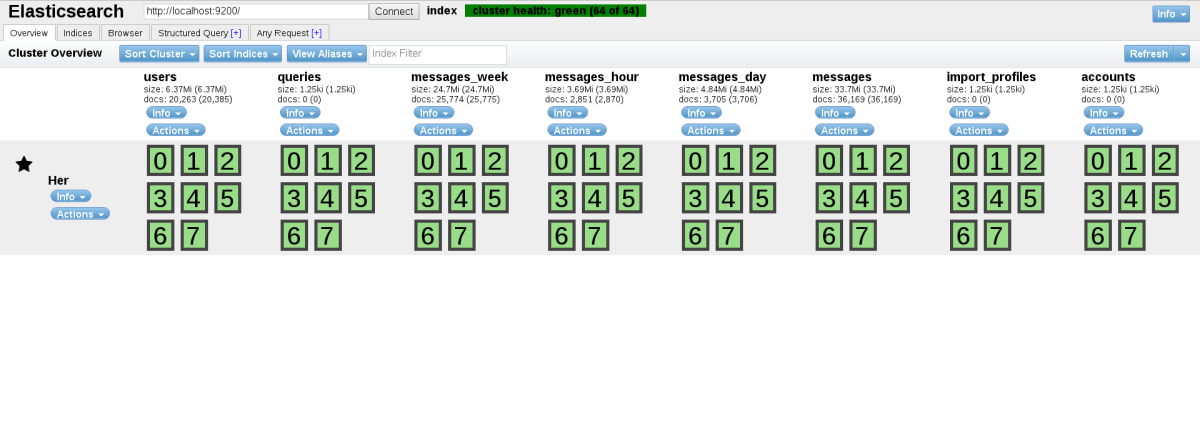
The dashboard shown above is from the loklak project (will talk more about it).
There are 5 major sections in the UI –
1. Overview: The above screenshot, gives details about the indices and shards of the cluster.
2. Index: Gives an overview of all the indices. Also allows to add new from the UI.
3. Browser: Gives a browser window for all the documents in the cluster. It looks something like this –

The left pane allows us to set the filter (index, type and field). The table listed is sortable. But we don’t always get what we are looking for manually. So, we have the following two sections.
4. Structured Query: Gives a dead simple UI that can be used to make a well structured request to Elasticsearch. This is what we need to search for to get Tweets from @gsoc that are indexed –
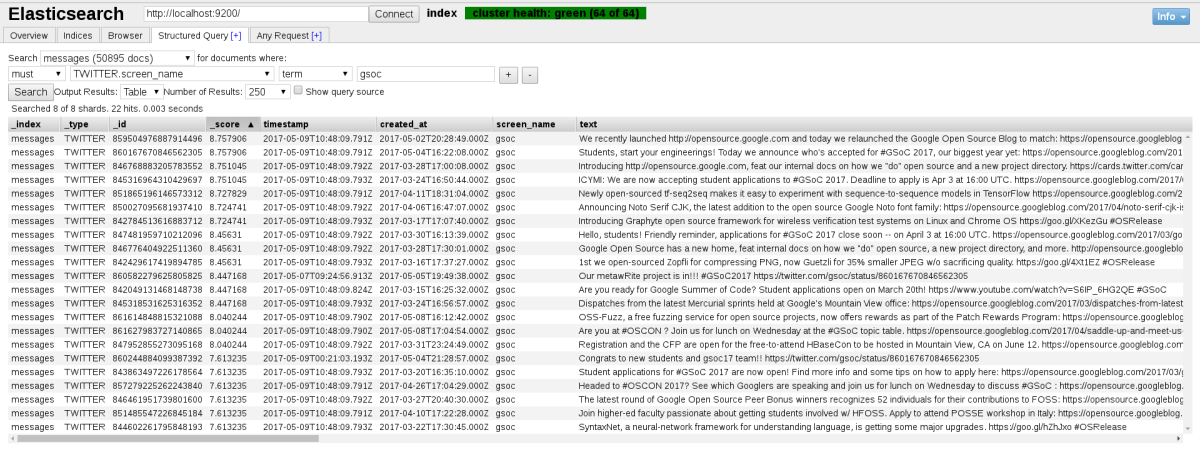
5. Any Request: Gives an advance console that allows executing any query allowable by Elasticsearch API.
A little about the loklak project and Elasticsearch
loklak is a server application which is able to collect messages from various sources, including twitter. The server contains a search index and a peer-to-peer index sharing interface. All messages are stored in an elasticsearch index.
Source: github/loklak/loklak_server
The project uses Elasticsearch to index all the data that it collects. It uses NodeBuilder to create Elasticsearch node and process the index. It is flexible enough to join an existing cluster instead of creating a new one, just by changing the configuration file.
Conclusion
This blog post tries to explain how NodeBuilder can be used to create Elasticsearch nodes and how they can be configured using Elasticsearch Settings.
It also demonstrates the installation and basic usage of elasticsearch-head, which is a great library to visualise and check queries against an Elasticsearch cluster.
The official Elasticsearch documentation is a good source of reference for its Java API and all other aspects.