Plotting Digital Logic Lines In PSLab Android App

The PSLab device offers the Logic Analyzer functionality. A Logic Analyzer is a laboratory instrument that can capture and display digital signals from a digital system or circuit. It is similar to what an oscilloscope is for analog signals and is used to study timing relationship between different logic lines. It plots the logic lines/timing diagram which tells us the information about the state of the Digital System at any instant of time. For example, in the image below we can study the states of digital signals from channels ID1, ID2, ID3 at different times and find parameters like the propagation delay. It's also used to find errors in Integrated Circuits (ICs) and debug logic circuits. How I plotted ideal logic lines using MPAndroid Chart library? Conventional method of adding data points results in the plot as illustrated in the image below. By conventional method I mean basically adding Y-axis (logic state) values corresponding to X-axis values (timestamp). In the above plot, logic lines follow non-ideal behaviour i.e they take some time in changing their state from high to low. This non-ideal behaviour of these lines increases when the user zooms in graph to analyse timestamps. Solution to how we can achieve ideal behaviour of logic lines: A better solution is to make use of timestamps for generating logic lines i.e time instants at which logic made a transition from HIGH -> LOW or LOW -> HIGH. Lets try to figure out with an example: Timestamps = { 1, 3, 5, 8, 12 } and initial state is HIGH ( i.e at t = 0, it's HIGH ). This implies that at t = 1, transition from HIGH to LOW took place so at t = 0, it's HIGH, t = 1 it's both HIGH and LOW,  at t = 2 it's LOW. Now at t = 0 & t = 2, you can simple put y = 1 and 0 respectively. But how do you add data-point for t = 1. Trick is to see how transition is taking place, if it's HIGH to LOW then add first 1 for t = 1 and then 0 for t = 1. So the set of points look something like this: ( Y, X ) ( LOGIC , TIME ) -> ( 1, 0 ) ( 1, 1 ) ( 0, 1) ( 0, 2 ) ( 0, 3 ) ( 1, 3 )  ( 1, 4 ) … Code snippet for adding coordinates in this fashion: int[] time = timeStamps.get(j); for (int i = 0; i < time.length; i++) {   if (initialState) {       // Transition from HIGH -> LOW       tempInput.add(new Entry(time[i], 1));       tempInput.add(new Entry(time[i], 0));   } else {       // Transition from LOW -> HIGH       tempInput.add(new Entry(time[i], 0));       tempInput.add(new Entry(time[i], 1));   }   // changing state variable   initialState = !initialState; } After adding data-points in above mentioned way, we obtained ideal logic lines successfully as illustrated in the image given below Resources Documentation of MPAndroid Chart library Sparkfun tutorials to learn more about…

Continue ReadingPlotting Digital Logic Lines In PSLab Android App

Expandable ListView In PSLab Android App

In the PSLab Android App, we show a list of experiments for the user to perform or refer to while performing an experiment, using PSLab hardware device. A long list of experiments need to be subdivided into topics like Electronics, Electrical, School Level, Physics, etc. In turn, each category like Electronics, Electrical, etc can have a sub-list of experiments like: Electronics Diode I-V characteristics Zener I-V characteristics Transistor related experiments Electrical Transients RLC Bode Plots Ohm's Law This list can continue in similar fashion for other categories as well. We had to  display  this experiment list to the users with a good UX, and ExpandableListView seemed the most appropriate option. ExpandableListView is a two-level listView. In the Group view an individual item can be expanded to show it's children. The Items associated with ExpandableListView come from ExpandableListAdapter.                 Implementation of Experiments List Using ExpandableListView First, the ExpandableListView was declared in the xml layout file inside some container like LinearLayout/RelativeLayout. <LinearLayout xmlns:android="http://schemas.android.com/apk/res/android"   android:layout_width="match_parent"   android:layout_height="match_parent"   android:orientation="vertical">   <ExpandableListView       android:id="@+id/saved_experiments_elv"       android:layout_width="match_parent"       android:layout_height="wrap_content"       android:divider="@color/colorPrimaryDark"       android:dividerHeight="2dp" /> </LinearLayout> Then we populated the data onto the ExpandableListView, by making an adapter for ExpandableListView by extending BaseExpandableListAdapter and implementing its methods. We then passed a Context, List<String> and Map<String,List<String>> to the Adapter constructor. Context: for inflating the layout List<String>: contains titles of unexpanded list Map<String,List<String>>: contains sub-list mapped with title string public SavedExperimentAdapter(Context context,                                 List<String> experimentGroupHeader,                                 HashMap<String, List<String>> experimentList) {       this.context = context;       this.experimentHeader = experimentGroupHeader;       this.experimentList = experimentList;   } In getGroupView() method, we inflate, set title and return group view i.e the main list that we see on clicking and the  sub-list is expanded. You can define your own layout in xml and inflate it. For PSLab Android, we used the default one provided by Android android.R.layout.simple_expandable_list_item_2 @Override public View getGroupView(int groupPosition, boolean isExpanded, View convertView, ViewGroup parent) {   String headerTitle = (String) getGroup(groupPosition);   if (convertView == null) {       LayoutInflater inflater = (LayoutInflater) this.context.getSystemService(Context.LAYOUT_INFLATER_SERVICE);       convertView = inflater.inflate(android.R.layout.simple_expandable_list_item_2, null);   }   TextView tvExperimentListHeader = (TextView) convertView.findViewById(android.R.id.text1);   tvExperimentListHeader.setTypeface(null, Typeface.BOLD);   tvExperimentListHeader.setText(headerTitle);   TextView tvTemp = (TextView) convertView.findViewById(android.R.id.text2);   tvTemp.setText(experimentDescription.get(groupPosition));   return convertView; } Similarly, in getChildView() method, we inflate, set data and return child view. We wanted simple TextView as sub-list item thus inflated the layout containing only TextView and setText by taking reference of textView from the inflated view. @Override public View getChildView(int groupPosition, int childPosition, boolean isLastChild, View convertView, ViewGroup parent) {   String experimentName = (String) getChild(groupPosition, childPosition);   if (convertView == null) {       LayoutInflater inflater = (LayoutInflater) this.context.getSystemService(Context.LAYOUT_INFLATER_SERVICE);       convertView = inflater.inflate(R.layout.experiment_list_item, null);   }   TextView tvExperimentTitle = (TextView) convertView.findViewById(R.id.exp_list_item);   tvExperimentTitle.setText(experimentName);   return convertView; } The complete code for the Adapter can be seen here. After creating the adapter we proceeded similarly to the normal ListView. Take the reference for ExpandableListView by findViewById() or BindView if you are using ButterKnife and set the adapter as an instance of adapter created above. @BindView(R.id.saved_experiments_elv) ExpandableListView experimentExpandableList; experimentAdapter = new SavedExperimentAdapter(context, headerList, map); experimentExpandableList.setAdapter(experimentAdapter); Roadmap We are planning to divide the experiment sub-list into categories like Electronics Diode Diode I-V Zener…

Continue ReadingExpandable ListView In PSLab Android App

Handling graph plots using MPAndroid chart in PSLab Android App

In PSLab Android App, we expose the Oscilloscope and Logic Analyzer functionality of PSLab hardware device. After reading data-points to plot, we need to show plot data on graphs for better understanding and visualisation. Sometimes we need to save graphs to show output/findings of the experiment. Hence we will be using MPAndroidChart library to plot and save graphs as it provides a nice and clean methods to do so. First add MPAndroid Chart as dependency in your app build.gradle to include the library dependencies { compile 'com.github.PhilJay:MPAndroidChart:v3.0.2' } For chart view in your layout file, there are many available options like Line Chart, Bar Chart, Pie Chart, etc. For this post I am going to use Line Chart. Add LineChart in your layout file <com.github.mikephil.charting.charts.LineChart        android:id="@+id/lineChart"        android:layout_width="match_parent"        android:layout_height="match_parent" /> Take a reference to LineChart of layout file in your Activity/Fragment LineChart lineChart = (LineChart) findViewById(R.id.chart);// Activity LineChart lineChart = (LineChart) view.findViewById(R.id.chart);// Fragment Now we add dataset to LineChart of layout file, I am going to add data for two curves sine and cosine function to plot sine and cosine wave on LineChart. We create two different LineDataSet one for the sine curve entries and other for the cosine curve entries. List <Entry> sinEntries = new ArrayList<>(); // List to store data-points of sine curve List <Entry> cosEntries = new ArrayList<>(); // List to store data-points of cosine curve // Obtaining data points by using Math.sin and Math.cos functions for( float i = 0; i < 7f; i += 0.02f ){ sinEntries.add(new Entry(i,(float)Math.sin(i))); cosEntries.add(new Entry(i,(float)Math.cos(i))); } List<ILineDataSet> dataSets = new ArrayList<>(); // for adding multiple plots LineDataSet sinSet = new LineDataSet(sinEntries,"sin curve"); LineDataSet cosSet = new LineDataSet(cosEntries,"cos curve"); // Adding colors to different plots cosSet.setColor(Color.GREEN); cosSet.setCircleColor(Color.GREEN); sinSet.setColor(Color.BLUE); sinSet.setCircleColor(Color.BLUE); // Adding each plot data to a List dataSets.add(sinSet); dataSets.add(cosSet); // Setting datapoints and invalidating chart to update with data points lineChart.setData(new LineData(dataSets)); lineChart.invalidate(); After adding datasets to chart and invalidating it, chart is refreshed with the data points which were added in dataset. After plotting graph output would look like the image below: You can change the dataset and invalidate chart to update it with latest dataset. To save graph plot, make sure you have permission to write to external storage, if not add it into your manifest file <manifest ...>    <uses-permission android:name="android.permission.WRITE_EXTERNAL_STORAGE" />    ... </manifest> To save the photo of chart into Gallery: lineChart.saveToGallery("title"); To save a some specific location: lineChart.saveToPath("title", "Location on SD Card"); If you want to do some resizing in chart or save two three charts in a single image, you can do so by taking out the Bitmaps and processing them to meet your requirements: lineChart.getChartBitmap(); Resources MPAndroid Chart Wiki

Continue ReadingHandling graph plots using MPAndroid chart in PSLab Android App

Packing and Unpacking Data in PSLab Android App

In PSLab we communicate with PSLab Hardware device, to exchange data, i.e we give a command or instruction and it responses accordingly. So this giving and receiving is in terms of packed byte string. Thus, we need some solid knowledge to pack and unpack data. In python communication library, there is struct module available. In JAVA we can use NIO’s ByteBuffer or implement our own functions. In this blog post I discuss both methods.   In Python we have struct module for packing data in byte strings. As different languages interpret data types differently like Java takes 4 bytes for int and C++ takes 2 bytes for int. To send and receive data properly, we pack data in a byte string and unpack on other side with it's data type properties. In PSLab, we have to communicate with device for various applications like getting calibration data during power up time as raw data doesn’t make much sense until calibration is applied on it. You also need to take care of order of sequence of bytes like there are generally two types of order in which a sequence of bytes are stored in memory location: Big - Endian: In which MSB is stored first. Little - Endian: In which LSB is stored first. In Python The standard sizes and format characters of particular data type can be seen in the image below. Format C Type Python Type Standard x Pad byte No value c char string of length 1 1 b signed char integer 1 B unsigned char integer 1 ? _Bool bool 1 h short integer 2 H unsigned short integer 2 i int integer 4 I unsigned int integer 4 l long integer 4 L unsigned long integer 4 q long long integer 8 Q unsigned long long integer 8 f float float 4 d double float 8 s char[] string p char[] string P void* integer Source: Python Docs For Packing data import struct struct.Struct("B").pack(254)   # Output ->  b'\xfe' a = struct.Struct("I").pack(2544)   # Output -> b'\xf0\t\x00\x00' Now a is the byte string that has packed value as 2544, this can be send to some device byte by byte and reconstructed on receiving side by knowing how many bytes does the data type received contains. For Unpacking data import struct struct.unpack("I",a)  # Output -> (2544,) In JAVA For Packing data Suppose you have to pack an integer, in java int takes 32 bits (4 bytes) Using JAVA’s NIO’s ByteBuffer byte[] bytes = ByteBuffer.allocate(4).putInt(2544).array(); If you want hardcore method to see what exactly is happening, use byte[] intToByteArray(int value){  return new byte[]{     (byte)value >>> 24,     (byte)value >>> 16,     (byte)value >>> 8,     (byte)value  }; } ">>>" is used for unsigned shifting, you can use according to your requirements. After you have your byte array, you can easily create a string out of it and transmit. For Unpacking data Using JAVA’s NIO’s ByteBuffer int fromByteArray(byte[] bytes){ int a = ByteBuffer.wrap(bytes).getInt(); return a; } It assumes that byte array is stored as…

Continue ReadingPacking and Unpacking Data in PSLab Android App

Environment Monitoring with PSLab

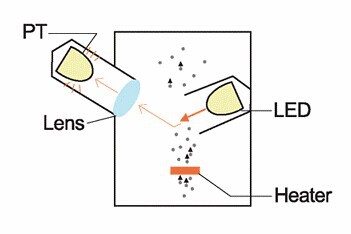
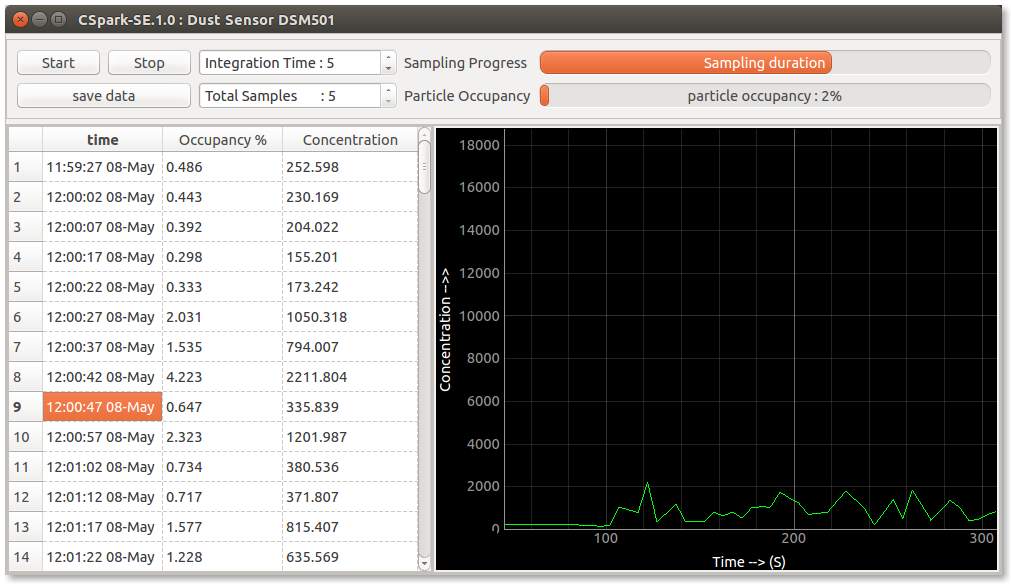
In this post, we shall explore the working principle and output signals of particulate matter sensors, and explore how the PSLab can be used as a data acquisition device for these. Working Principle A commonly used technique employed by particulate matter sensors is to study the diffraction of light by dust particles, and estimate the concentration based on a parameter termed the ‘occupancy factor’. The following image illustrates how the most elementary particle sensors work using a photogate, and a small heating element to ensure continuous air flow by convection. Occupancy Rate Each time a dust particle of aerodynamic diameters 2.5um passes through the lit area, a phenomenon called Mie scattering which defines scattering of an electromagnetic plane wave by a homogenous sphere of diameter comparable to the wavelength of incident light, results in a photo-signal to be detected by the photosensor.  In more accurate dust sensors, a single wavelength source with a high quality factor such as a laser is used instead of LEDs which typically have broader spectra. The signal output from the photosensor is in the form of intermittent digital pulses whenever a particle is detected. The occupancy ratio can be determined by measuring the sum total of time when a positive signal was output from the sensor to the total averaging time. The readings can be taken over a fairly long amount of time such as 30 seconds in order to get a more accurate representation of the occupancy ratio. Using the Logic analyzer to capture and interpret signals The PSLab has a built-in logic analyzer that can acquire data signals up to 67 seconds long at its highest sampling rate, and this period is more than sufficient to record and interpret a dataset from a dust sensor. An inexpensive dust sensor, DSM501A was chosen for the readings, and the following results were obtained Dust sensor readings from an indoor, climate controlled environment. After the 100 second mark, the windows were opened to expose the sensor to the outdoor environment. A short averaging time has resulted in large fluctuations in the readings, and therefore it is important to maintain longer averaging times for stable measurements. Recording data with a python script instead of the app The output of the dust sensor must be connected to ID1 of the PSLab, and both devices must share a common ground which is a prerequisite for exchange of DC signals. All that is required is to start the logic analyzer in single channel mode, wait for a specified averging time, and interpret the acquired data Record_dust_sensor.py from PSL import sciencelab #import the required library import time import numpy as np I = sciencelab.connect() #Create the instance I.start_one_channel_LA(channel='ID1',channel_mode=1,trigger_mode=0) #record all level changes time.sleep(30) #Wait for 30 seconds while the PSLab gathers data from the dust sensor a,_,_,_,e =I.get_LA_initial_states() #read the status of the logic analyzer raw_data =I.fetch_long_data_from_LA(a,1) #fetch number of samples available in chan #1 I.dchans[0].load_data(e,raw_data) stamps =I.dchans[0].timestamps #Obtain a copy of the timestamps if len(stamps)>2: #If more than two timestamps are…

Continue ReadingEnvironment Monitoring with PSLab

Creating Multiple Device Compatible Layouts in PSLab Android

The developer's goal is that PSLab Android App as an app should run smoothly on all the variety of Android devices out in the market. There are two aspects of it - the app should be able to support maximum number of Android versions possible which is related to the core software part and the other being the app should be able to generate the same user experience on all sizes of screens. This post focuses on the later. There are a whole range of android devices available in the market right from 4 inch mobile phones to 12 inch tablets and the range in the screen sizes is quite large. So, the challenge in front of app designers is to make the app compatible with the maximum  number of devices without doing any specific tweaks related to a particular resolution range. Android has its mechanism of scaling the app as per the screen size and it does a good job almost all the time, however, still there are cases where android fails to scale up or scale down the app leading to distorted layout of the app. This blog discusses some of the tricks that needs to be kept in mind while designing layouts that work independent of screen sizes. Avoid using absolute dimensions It is one of the most common things to keep in mind before starting any UI design. Use of absolute dimensions like px, inch etc. must be avoided every time as they are fixed in size and don’t scale up or scale down while screen sizes are changed. Instead relative dimensions like dp should be used which depend on the resolution and scale up or scale down. ( It’s a fair assumption that bigger screens will have better resolution compared to the smaller ones although exceptions do exist) . Ensure the use of correct layout/View group Since, android provides a variety of layouts like Linearlayout, Constrainedlayout, Relativelayout, Tablelayout and view groups like ScrollView, RecyclerView, ListView etc. it is often confusing to know which layout/viewgroup should be used. The following list gives a rough idea of when to use a particular layout or view group. Linearlayout - Mostly used for simple designs when the elements are stacked in ordered horizontal/vertical fashion and it needs explicit declaration of orientation. Relativelayout - Mostly used when the elements need to defined relative to the parent or the neighbouring elements. Since, the elements are relative, there is no need to define the orientation. Constraintlayout - It has all the features of Relativelayout and in addition a feature of adding constraints to the child elements or neighbouring elements. Tablelayout - Tablelayout is helpful to when all the views/widgets are arranged in an ordered fashion. All the above layouts can be used interchangeably most of the times, however, certain cases make some more favourable than others like when than views/ widgets are not present in an organised manner, it is better to stick to Linearlayout or Relativelayout. ListView - Used when the…

Continue ReadingCreating Multiple Device Compatible Layouts in PSLab Android

Using Sensors with PSLab Android App

The PSLab Android App as of now supports quite a few sensors. Sensors are an essential part of many science experiments and therefore PSLab has a feature to support plug & play sensors. The list of sensors supported by PSLab can be found here. AD7718 - 24-bit 10-channel Low voltage Low power Sigma Delta ADC AD9833 - Low Power Programmable Waveform generator ADS1115 - Low Power 16 bit ADC BH1750 - Light Intensity sensor BMP180 - Digital Pressure Sensor HMC5883L - 3-axis digital magnetometer MF522 - RFID Reader MLX90614 - Infrared thermometer MPU6050 - Accelerometer & gyroscope MPU925x - Accelerometer & gyroscope SHT21 - Humidity sensor SSD1306 - Control for LED matrix Sx1276 - Low Power Long range Transceiver TSL2561 - Digital Luminosity Sensor All the sensors except Sx1276 communicate using the I2C protocol whereas the Sx1276 uses the SPI protocol for communication. There is a dedicated set of ports on the PSLab board for the communication under the label I2C with the ports named 3.3V, GND, SCL & SDA. Fig; PSLab board sketch Any I2C sensor has ports named 3.3V/VCC, GND, SCL, SDA at least along with some other ports in some sensors. The connections are as follows: 3.3V on PSLab - 3.3V/VCC on sensor GND on PSLab - GND on sensor SCL on PSLab - SCL on sensor SDA on PSLab - SDA on sensor The diagram here shows the connections For using the sensors with the Android App, there is a dedicated I2C library written in communication in Java for the communication. Each sensor has its own specific set of functionalities and therefore has its own library file. However, all these sensors share some common features like each one of them has a getRaw method which fetches the raw sensor data. For getting the data from a sensor, the sensor is initially connected to the PSLab board. The following piece of code is responsible for detecting any devices that are connected to the PSLab board through the I2C bus. Each sensor has it’s own unique address and can be identified using it. So, the AutoScan function returns the addresses of all the connected sensors and the sensors can be uniquely identified using those addresses. public ArrayList<Integer> scan(Integer frequency) throws IOException { if (frequency == null) frequency = 100000; config(frequency); ArrayList<Integer> addresses = new ArrayList<>(); for (int i = 0; i < 128; i++) { int x = start(i, 0); if ((x & 1) == 0) { addresses.add(i); } stop(); } return addresses; }   As per the addresses fetched, the sensor library corresponding to that particular sensor can be imported and the getRaw method can be called. The getRaw method will return the raw sensor data. For example here is the getRaw method of ADS1115. public int[] getRaw() throws IOException, InterruptedException { String chan = typeSelection.get(channel); if (channel.contains("UNI")) return new int[]{(int) readADCSingleEnded(Integer.parseInt(chan))}; else if (channel.contains("DIF")) return new int[]{readADCDifferential(chan)}; return new int[0]; } Here the raw data is returned in the form of voltages in mV. Similarly, the…

Continue ReadingUsing Sensors with PSLab Android App

Creating Custom Components in the PSLab Android App

PSLab Android App supports a lot of features and each of these features need components & views for their implementation. A typical UI of PSLab is shown in the figure below. Considering the number of views & components used in the figure, implementation of each view & component separately would lead to a huge volume of repetitive and inefficient code. As it is evident that the EditText and two buttons beside it keep repeating a lot, it is wiser to create a single custom component consisting of an EditText and two buttons. This not only leads to efficient code but also results in a drastic reduction of the volume of code. Android has a feature which allows creating components. For almost all the cases, the pre-defined views in Android serve our purpose of creating the UIs. However, sometimes there is a need to create custom components to reduce code volume and improve quality. Custom components are used when a particular set of component needed by us is not present in the Android view collection or when a pattern of components is frequently repeated or when we need to reduce the code complexity. The above set can be replaced by defining a custom component which includes an edittext and two buttons and then treating it like just any other component. To get started with creating a custom component, the steps are the following: Create a layout for the custom component to be designed <?xml version="1.0" encoding="utf-8"?> <LinearLayout xmlns:android="http://schemas.android.com/apk/res/android" android:orientation="horizontal" android:layout_width="match_parent" android:layout_height="match_parent"> <Button android:id="@+id/button_control_plus" android:layout_width="0dp" android:layout_weight="0.5" android:layout_height="20dp" android:background="@drawable/button_minus" /> <EditText android:id="@+id/edittext_control" android:layout_width="0dp" android:layout_weight="2" android:layout_height="24dp" android:layout_marginTop="@dimen/control_margin_small" android:inputType="numberDecimal" android:padding="@dimen/control_edittext_padding" android:background="@drawable/control_edittext" /> <Button android:id="@+id/button_control_minus" android:layout_width="0dp" android:layout_weight="0.5" android:layout_height="20dp" android:background="@drawable/button_plus" /> </LinearLayout> The layout file edittext_control.xml is created with three views and each one of them has been assigned an ID along with all the other relevant parameters. Incorporate the newly created custom layout in the Activity/Fragment layout file <org.fossasia.pslab.others.Edittextwidget android:id="@+id/etwidget_control_advanced1" android:layout_height="wrap_content" android:layout_width="0dp" android:layout_weight="2" android:layout_marginLeft="@dimen/control_margin_small" android:layout_marginStart="@dimen/control_margin_small" /> The custom layout can be added the activity/fragment layout just like any other view and can be assigned properties similarly. Create the activity file for the custom layout public class Edittextwidget extends LinearLayout{ private EditText editText; private Button button1; private Button button2; private double leastCount; private double maxima; private double minima; public Edittextwidget(Context context, AttributeSet attrs, int defStyle) { super(context, attrs, defStyle); applyAttrs(attrs); } public Edittextwidget(Context context, AttributeSet attrs) { super(context, attrs); applyAttrs(attrs); } public Edittextwidget(Context context) { super(context); } public void init(Context context, final double leastCount, final double minima, final double maxima) { View.inflate(context, R.layout.edittext_control, this); editText = (EditText) findViewById(R.id.edittext_control); button1 = (Button) findViewById(R.id.button_control_plus); button2 = (Button) findViewById(R.id.button_control_minus); button1.setOnClickListener(new OnClickListener() { @Override public void onClick(View v) { Double data = Double.valueOf(editText.getText().toString()); data = data - leastCount; data = data > maxima ? maxima : data; data = data < minima ? minima : data; editText.setText(String.valueOf(data)); } }); button2.setOnClickListener(new OnClickListener() { @Override public void onClick(View v) { Double data = Double.valueOf(editText.getText().toString()); data = data + leastCount; data = data > maxima ? maxima : data; data = data < minima…

Continue ReadingCreating Custom Components in the PSLab Android App

Trigger Controls in Oscilloscope in PSLab

PSLab Desktop App has a feature of oscilloscope. Modern day oscilloscopes found in laboratories support a lot of advanced features and addition of trigger controls in oscilloscope was one such attempt in adding an advanced feature in the oscilloscope. As the current implementation of trigger is not robust enough, this feature would help in better stabilisation of waveforms. Captured waveforms often face the problem of distortion and trigger helps to solve this problem. Trigger in oscilloscope is an essential feature for signal characterisation.  as it synchronises the horizontal sweep of the oscilloscope to the proper point of the signal. The trigger control enables users to stabilise repetitive waveforms as well as capture single-shot waveforms. By repeatedly displaying similar portion of the input signal, the trigger makes repetitive waveform look static. In order to visualise how an oscilloscope looks with or without a trigger see the following figures below. Fig 1: (a) Without trigger  (b) With trigger The Fig:1(a) is the actual waveform received by the oscilloscope and it can be easily noticed that interpreting it is confusing due to the overlapping of multiple waveforms together. So, in Fig:1(b) the trigger control stabilises the waveforms and captures just one waveform. In general the commonly used trigger modes in laboratory oscilloscopes are:- Auto - This trigger mode allows the oscilloscope to acquire a waveform even when it does not detect a trigger condition. If no trigger condition occurs while the oscilloscope waits for a specific period (as determined by the time-base setting), it will force itself to trigger. Normal - The Normal mode allows the oscilloscope to acquire a waveform only when it is triggered. If no trigger occurs, the oscilloscope will not acquire a new waveform, and the previous waveform, if any, will remain on the display. Single - The Single mode allows the oscilloscope to acquire one waveform each time you press the RUN button, and the trigger condition is detected. Scan – The Scan mode continuously sweeps waveform from left to right. Implementing Trigger function in PSLab PSLab has a built in basic functionality of trigger control in the configure_trigger method in sciencelab.py. The method gets called when trigger is enabled in the GUI. The trigger is activated when the incoming wave reaches a certain voltage threshold and the PSLab also provides an option of either selecting the rising or falling edge for trigger. Trigger is especially useful in experiments handling waves like sine waves, square wave etc. where trigger helps to get a clear picture. In order to initiate trigger in the PSLab desktop app, the configure_trigger method in sciencelab.py is called. The configure_trigger method takes some parameters for input but they are optional. If values are not specified the default values are assumed. def configure_trigger(self, chan, name, voltage, resolution=10, **kwargs): prescaler = kwargs.get('prescaler', 0) try: self.H.__sendByte__(CP.ADC) self.H.__sendByte__(CP.CONFIGURE_TRIGGER) self.H.__sendByte__( (prescaler << 4) | (1 << chan)) if resolution == 12: level = self.analogInputSources[name].voltToCode12(voltage) level = np.clip(level, 0, 4095) else: level = self.analogInputSources[name].voltToCode10(voltage) level = np.clip(level, 0, 1023) if…

Continue ReadingTrigger Controls in Oscilloscope in PSLab

Establishing Communication between PSLab and an Android Device using the USB Host API

In this post, we are going to learn how to establish communication between the PSLab USB device and a connected Android device. We will implement our own custom read & write methods by using functions provided by USB Host API of Android SDK. At first we need to enable communication to PSLab device by connecting it to Android Phone by an On-The Go (OTG) cable. We are communicating via the USB Host API of Android. About Android USB Android supports USB peripherals through two modes: Android Accessory: In this mode external USB device acts as host. Android Host: In this mode Android Device acts as host and powers the external device. Obtaining Permission to access USB device When a USB device is connected to Android device, you need to obtain permissions to access the USB device. You have two ways, I have used intent-filter method to obtain permission in PSLab project, but you can also use the approach to implement a broadcast receiver. Option 1: Add a intent filter in the activity which would handle that connected USB device. This is an implicit way to obtain permission. <activity ...> ...    <intent-filter>        <action android:name="android.hardware.usb.action.USB_DEVICE_ATTACHED" />    </intent-filter>    <meta-data android:name="android.hardware.usb.action.USB_DEVICE_ATTACHED"        android:resource="@xml/device_filter" /> </activity> And add device details like your vendor ID and product ID in device_filter.xml <resources>    <usb-device vendor-id="1240" product-id="223" /> </resources> Now when you connect your USB device, permission dialog like below would pop up: Option 2: If you want to obtain permission explicitly, first create broadcastreceiver which would be broadcasted which you call requestPermission(). private static final String ACTION_USB_PERMISSION =    "com.android.example.USB_PERMISSION"; private final BroadcastReceiver mUsbReceiver = new BroadcastReceiver() {    public void onReceive(Context context, Intent intent) {        String action = intent.getAction();        if (ACTION_USB_PERMISSION.equals(action)) {            synchronized (this) {                UsbDevice device = (UsbDevice)intent.getParcelableExtra(UsbManager.EXTRA_DEVICE);                if (intent.getBooleanExtra(UsbManager.EXTRA_PERMISSION_GRANTED, false)) {                    if(device != null){                   }                }                else {                    Log.d(TAG, "permission denied for device " + device);                }            }        }    } }; Register this broadcastreceiver in your onCreate method of your activity. UsbManager mUsbManager = (UsbManager) getSystemService(Context.USB_SERVICE); private static final String ACTION_USB_PERMISSION =    "com.android.example.USB_PERMISSION"; ... mPermissionIntent = PendingIntent.getBroadcast(this, 0, new Intent(ACTION_USB_PERMISSION), 0); IntentFilter filter = new IntentFilter(ACTION_USB_PERMISSION); registerReceiver(mUsbReceiver, filter); And call requestPermission method to show a dialog for permission UsbDevice device; ... mUsbManager.requestPermission(device, mPermissionIntent); Now when you open your App permission dialog like shown below would pop up: Obtain Read & Write Endpoints Now that you have permission to communicate with a USB device connected. Next step is to obtain read and write Endpoints to read and write to USB device by using bulkTransfer() function. The definition of bulkTransfer() methods is int bulkTransfer (UsbEndpoint endpoint,                byte[] buffer,                int length,                int timeout) endpoint : Usb Endpoint ( the endpoint for this transaction ) buffer : byte ( buffer for data to send or receive ) length : int ( length of data to send/receive ) timeout : int ( in milliseconds, 0 is infinite ) For code to obtain read, write Endpoint through Data Interface of USB device. Open() method of PSLab can be referenced. There are two ways for communication…

Continue ReadingEstablishing Communication between PSLab and an Android Device using the USB Host API